On September 15, 2026, Meta launched the WhatsApp Business Tools MCP, a remote MCP server that lets an AI coding agent like Claude, Codex, or ChatGPT do the entire fiddly WhatsApp Business setup for you while you stay in the chat. Your agent can create your WhatsApp Business Account, add and verify your phone number over a one-time code, register it for the Cloud API, build your message templates, configure webhooks, and even send a real test message. The server lives at https://mcp.facebook.com/whatsapp_business_tools, and Meta announced it on the Meta for Developers blog through Zoë Lieberman of Meta's product marketing team.
Why is this worth five minutes of your attention? Because the old way was genuinely painful. Getting a WhatsApp Business integration running meant "moving between the Developer Console, Business Manager, the API reference, and your editor, then pasting an access token somewhere it shouldn't live," as Meta's own announcement puts it. That is a lot of clicking before you write any real code. Now you can describe what you want in plain language and watch an agent assemble the whole thing, step by step, right in front of you.
One honest caveat before the excitement carries you away: this release is built for development and testing workflows, not production sending at scale. That is Meta's wording, not mine. It is also rolling out gradually and is still in beta, so if you cannot see it yet, that is rollout, not a mistake on your end.
In short
- Meta launched the WhatsApp Business Tools MCP on September 15, 2026, announced by Zoë Lieberman on the Meta for Developers blog. It is in gradual rollout and beta.
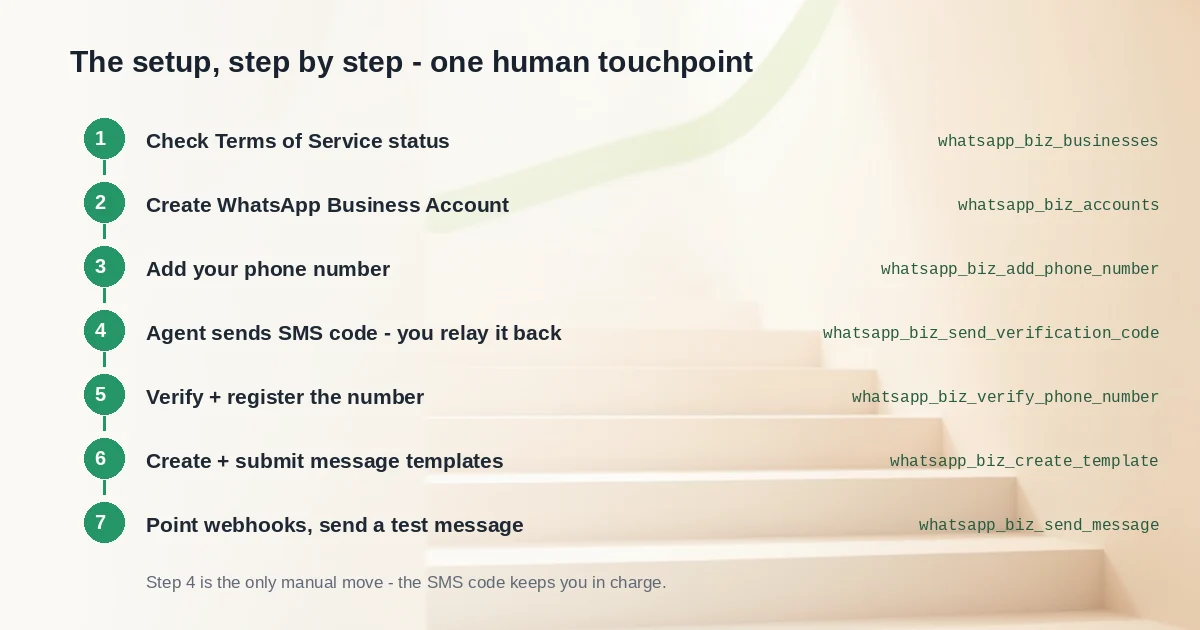
- The agent can run the full setup conversation: check your Terms of Service status, create a WhatsApp Business Account, add your phone number, verify it by one-time code, register it for the Cloud API, build templates, configure webhooks, and send test messages.
- You connect through Streamable HTTP at
https://mcp.facebook.com/whatsapp_business_toolswith OAuth via Facebook Login for Business. One-line setup commands exist for Claude Code, Claude Desktop, Codex App, and ChatGPT. - It is scoped for development and testing only, not production sending at scale, in Meta's own words.
- It complements the Meta Social Technologies MCP, which handles API discovery and troubleshooting. Install both if you need both.
What is the WhatsApp Business Tools MCP?
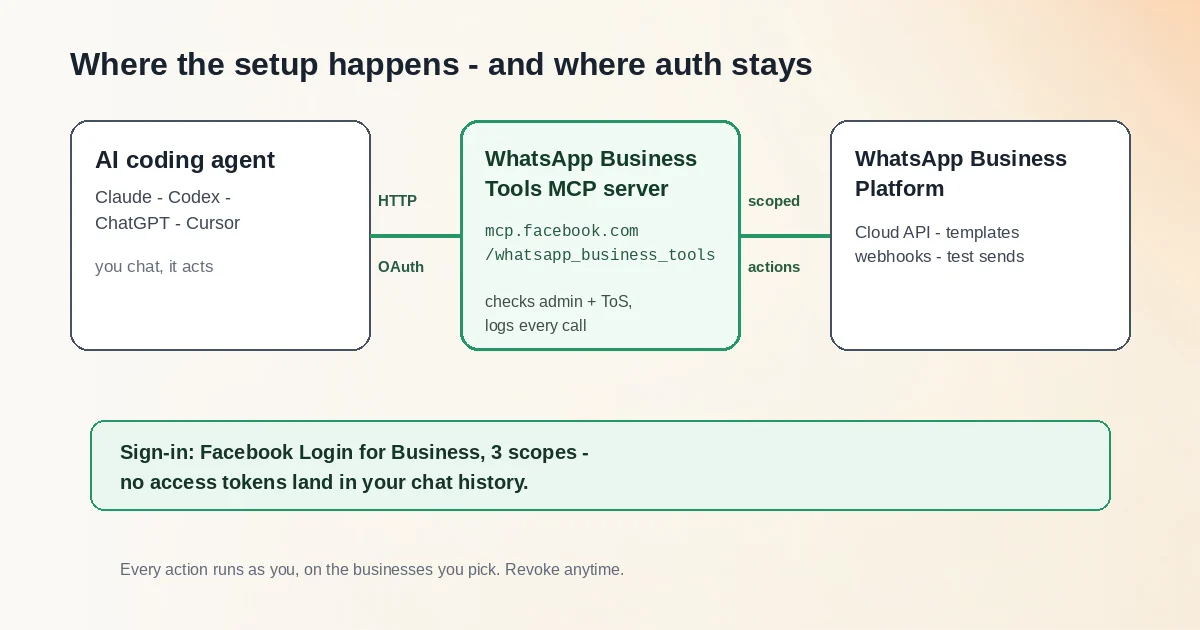
MCP stands for Model Context Protocol. It is an open standard that lets AI agents connect to external tools and data sources in a safe, standardized way. The WhatsApp Business Tools MCP is a remote MCP server that connects a service provider AI coding agent (Claude, Cursor, Codex, or ChatGPT) to the WhatsApp Business Platform, letting the agent act as you, on the apps and businesses you administer.
The connection facts are simple. The server is named WhatsApp Business Tools, it speaks over Streamable HTTP, and it lives at the endpoint https://mcp.facebook.com/whatsapp_business_tools. Authentication happens through your Meta developer account using OAuth, specifically Facebook Login for Business. That detail matters more than it sounds, because it means the login flow happens outside your chat, so no access token ever lands in your prompt history.
A small naming note, because precision builds trust: Meta's own rollout note once slipped and called this the "Meta Business Messaging MCP." The canonical name, used by the announcement title, the official tools reference, and the MCP hub, is WhatsApp Business Tools MCP. Also worth knowing: the docs were last updated September 3, 2026, and they warn that the interface and tool set are in beta and may change.
This is the same remote-MCP playbook other big platforms are adopting. When Google opened Home control to AI agents through a remote MCP server, the story was identical: a vendor exposes its platform through one authenticated endpoint so an agent can act on your behalf without you babysitting every API call. Meta is now doing that for business messaging.
What can your AI agent actually do? The 18 whatsapp_biz_ tools
The official tools reference lists 18 tools, all prefixed with whatsapp_biz_. Rather than reciting them alphabetically, here they are grouped by what you would actually do with them.
Discovery. Every session starts with whatsapp_biz_businesses, whatsapp_biz_accounts, and whatsapp_biz_phone_numbers. The agent lists the businesses you administer, you pick one, and everything after that is scoped to it.
Phone onboarding. This is the star of the show. whatsapp_biz_add_phone_number adds your number, whatsapp_biz_send_verification_code triggers the one-time code, whatsapp_biz_verify_phone_number confirms it, and whatsapp_biz_register_phone_number registers the number for sending and receiving through the Cloud API.
Templates. whatsapp_biz_list_templates, whatsapp_biz_get_template, whatsapp_biz_create_template, whatsapp_biz_update_template, and whatsapp_biz_delete_template cover the full template lifecycle, with links to track approval progress.
Messaging. whatsapp_biz_send_message sends a real message from your registered number so you can validate the integration. Free-form text only works inside the 24-hour customer service window after a customer's last message; outside that window, you need an approved template. The tool confirms the target with you before anything goes out.
Webhooks. whatsapp_biz_configure_webhooks and whatsapp_biz_subscribe_webhook handle callback URLs and field subscriptions.
Account setup. whatsapp_biz_configure_payments, whatsapp_biz_verify_business, and whatsapp_biz_system_user_token round out the set. The last one is quietly brilliant: it hands you a deep link to generate a system user access token for your own direct Cloud API integration.
There is a genuinely thoughtful touch here. Terms of Service acceptance, payment methods, and Business Verification are prerequisites that, in Meta's words, "usually fail quietly." Your agent checks them up front and deep-links you to whatever is missing, so you find out in minute one instead of after an hour of confused debugging. It is the same philosophy behind natural-language tools that assemble production workflows for you: describe the outcome, let the agent handle the plumbing, and spend your energy on what your business actually does.
How do you connect Claude, Codex, ChatGPT, or Cursor?
The setup commands come straight from Meta's docs. For Claude Code, it is one line:
claude mcp add --transport http whatsapp_business_tools https://mcp.facebook.com/whatsapp_business_tools
Then run /mcp and authenticate. For Claude Desktop, go to Settings, then Connectors, then Add custom connector. For the Codex App, head to Settings, then MCP Servers, then Add servers, and choose Streamable HTTP with OAuth. For ChatGPT, open Settings, then Plugins, then Browse plugins, and tap the plus sign.
Two practical notes. If your client only speaks stdio, the mcp-remote npm package bridges the gap. And OAuth must be re-completed whenever the client restarts, which is the fair price of keeping tokens out of your chat history.
What about Cursor? Meta lists Cursor among the supported agents, and its GA-validated client list includes both Cursor App and Cursor CLI. But the official tools reference does not include a Cursor setup snippet yet, and the announcement says the server is currently discoverable on Claude, Codex, and ChatGPT. So the honest framing is: Cursor is supported on paper, and the step-by-step for it is still on its way. The MCP hub keeps a full list of validated clients if you want to check the latest state.
How does phone number verification work with an agent in the loop?
This part is a small masterclass in good human-in-the-loop design. The flow has five steps, and one of them deliberately requires a human.
First, the agent adds your phone number with whatsapp_biz_add_phone_number. Second, it sends a one-time verification code with whatsapp_biz_send_verification_code; the docs example sends the code by SMS. Third, you receive the code on your phone and type it back into the chat. Fourth, the agent verifies the number with whatsapp_biz_verify_phone_number. Fifth, it registers the number for the Cloud API with whatsapp_biz_register_phone_number, and you are live.
One attribution note: press coverage of Meta's demo describes the code arriving by "SMS or voice." The official docs example only mentions SMS, so treat SMS as confirmed and the voice option as reported, not promised.
Here is why the human relay step is a feature, not a friction. Meta designed the server so that anything that changes state requires an authenticated person rather than an app-level credential. You are the bridge between the SMS on your phone and the agent in your editor. That means verification cannot be fully autonomous, and honestly, you would not want a phone number you own to be verifiable without you. The agent does the tedious parts, and you stay the human in the loop exactly where it counts.
How much of your Meta account does the agent actually get?
Short answer: much less than you might fear. This is not whole-account access.
When you sign in with Facebook Login for Business, the consent screen asks you to select the specific businesses and WhatsApp-enabled apps the server may touch. Most tools are then scoped to a business you administer. At consent, the server requests three OAuth scopes: business_management to discover and act on the businesses you selected, whatsapp_business_management to manage WhatsApp Business Accounts, phone numbers, templates, and webhooks, and whatsapp_business_messaging to send messages from your registered numbers.
The server also enforces prerequisites before any tool runs: you need a MANAGE (admin) role on the business, admin access to a WhatsApp-enabled app connected to it, and accepted Cloud API Terms of Service. If something is missing, you get an actionable error with a link to fix it, not a cryptic failure.
Meta's guardrails, quoted verbatim from the announcement: "You sign in with Facebook Login for Business and grant a specific set of scopes, so no tokens land in your prompt history. Before any tool runs, the server confirms you're an admin of the app, resolves the attached business, and verifies your Terms of Service are signed. Every read runs under your own viewer context, every invocation is logged, and anything that changes state requires an authenticated person rather than an app-level credential."
You keep control after consent, too. Review or revoke access anytime at facebook.com under Settings, then Business Integrations, and requests are rate limited per user per tool. Scoped consent, full logging, and instant revocability are the same governance primitives that show up in any serious agent control plane; the difference here is that Meta built them into the server itself rather than leaving you to bolt them on.
Why is it "development and testing" only?
Meta says it plainly: "This release is built for development and testing workflows, not production sending at scale." In practice, that means the MCP server is a setup, debugging, and validation accelerator, not a sending channel. You would not point your production traffic at a conversation with an AI agent, and Meta is telling you not to try.
So what do you use at production time? Your own backend, calling the Cloud API directly. And here the agent helps you one last time: whatsapp_biz_system_user_token hands you a deep link to generate a system user access token in Business Settings, which is exactly the credential your direct Cloud API integration needs. The agent builds the bridge, then hands you the keys to drive it yourself.
For context on why Meta cares so much about this space: The New Stack reported that Meta's paid messaging business has hit a roughly $2 billion annual run rate, attributing the figure to CFO Susan Li on Meta's January 2026 earnings call. That number comes from secondary coverage rather than the verified transcript, so hold it loosely, but it explains the investment. Business messaging is a serious revenue line for Meta, and making setup effortless is how you grow it.
One more thing that is genuinely unknown: pricing. Meta has not published any pricing for the MCP server itself, and it would be wrong to assume free or paid. The tool configures what you already have; whatever standard Cloud API conversation pricing applies to your sends is a separate, existing topic.
How does it fit alongside Meta Social Technologies MCP?
Meta now runs two remote MCP servers, and the announcement draws the line between them cleanly. Use Meta Social Technologies MCP (formerly Developer Tools MCP, announced June 30, 2026 and renamed August 18, 2026, with its endpoint and devtools_ tool prefix unchanged) to discover Graph API endpoints, troubleshoot errors, and search documentation. Use WhatsApp Business Tools MCP for WhatsApp accounts, phone numbers, templates, webhooks, and test messages. In Meta's words, "They're complementary; install both if you need both."
The quick decision rule for your day-to-day: if your question is about the API itself, reach for Social Technologies. If you need an action performed on your WhatsApp business assets, reach for WhatsApp Business Tools. Both servers are in gradual rollout, and both appear in the available-servers table on Meta's MCP hub.
FAQ
Is the WhatsApp Business Tools MCP available to everyone yet?
No, it is rolling out gradually and the tool set is in beta. If the endpoint or tools do not appear for you yet, that is the rollout, not a setup mistake on your end. The official docs, last updated September 3, 2026, say the interface and tool set may change during beta.
Do my access tokens end up in the agent's chat history?
No, because authentication runs through Facebook Login for Business OAuth, so no tokens land in your prompt history. The tradeoff is that you re-complete OAuth whenever the client restarts. Every invocation is logged and every read runs under your own viewer context, which is a fair exchange for the safety.
Can the MCP send messages outside the 24-hour customer service window?
Only with an approved template. Free-form text sends are limited to the 24 hours after a customer's last message, per the official tool docs, and whatsapp_biz_send_message confirms the target with you before anything goes out. That keeps test sends predictable and your account in good standing.
How do I revoke the agent's access to my business?
Go to facebook.com, then Settings, then Business Integrations, and you can review or revoke the server's access at any time. Because every action runs under your authenticated session, the tools stop working against your businesses once access is revoked. No support ticket, no waiting period.
Why is there no Cursor setup snippet in Meta's docs?
Because the official tools reference does not yet include a Cursor connection example, even though Meta lists Cursor as a supported agent with both Cursor App and Cursor CLI on its GA-validated client list. The announcement says the server is currently discoverable on Claude, Codex, and ChatGPT. If you are on Cursor today, the mcp-remote npm bridge works for stdio-only setups in the meantime. Treat the full Cursor walkthrough as coming soon rather than missing.
Does the WhatsApp Business Tools MCP cost anything?
Meta has not published any pricing for the MCP server, so do not assume free or paid. The server exists to configure what you already have. Standard Cloud API conversation pricing for your messages is a separate, existing topic with its own documentation.