
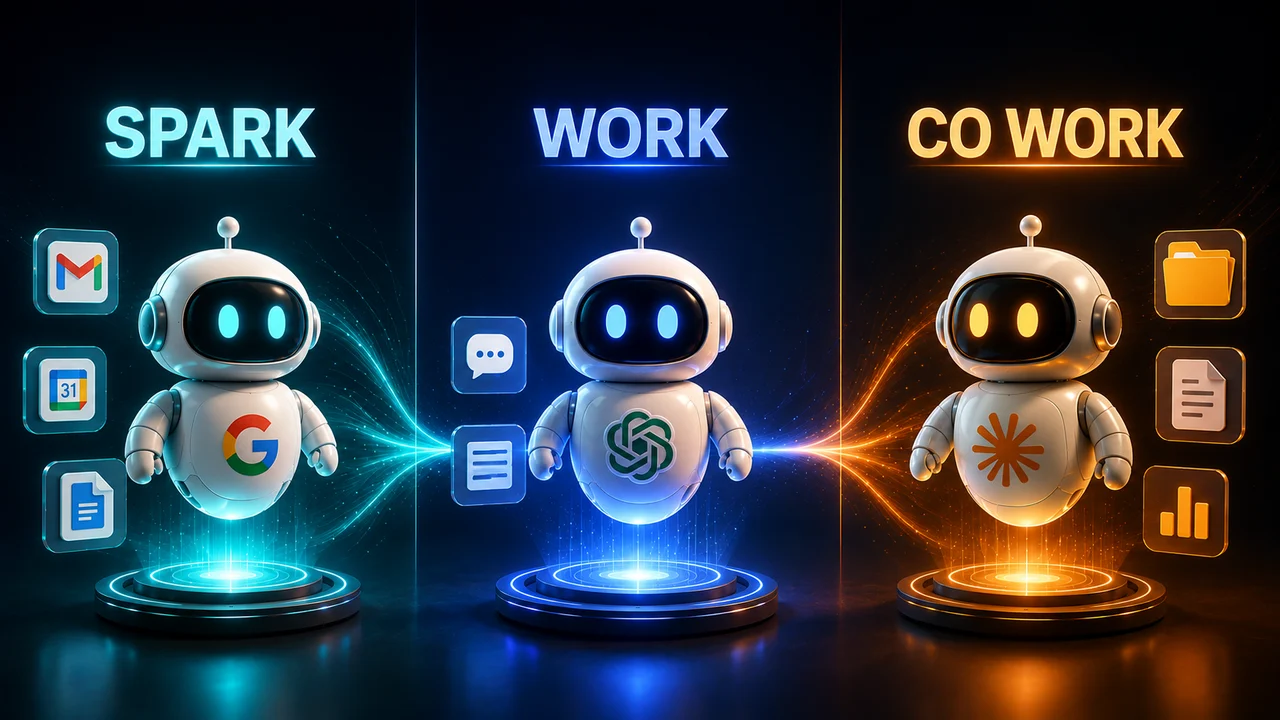
Three separate companies shipped a desktop AI agent within weeks of each other in 2026, and most people still haven't turned any of them on. Not because they're hard to use, but because nobody explained what to actually ask them to do. Here's the practical version.
Quick Answer
- Claude Cowork, ChatGPT Work, and Gemini Spark let AI work through multi-step tasks on your files, browser, or apps, not just answer questions in a chat window
- Each needs a specific plan and a few minutes of setup first
- The biggest mistake: asking a quick question instead of handing off a real task with a clear finish line
- All three still pause for your approval on sensitive actions, payments, sending messages, deleting files
What Each One Actually Is
| Claude Cowork | ChatGPT Work | Gemini Spark | |
|---|---|---|---|
| Best at | Deep file-system work, Microsoft 365 | Speed, image generation, cloud scheduling | Browsing with your real logins |
| Starting price | Pro, $20/month | Plus, $20/month (works on Free/Go too) | Google AI Pro, $20/month |
| Heavy-use tier | Max, $100–$200/month | Pro, $100–$200/month | Google AI Ultra |
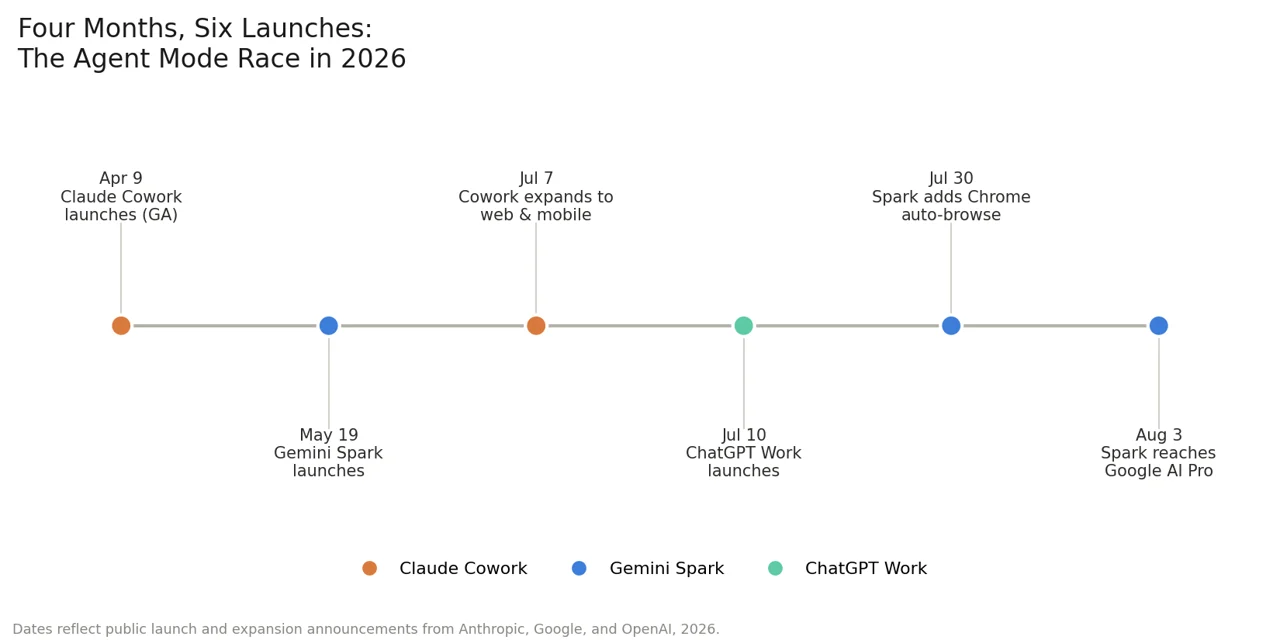
| Launched | April 9, 2026 | July 10, 2026 | May 2026, expanded through August |
| Watch for | Burns 50–100x more usage than chat | — | Chrome auto-browse is US-only for now |
Cowork points at a folder and works through it like you would, reading, editing, and reporting back, with genuinely deep file-system access. ChatGPT Work leans into running several agents on different pieces of a task at once, and can publish finished work as a hosted page. Gemini Spark's standout is Chrome auto-browse: it drives your actual browser using your saved logins, not a sandbox. Six major moves in four months, this is genuinely an arms race, not three companies casually shipping features on their own schedule.
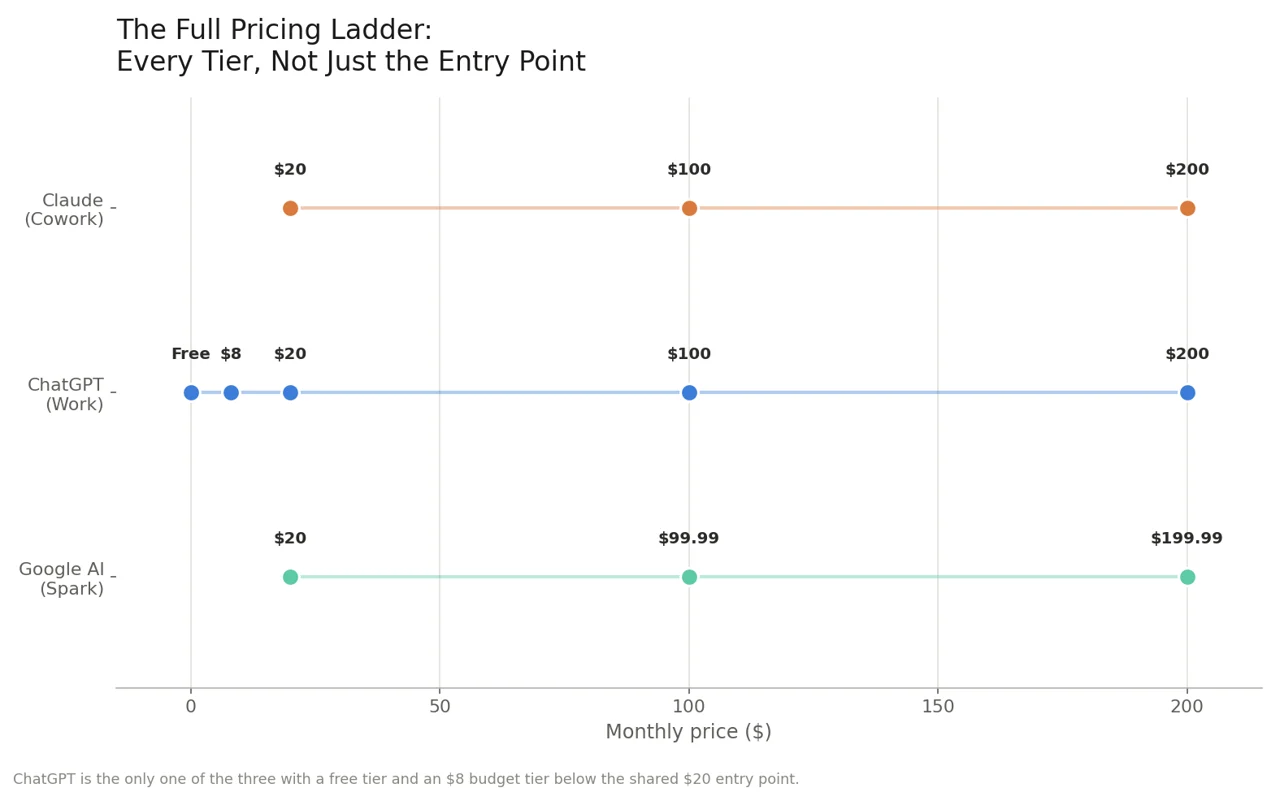
Look past the shared $20 entry point and the ladders diverge: ChatGPT is the only one with a genuine free tier and a $8 budget option before you hit that $20 mark, useful if you want to test the waters before paying anything.
How to Actually Turn Each One On
Claude Cowork
-
Requires a paid plan, Free tier doesn't include Cowork at all
-
Open Claude Desktop and point it at a specific folder, not your entire hard drive
-
Give it a real outcome to work toward, not a single-step question
-
Know before you start: a single Cowork task can burn 50–100x more usage than a normal chat message, Max is the realistic tier for daily use
ChatGPT Work
-
Rolled out to every ChatGPT plan, including Free and Go, though Plus and Pro get higher limits
-
Describe the full task upfront, including how many separate pieces it involves
-
Let it split the work into parallel agents rather than micromanaging each step
Gemini Spark
-
Requires Google AI Pro ($20/month) or Ultra
-
Turn on Chrome auto-browse in settings, Safe Browsing must be set to Standard or Enhanced Protection first
-
Watch for the small activity indicator in Chrome's toolbar whenever it's actively working
What to Actually Ask It to Do
This is the part that trips people up. A chat question and an agent task are different shapes entirely.
Don't ask: "What's a good way to organize my project files?" Do ask: "Go through this folder, group files by project, rename anything unclear, and give me a summary of what you changed."
Don't ask: "Can you help me plan a trip?" Do ask: "Research flight options for these dates, compare the three cheapest, and start the booking flow so I can review before paying."
Don't ask: "Summarize this codebase." Do ask: "Review this repository for unused functions, flag anything that looks broken, and draft the fix for the two simplest issues."
The pattern: give it a starting point, a clear finish line, and permission to take the steps in between on its own.
What Actually Sets Them Apart
- Cowork wins on depth: native file-system access, Microsoft 365 integration, and industry-specific bundles for legal, marketing, and small-business work
- ChatGPT Work wins on breadth: faster output, native image generation, and the ability to publish finished work as a hosted "Site" without leaving the app
- Spark wins on real-world access: it's the only one of the three built to use your actual logged-in accounts while browsing, not a separate sandboxed identity
Your First Task: A 5-Minute Checklist
Before you hand off anything real, run one small test task first:
-
Pick something low-stakes. Organizing a folder, drafting a first-pass email, researching one simple question
-
Scope it tightly. One folder, one topic, one clear outcome, not "handle everything"
-
Write the finish line, not just the start. "…and give me a summary of what changed" turns a vague request into a real task
-
Watch the first approval prompt closely. This tells you exactly what the tool considers risky enough to pause for
-
Review the output before trusting the next one. A good first run earns a bigger second task; a messy one tells you to scope smaller
Copy-Paste Task Templates
Skip the blank-page problem entirely, adapt one of these for your first real task:
- Inbox cleanup: "Go through my last 50 emails, flag anything needing a reply today, draft short responses to the routine ones, and summarize the rest into three categories."
- Weekly report: "Pull this week's updates from [folder/tool], write a one-page summary organized by project, and flag anything that's behind schedule."
- Competitor research: "Find the current pricing pages for [three companies], summarize the differences in a table, and note anything that changed in the last month."
- Codebase cleanup: "Scan this repository for unused imports and dead code, list what you'd remove, and fix the three safest ones."
- Meeting prep: "Look at my calendar for tomorrow, pull relevant background on each meeting from my notes, and give me a one-line briefing per meeting."
Privacy: What Each One Can Actually See
- Claude Cowork gets real file-system access to whatever folder you point it at, scope it narrowly, it can only touch what you explicitly grant
- ChatGPT Work pulls context from whatever apps you've connected, worth reviewing that connected-app list occasionally, not just setting it once and forgetting it
- Gemini Spark's Chrome auto-browse uses your actual saved logins and passwords, the most access of the three, and the one most worth reading the permission prompt on before enabling
None of these send your data to train the underlying models by default on paid plans, but "processed" and "trained on" are different things, when in doubt, check the specific privacy terms for your plan before pointing any of them at sensitive work.
Common Mistakes to Avoid
- Pointing it at too much at once. A single folder or a clearly scoped task works far better than "handle my whole inbox"
- Skipping the review step. All three tools pause for your approval before anything risky, actually read that prompt before clicking through
- Treating it like a chatbot. If you're having a back-and-forth conversation instead of handing off a task, you're not using the agent mode, you're just using regular chat
- Not checking the activity indicator. Especially with Gemini Spark's Chrome auto-browse, glance at the toolbar occasionally so you know when it's actively working versus idle
Which One Should You Actually Use?
- Choose Claude Cowork for anything file-heavy: organizing documents, working through a codebase, cleaning up a folder structure
- Choose ChatGPT Work for tasks that naturally split into parallel pieces, research across several topics, drafting multiple documents at once
- Choose Gemini Spark for anything that requires your actual logged-in accounts: booking, shopping, or filling out forms on sites you're already signed into
The Honest Verdict
None of these tools are magic, and all three still expect you to review the risky steps yourself. But the gap between "I have an AI agent" and "I actually get value from it" is almost entirely about how you phrase the task, not which company's logo is on the app. Give it a real starting point and a real finish line instead of a quick question, and the tool most people ignored for weeks starts pulling its weight within a single afternoon.