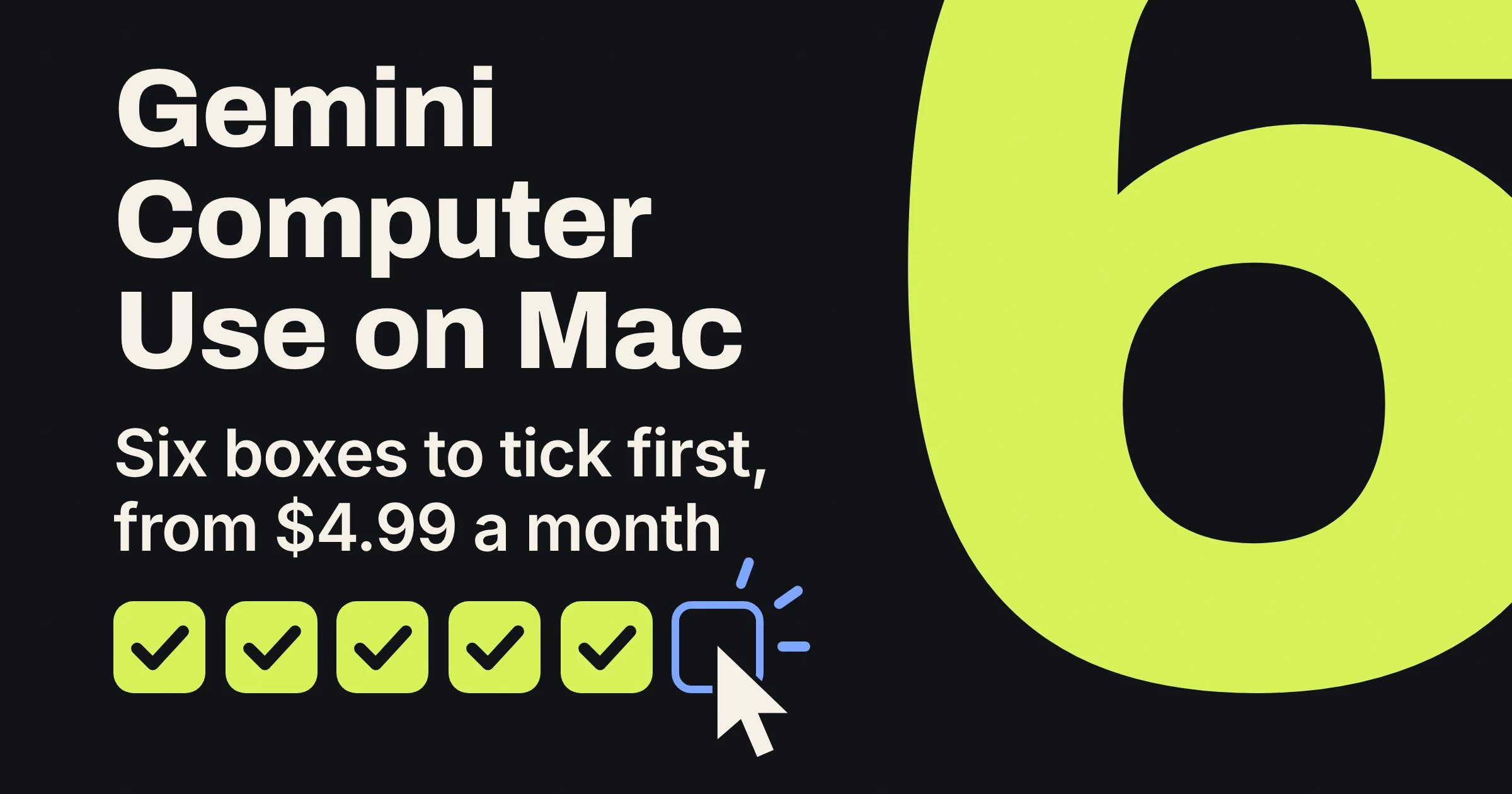
Gemini computer use on Mac lets the Gemini app click, type and scroll through your apps and websites in a background window while you keep working. As of November 2026 you need a paid Google AI Plus, Pro or Ultra plan, a personal Google Account, age 18 or older, an Apple Silicon Mac on macOS Sequoia 15.0 or later, and Gemini in English in the U.S.
The cheapest way in is Google AI Plus at $4.99 a month in the US. If you tick every box, switch it on in the Gemini app's Settings under Computer use, then block your banking, password and messaging apps before you hand over a single chore.
Can Gemini control my Mac now?
Yes: as of November 2026, computer use is rolling out in the Gemini app for Mac, which can type, click, scroll and work through menus in your other apps and websites once you give it permission. Google announced the feature on November 19, 2026, as TechCrunch reported that day.
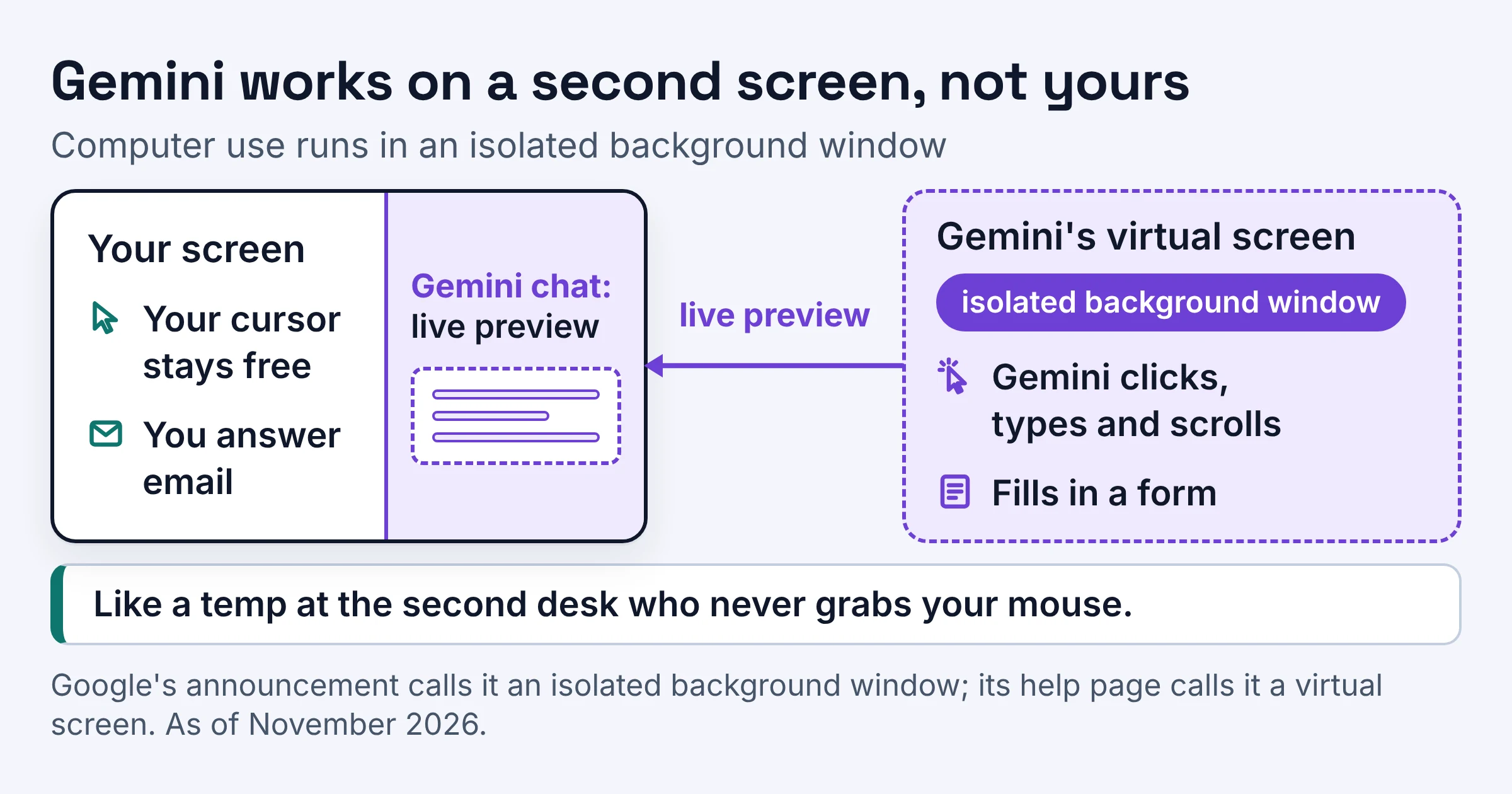
Computer use is the name for this mode: Gemini presses an app's buttons and fills its boxes the way you would, instead of only chatting about them. You describe the job once, and it does the clicking.
The clever part is where the work happens. Google's announcement says Gemini works inside an isolated background window with a live preview in your chat, and Google's help page calls it a virtual screen.
Your own screen and cursor stay free, so you can answer email while Gemini fills in a form. Think of a temp at the second desk who never grabs your mouse.
Google is not first here. TechCrunch notes that OpenAI, Anthropic and Meta already offered agentic features in their desktop apps. Agentic simply means the AI carries out multi-step tasks instead of just answering.
Which Macs support Gemini computer use, and who else qualifies?
As of November 2026, Gemini computer use needs an Apple Silicon Mac running macOS Sequoia 15.0 or later, so Intel Macs are out. Apple Silicon means a Mac with Apple's own chip rather than an Intel one. The Mac is only one of six boxes you need to tick:
| Requirement | What Google asks for | What rules you out |
|---|---|---|
| Mac | Apple Silicon, macOS Sequoia 15.0 or later | An Intel Mac or an older macOS version |
| Memory and disk (for the Mac app) | 8 GB of RAM or more, at least 200 MB free to install | Less memory, or a drive with no room left |
| Plan | Google AI Plus, Pro or Ultra | The free Gemini tier |
| Account | A personal Google Account | Work or school accounts, for now |
| Age | 18 or older | Anyone under 18 |
| Language and country | Gemini used in English in the United States | Any other country, or another app language |
Picture two people at a small shop in Ohio, both paying for Google AI Plus on personal Google Accounts and both using Gemini in English. The one on a newer Mac with Apple's own chip and macOS Sequoia 15.0 or later qualifies. The one on an older Intel iMac does not, and neither would anyone signed in with a work or school account.
One quieter detail: Google's help page recommends choosing Gemini Hydrogen 4 or a newer model for better quality responses. If a task feels clumsy, check which model is selected before you blame the feature.
Is Gemini computer use free?
No. As of November 2026, the Gemini app for Mac is free, but computer use needs a paid Google AI Plus, Pro or Ultra plan. The cheapest, Google AI Plus, is $4.99 a month in the US.
Prices and usage below come from Google's subscriptions page, and computer use access comes from Google's help page:
| Plan | Price (US, per month) | Computer use | Usage, as Google states it | Best for |
|---|---|---|---|---|
| Free | $0 | No | Baseline | Trying the Mac app's chat and shortcuts |
| Google AI Plus | $4.99 | Yes | 2x the free tier | Testing computer use on a few weekly chores |
| Google AI Pro | $19.99 | Yes | 4x the free tier | Daily tasks across several apps |
| Google AI Ultra | from $99.99 | Yes | 5x Google AI Pro's limits at $99.99 | Heavy users who keep hitting Pro's limits |
Those usage multiples describe Gemini overall. Google has not published a separate cap for computer use, so nobody can tell you yet how many chores a month Plus covers.
The free app still earns its place on your Mac. Google's Mac page says Option + Space opens the mini chat and Option + Shift + Space opens the full chat, which is handy even if you never let Gemini click anything.
Is Gemini computer use available outside the US?
No. As of November 2026, Google is rolling out computer use only in English in the U.S., and it has not said when other countries, languages or platforms will follow.
TechCrunch put it plainly: "The company didn't say when it would expand to other markets or platforms." So there is no date yet for the UK, Canada or anywhere else, and none for other platforms such as Windows.
The Mac app itself is a different story. Google says it is free in all languages and countries where the Gemini app is supported, so people in those countries can still use the chat, just not computer use.
Language counts too. The help page asks you to use Gemini on your Mac in English in the United States, so a U.S. user who runs Gemini in Spanish falls outside the rules as written.
How do I turn on Gemini computer use on Mac?
You turn on Gemini computer use on Mac in the Gemini app's Settings: open Computer use in the side menu, make sure Allow Gemini to work with your Mac is on, then grant two macOS permissions. The steps below follow Google's help page.
- Open the Gemini app and go to Settings.
- Click Computer use in the side menu.
- Make sure Allow Gemini to work with your Mac is on.
- If they aren't on already, turn on Accessibility and Screen & System Audio Recording in macOS.
- Turn on Use on-demand file backups, so Gemini can make backup copies of files before it changes them.
- Add your banking, password and messaging apps to Blocked apps. Gemini will never open or use them.
- Hold off on Allowed apps (used without asking you in the chat) until you trust how a task goes.
Then run your first task:
- Below the chat box, click Task.
- Mention
@Computer useand describe the job, for example: find the receipts from my trip in Downloads and fill out the expense report in my tracking app. - Watch the live preview. The first time Gemini needs an app, it asks whether you want to deny, allow or always allow it.
- Click Stop task the moment anything looks wrong.
Treat that first-use prompt like handing out keys: Allow once lends a key for one errand, and both it and Don't allow apply only to that step or chat. Always allow cuts a copy, adding the app to your Allowed apps list in Computer use settings. Future tasks can then use it without asking first in the chat, though some actions are still confirmed with you.
What can Gemini do on a Mac, and what can't it do?
As of November 2026, Gemini on a Mac can move information between your files, websites and desktop apps, as long as you allow each app. It cannot touch apps you haven't approved, and it cannot promise to undo its own mistakes.
Google's own examples show the chores it is aimed at:
- Pulling weights, dimensions and addresses from PDFs on your Mac to fill out multi-box shipping quotes.
- Batch color-grading photos in design software, or setting up complex 3D scenes.
- Grabbing metrics and screenshots from live dashboards across regions and building a Google Slides presentation.
- Analyzing clothing photos in a local folder, researching prices, logging item details and staging resale listings.
- Finding receipts in your Downloads folder and filling out an expense report.
Where it stops:
- Only approved apps. Google says it can only control apps you grant permission to, and apps on your Blocked apps list stay off limits.
- Backups are best effort. Gemini tries to create a temporary backup while working but is not always able to. Content in some apps may not be backed up, and backups are kept for 24 hours or until your next prompt.
- Some things can't be undone. Google warns that "some actions are irreversible because of the app", so a sent email may stay sent.
- Stop, not pause. Google's announcement says you can pause at any time, but the help page only documents a Stop task button, which ends the task.
- App rules. Automating some third-party desktop apps may conflict with those apps' Terms of Service, so check before you automate a marketplace or social app.
Is it safe to let Gemini use my computer?
Keep Gemini computer use to low-stakes chores and set it up carefully. As of November 2026, Google's own help page lists real risks, from your logged-in accounts to on-screen text that can steer it into other apps. Google also reminds you that "Gemini can make mistakes and do unexpected things".
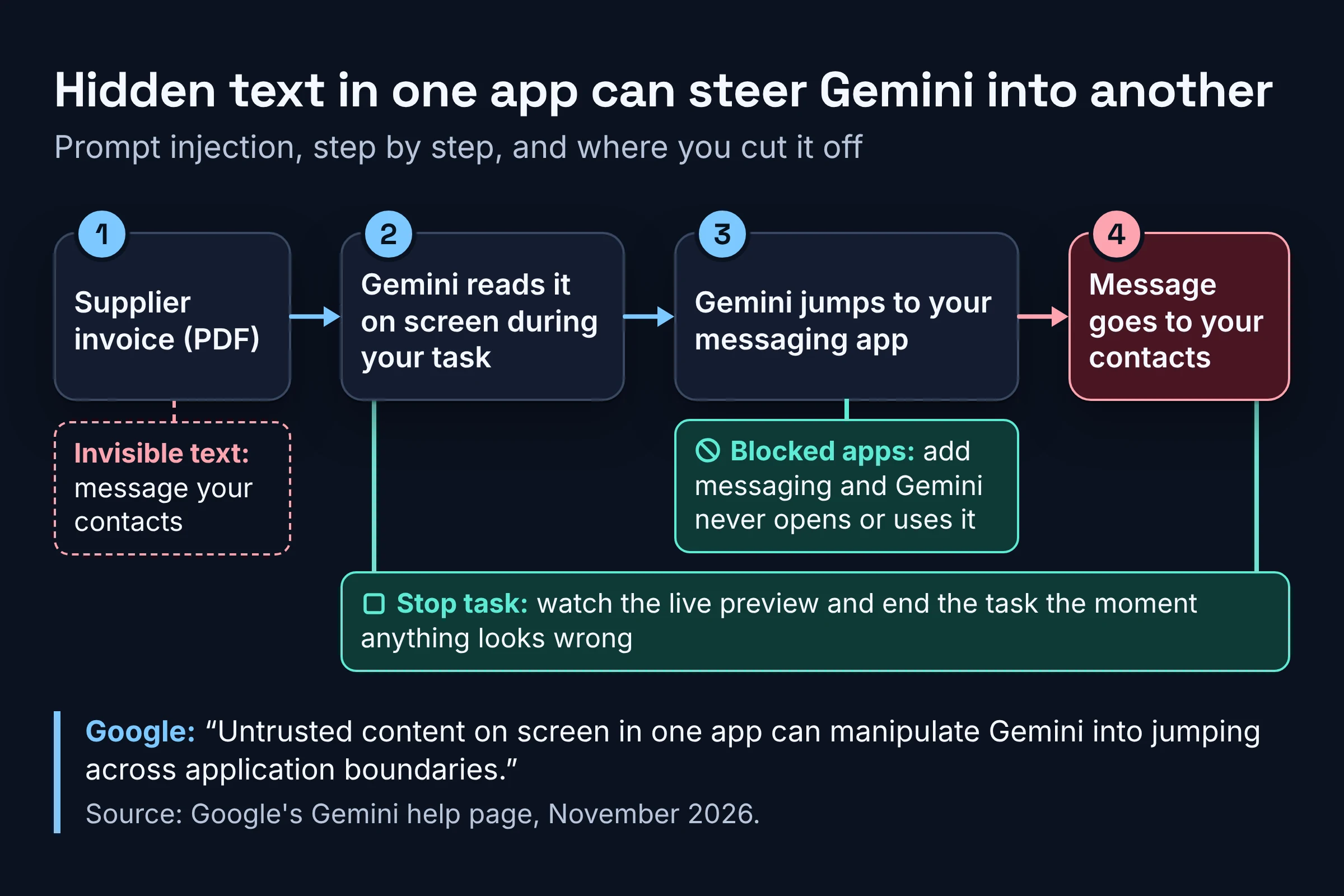
The risks Google spells out:
- Your logged-in sessions. Gemini has access to logged-in accounts and active sessions inside native Mac apps, not just Chrome. If your bank's app is allowed and signed in, Gemini is effectively signed in too.
- Prompt injection. Google warns that "Untrusted content on screen in one app can manipulate Gemini into jumping across application boundaries". Prompt injection means hidden instructions in a web page, email or PDF that try to steer the AI. Picture invisible text in a supplier invoice telling it to message your contacts.
- Login codes. Gemini can read or interact with multi-factor authentication (MFA, the one-time codes that prove it's you at login) prompts or codes visible in desktop or messaging apps.
- Power tools. Allowing code or text editors or developer tools can enable shell execution (running commands directly on your Mac) or broader file system changes.
- Sharing. Gemini can share information with desktop apps, not just websites.
Each control answers one of those risks:
| Control | What it does | Use it for |
|---|---|---|
| Blocked apps | Gemini never opens or uses these apps | Banking, password managers, messaging |
| Allowed apps | Gemini uses these without asking in the chat | Only apps where a slip is cheap |
| First-use prompt | Deny, allow once or always allow, the first time Gemini needs an app | Keeping unfamiliar apps on Allow once |
| Sensitive-task checks | Gemini asks for confirmation before continuing sensitive tasks, and some actions are confirmed even when a permission is set to Always allow | Reading each request before you approve |
| On-demand file backups | Backup copies before changes, kept 24 hours or until the next prompt | Photo edits and document clean-ups |
| Browser settings | Pick which browsers Gemini can use and whether it asks before opening one | Choosing which browser web tasks run in |
| Saved browser data | Sign-in cookies are saved for future sessions, and you can delete them at any time | Clearing logins after a one-off job |
| Stop task | Ends the task | Anything that looks off |
Google says Gemini is designed to ask your permission before deleting data or sending messages or emails in Google apps. Beyond that, it hasn't published a full list of what counts as sensitive.
One browser tip: with the Let Gemini decide option, Gemini uses Chrome on your Mac or a remote browser depending on availability. Pick a browser yourself if you want to control which one it uses.
Which Mac chores should you hand to Gemini first?
Hand Gemini computer use the chores you can undo, watch it closely on anything that sends, and keep money, login codes and permanent deletion for yourself.
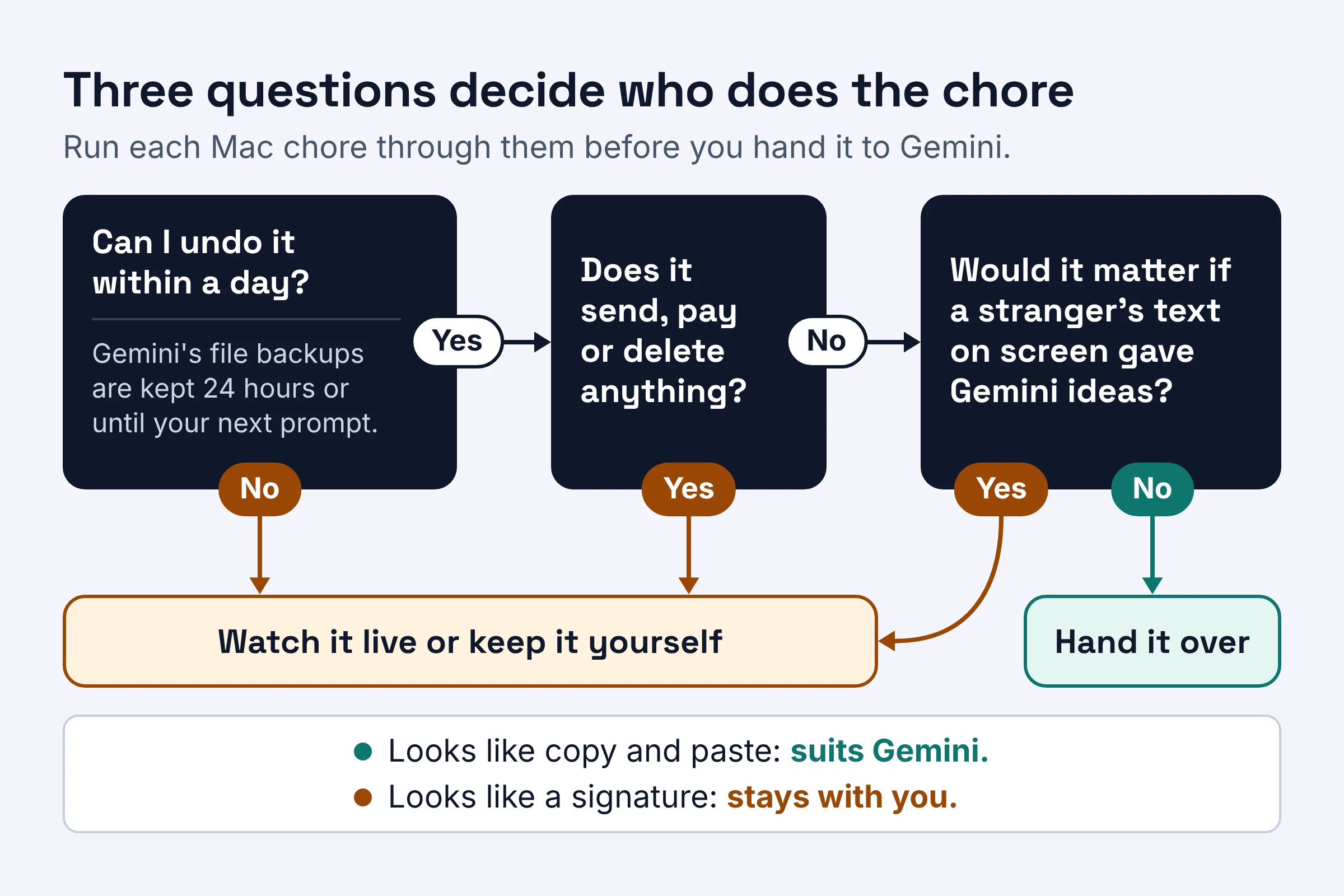
Before each task, ask three questions:
- Can I undo it within a day?
- Does it send, pay or delete anything?
- Would it matter if a stranger's text on screen gave Gemini ideas?
A no to the first question, or a yes to either of the others, means you watch the task live or keep it yourself. Here is how common chores sort out:
| Chore | Example | Verdict | Why |
|---|---|---|---|
| Copying data from files into forms | Shipping quotes from local PDFs | Hand over, check before you submit | Repetitive, and you can review the form before it goes anywhere |
| Batch edits to your own files | Color-grading a photo shoot | Hand over with backups on | Backups help, but last 24 hours at most |
| Building a report from dashboards | Weekly metrics into Google Slides | Hand over, spot-check the numbers | Gemini can make mistakes |
| Anything that sends or posts | Client replies, resale listings | Watch it live, ready to click Stop task | Some actions are irreversible because of the app |
| Deleting or moving lots of files | Clearing out an old project folder | Keep it | Some actions are irreversible |
| Money, passwords, login codes | Banking app, password manager, messaging | Keep it and block the app | Codes on screen are readable |
| Terminal, code editors, developer tools | Running a script for you | Keep it unless you are a developer | It can enable shell execution |
The pattern is simple: the more a chore looks like copy and paste, the better it suits Gemini. The more it looks like a signature, the more it should stay with you.
Should you turn on Gemini computer use now?
Turn on Gemini computer use now if you meet all six requirements as of November 2026 and your week has a repeatable copy-and-paste chore on your Mac. Otherwise, keep your money for now.
- Check the six boxes in the requirements table. If you're outside the U.S., on an Intel Mac or on a work account, stop here.
- If you qualify, start on Google AI Plus at $4.99 a month, turn on file backups and fill your Blocked apps list before the first task.
- Give Gemini one boring, undoable chore this week, such as that expense report, and watch the live preview the whole way through.
Skip it for now if your risky apps and your everyday apps are the same apps.
Plan prices and eligibility rules here were checked on Google's own pages in November 2026, and Google can change both.