
Pain point: you want a real webpage with a shareable link. Not a chat reply. Not a Google Doc. A page people can open on their phones.
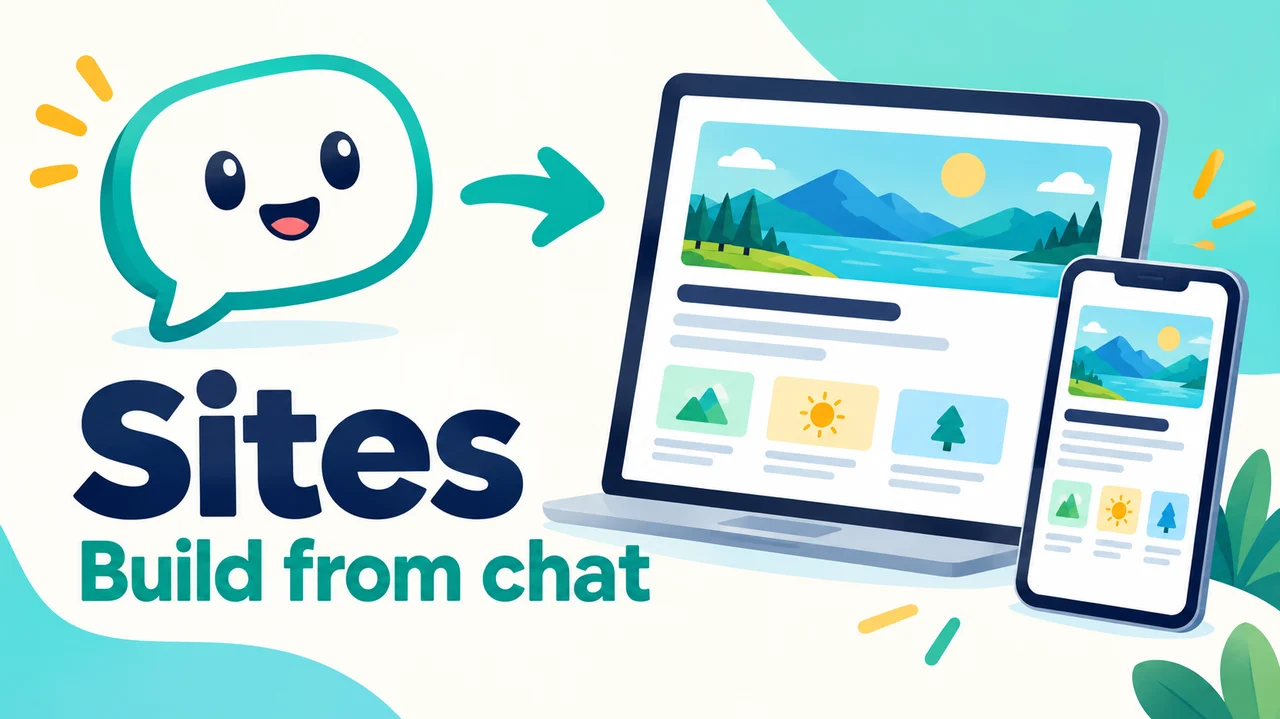
Fix: ChatGPT Sites turns a plain-English ask into a hosted website you can preview, edit, publish, and share - all inside ChatGPT.
This guide is written so a curious beginner (about age 10 and up, with an adult helping on the account) can follow along. Short steps. Fun projects. Clear safety rules.
Quick Answer
- What it is: ChatGPT builds, hosts, and shares a website or small web app for you.
- How you start: open Work in ChatGPT (web or desktop), ask for a website, or type
@Sites. - Who can use it: public beta on Plus, Pro, Business, Enterprise, and Edu. Not Free or Go. Region and workspace settings also matter.
- Safe habit: review a private preview, save a version, then deploy. Every deploy URL is live for the audience you chose.
- Best first builds: a club page, a homework helper site, or an event page.
Last checked against OpenAI Help and ChatGPT Learn Sites docs as of 13 September 2026. Beta features can change.
What ChatGPT Sites is (in plain English)
Imagine telling a friend, "Make me a webpage about our robotics club," and they hand you a link a few minutes later. That is the vibe.
ChatGPT Sites lets you describe a site in chat, see a private preview, ask for changes in normal words, then publish a hosted URL. You also choose who can open it.
You do not rent a server. You do not learn a separate deploy tool. Hosting lives inside ChatGPT. Your Site stays in a Sites list at chatgpt.com/sites (or More > Sites) even after the chat that built it ends.
Sites is not ChatGPT Projects (folders for chats and files) and not Canvas (an editing surface inside one chat). Sites is the one that gives you a live webpage address.
OpenAI's examples include dashboards, trackers, calendars, prototypes, portals, reports, lightweight apps, and games. For beginners, think "helpful mini site," not "full company product."
Who can use it
From OpenAI Help and Learn docs (public beta):
| You need | Why |
|---|---|
| Plus, Pro, Business, Enterprise, or Edu | Not available on Free or Go |
| Work on ChatGPT web, or Work / Codex in the current desktop app | Not in ChatGPT Classic |
| The feature in your region and account | At launch it was unavailable in the EEA, Switzerland, and the UK |
| Admin approval in some workspaces | Enterprise admins control Sites and public publishing |
During beta, plan-specific usage limits apply across your Sites. ChatGPT shows limits and warns you as you near them. Hitting a limit can block new Sites, extra storage, or keeping a high-usage Site public, but you can still edit existing Sites. Independent guides note there is no separate Sites fee beyond your paid plan's included usage. Check what your account shows today.
Missing Sites? Confirm plan, workspace, latest app, and (if needed) ask your admin.
10-minute first build: a club page
Minutes 0-1: open the right place
- Open chatgpt.com or the ChatGPT desktop app.
- Start Work (or Codex on desktop if you already code).
- Later you can manage Sites via More > Sites or
chatgpt.com/sites.
Minutes 1-3: paste a clear first prompt
Include the word website or @Sites.
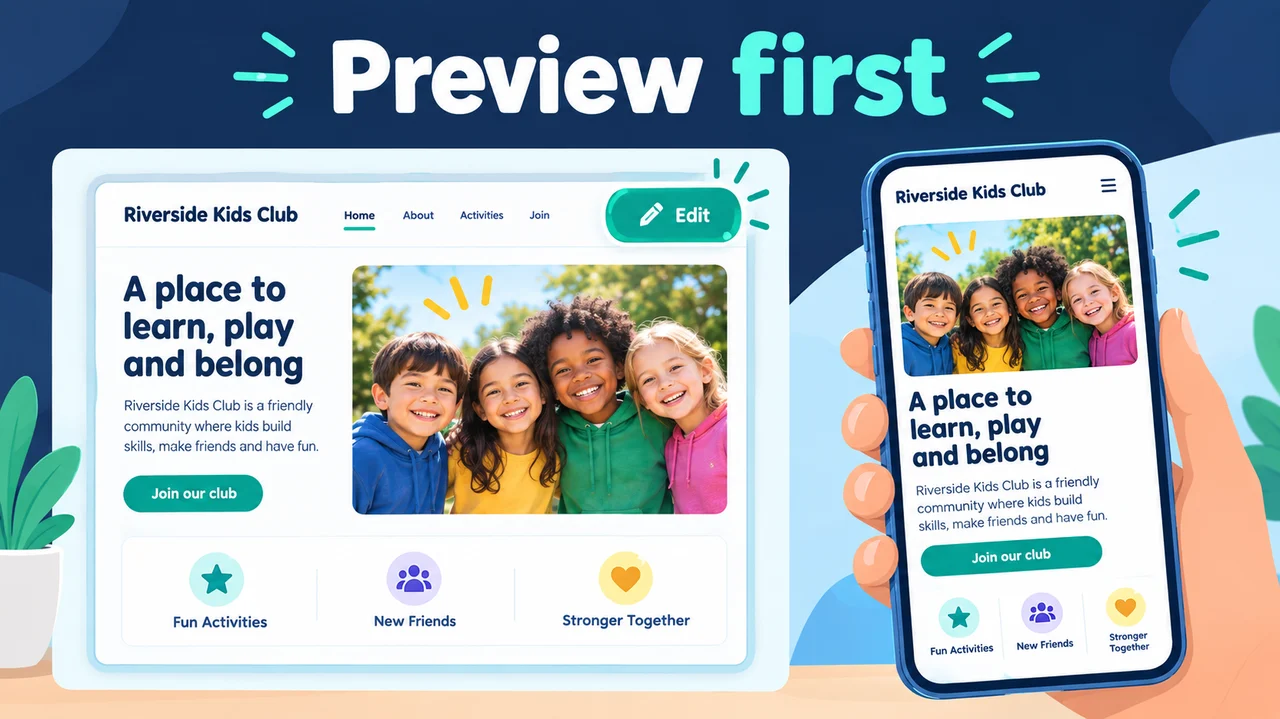
@Sites Build a simple website for the Riverside Robotics Club.

Audience: kids and parents who want club news.

Include:
- A friendly title and one-sentence welcome
- Meeting time and place
- Three upcoming events with dates
- A short FAQ (2 questions)
- A big "Join the club" button linking to a signup URL I will paste

Keep it clean, bright, and easy on phones.
Before you build, propose a simple outline and ask me 3 short questions.
Naming the audience and sections helps ChatGPT guess less.
Minutes 3-6: answer questions, then review the preview
Give real facts (room, dates, link). Open the private preview and click like a visitor: Can you find the meeting time fast? Do buttons work? Does it look okay on a phone-sized window?
Minutes 6-9: edit one change at a time
Make the welcome shorter. Move meeting time near the top. Use larger text for dates.
One request. Check. Repeat. That rhythm is the whole skill.
Minutes 9-10: save first, then share carefully
OpenAI's key rule: every deployment URL is a production URL.
Safe order:
- Ask:
Save a version but do not deploy yet. I want to review it first. - Review the saved version.
- Keep access narrow (new Sites start as owner + workspace admins).
- Publish / deploy when ready.
- Use Visit or Copy link.
Prompt recipes you can copy
Homework helper
@Sites Build a website that helps middle-school students practice fractions.

Audience: one student and a parent helper.

Include a short how-to for parents, 5 practice questions with answers behind "Show answer," and a tips box.
No personal data forms. One bright, mobile-friendly page.
Save a version without deploying when the first draft is ready.
Event or picnic page
@Sites Build a simple event website for a community picnic.

Show name, date, time, park location, what to bring, and a weather tip.
Add a map-link placeholder. Do not collect emails or phone numbers.
Festive but readable. Propose the layout first, then build.
Family chore board (private)
@Sites Build a chore tracker for a family of four.

Each chore has a name, owner, and status: To do / Doing / Done.
Keep records saved between visits. Access stays invite-only.
Big status buttons. Cheerful tone. No passwords on the page.
Handy upgrade lines
Propose an outline and ask questions before you build.Keep everything saved between visits.(only if you need memory)Save a version but do not deploy yet.Do not invent fake quotes, reviews, or contact details.
Edit, publish, and share
Edit: reopen from chat or the Sites list. Describe changes. Attach a screenshot when it helps. Save a new version before big live updates.
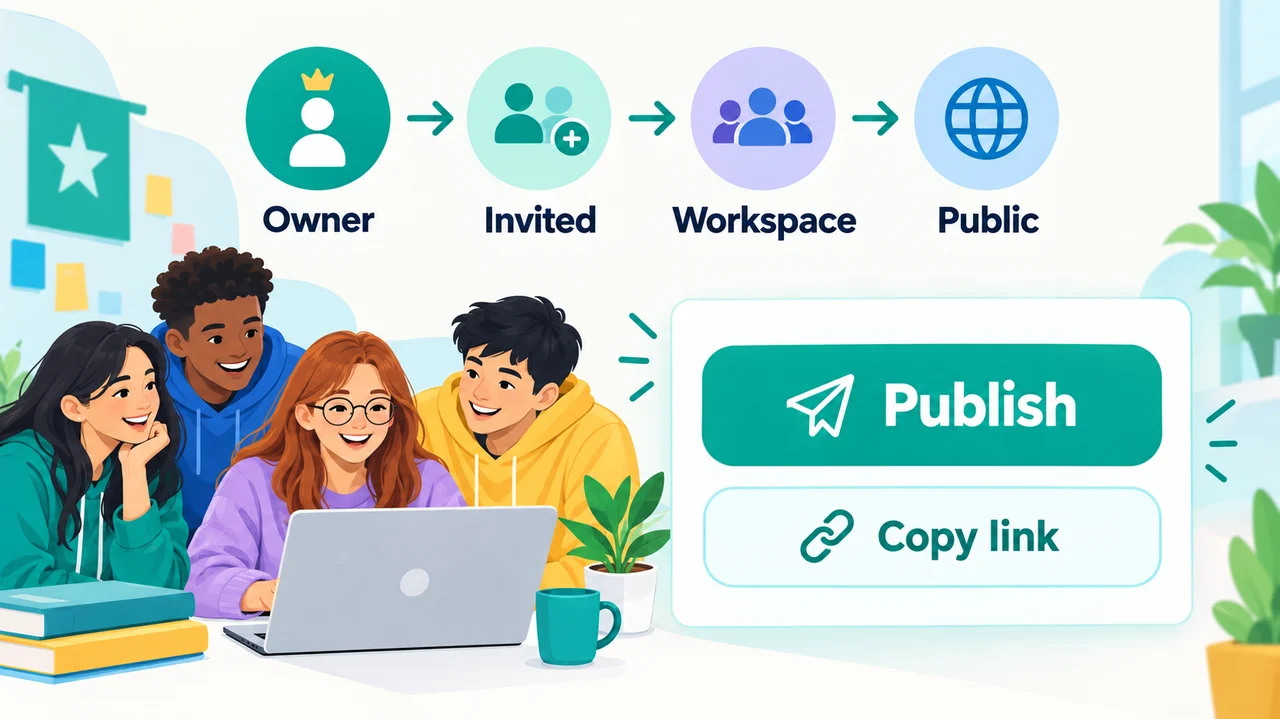
Publish: save = review candidate. Deploy = live for your chosen audience.
Share options (depend on plan and workspace):
- Owner and workspace admins (default)
- Selected people or groups
- Invited external viewers by email (rolling out on Plus, Pro, Business, Enterprise; they sign in with that account)
- Anyone in the workspace
- Anyone on the internet (only when public publishing is enabled)
Visitor access is view-only. Editing needs workspace Can edit from the owner. The owner must publish the first time before editors can publish later versions. In Enterprise, public publishing starts off until an admin enables it.
You can tighten access later or delete a Site from the Sites view. Deletion is permanent.
Fun project ideas for any age
| Idea | Who loves it | Keep it safe by... |
|---|---|---|
| Club or team page | Sports, coding, art clubs | No private member lists on public pages |
| Homework helper / quiz | Students and tutors | No real student names or grades public |
| Birthday or picnic invite | Families | Invite-only if it shows a home address |
| Pet adoption day flyer | Volunteers | Public facts only; no private phones |
| Class project museum | School groups | Adult review before public; no under-13 product targeting |
| Bake-sale hours | Kids with adults | Adult-approved info; no payment cards on Sites |
| Reading challenge tracker | Families | Private or invite-only if names are stored |
| Mini puzzle or game page | Anyone | Avoid collecting personal data |
Sites can add durable records (D1) and uploads (R2) when you ask. Beginners: start without storage. Add memory only when the Site must remember something important.
Safety tips: what not to put public
Treat a public URL like a poster on the internet.
Do not publish: home addresses or kids' private schedules; passwords or API keys (secrets belong in Site settings, not on the page); grades tied to real names; health data or payment-card data; Sites products aimed at children under 13 / under the age of digital consent; other people's photos or writing without permission; fake "official" branding.
Do: start owner-only; test as a visitor; prefer invite-only for family calendars; explain Sign in with ChatGPT if you use it; pick the narrowest audience that still works. Unsure? Keep it private and ask a parent, teacher, or admin.
Mistakes to avoid
- Deploying on try one - save, review, then deploy.
- Vague prompts like "make a cool website."
- Publishing private facts on a pretty page.
- Thinking deploy means "only me" - audience settings decide that.
- Building checkout - Sites must not enable financial transactions or process payment cards.
- Skipping a phone-size check.
- Letting ChatGPT invent testimonials or contact emails.
- Forgetting
chatgpt.com/siteswhen you need to reopen or take a Site down.
FAQ
Is ChatGPT Sites free?
No. It needs a paid plan in the supported set. It is not on Free or Go. During beta, usage sits inside plan limits shown in the product.
Do I need to code?
No for a first Site. Describe and refine in plain language. Coders can also start from a compatible local project via Codex on desktop.
Is every Site public?
No. New Sites start limited to the owner and workspace admins. Public access is a separate choice when allowed.
Save vs deploy?
Save builds a reviewable version. Deploy publishes it to the production URL for your selected audience.
Can I change the URL later?
Where available, eligible owners can change the ChatGPT-hosted URL in settings; the old address redirects. Custom domains are separate (not available in Enterprise at launch) and need a domain you already own plus DNS changes.
Keep exploring on Toolbit
- ChatGPT on Toolbit for product context beside this workflow
- AI website builders if you want other launch paths next to Sites
- Our ChatGPT Work / agent mode guide for the bigger "finish the job" habit
- Prompt tips that improve any answer to sharpen your Sites briefs
Sites shines when the job is small and clear: one audience, one page job, one careful publish. Start with a club page or homework helper. Keep it private until it feels kind and correct. Then share the link and enjoy someone opening your website.
Sources: OpenAI Help - Creating and managing ChatGPT Sites; OpenAI Help - Managing ChatGPT Sites for your workspace; ChatGPT Learn docs - Sites; OpenAI release notes on Sites; FrankX ChatGPT Sites founder guide (2026); Build Great Products ChatGPT Sites guide; Aireiter How to Use ChatGPT Sites. Verify availability inside your account before promising a public launch.