Short answer: Google Antigravity is Google's coding-agent platform. It runs on four surfaces: a desktop app, the agy CLI, extensions for existing IDEs and a Python SDK. The Individual plan costs $0 a month, with basic weekly rate limits.
What is Google Antigravity, in one answer?
Google Antigravity is an agent platform that reads your project, edits files, runs commands and drives a browser. Google released it on November 18, 2025, alongside Gemini 3. Version 2.0 shipped in May 2026 and added the desktop app, the CLI and the SDK.
The free Individual plan lists "Unlimited Tab completions" and "Unlimited Command requests" with "Basic weekly rate limits". Agent work draws on a quota that grows with your Google AI plan.
Which Antigravity surface should you use?
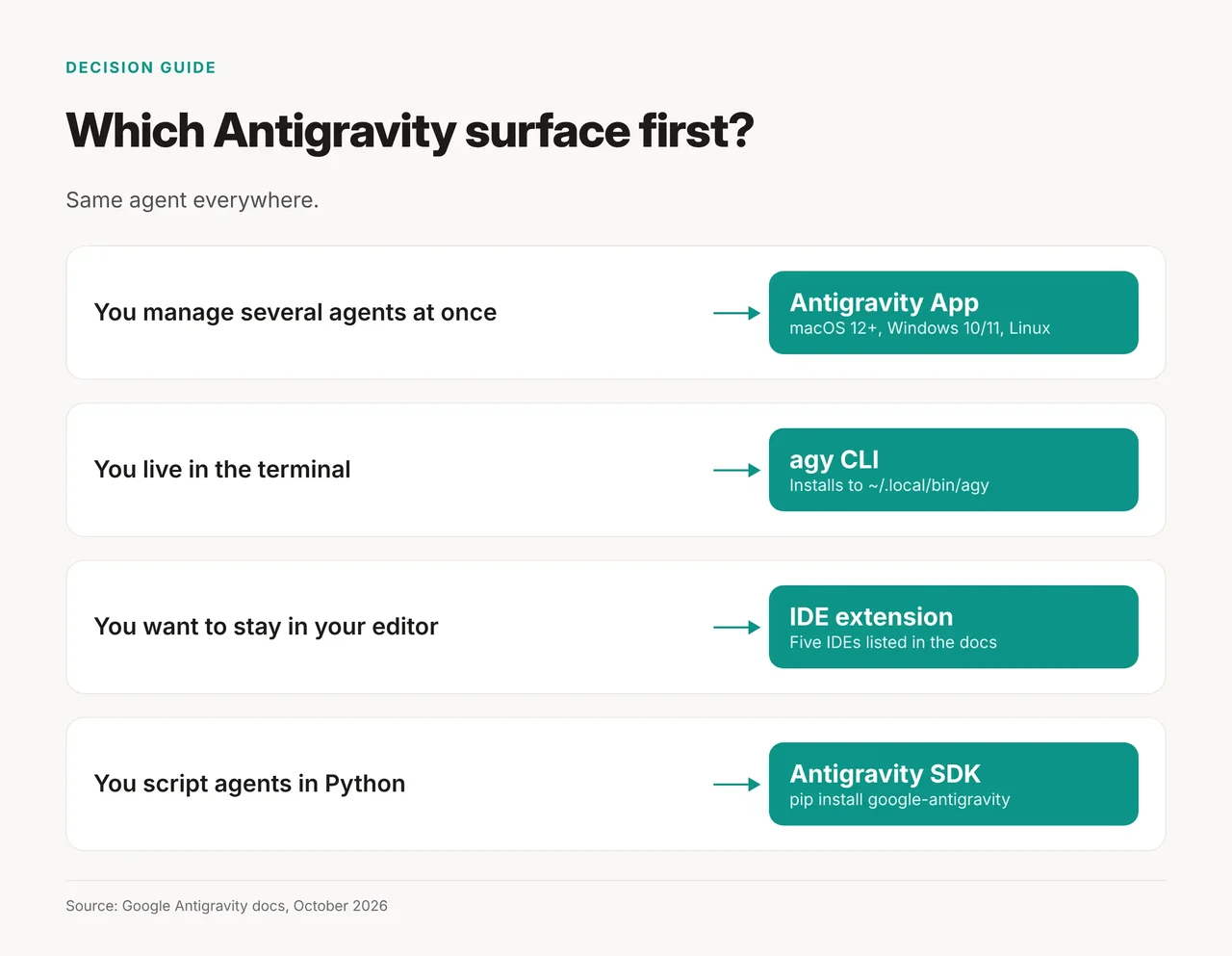
Use the surface that matches where you already work. All four run the same agent; they differ in where it lives.
| Surface | What it is | Install note |
|---|---|---|
| Antigravity App | Desktop app for running and reviewing agents | macOS 12 or later, Windows 10 or 11, Linux |
Antigravity CLI (agy) | Terminal agent | Automated installer; ~/.local/bin/agy on macOS and Linux |
| IDE extensions | The agent inside your existing editor | Five IDEs listed in the docs |
| Antigravity SDK | Python library for building agents | pip install google-antigravity, Python 3.10+ |
Antigravity IDE is the original standalone editor from the November 2025 launch. Per Wikipedia, it is not supported for enterprise as of October 2026, and Google's docs state "Gemini 4 Argon is not available in Antigravity IDE." If Argon is the reason you're here, skip that editor.
How it works: how does an Antigravity task run?
You give the agent a task, and it works inside a sandbox you control. Three docs details shape what that looks like:
- Autonomy:
/goal"runs the task autonomously until completion without pausing for intermediate input."/scheduleruns an instruction once later or on a cron schedule. - Sandbox: on macOS and Linux, terminal commands run "inside an isolated Terminal sandbox." By default it reaches only the project and temp directories, with no network. On Windows, unconfigured commands need your manual approval.
- Browser: the agent operates browser tabs, "capturing screenshots and saving action videos as interactive artifacts" you can review.
Try it in two minutes
The fastest check is the CLI, because it needs no editor setup.
- Run the automated installer from the Antigravity getting-started guide for your OS.
- Open a small project folder and run
agy. - Type
/usageto see how much of your quota is left. - Other commands in the docs include
/agents,/statuslineand/browser.
For the SDK, use a Python 3.10+ virtual environment. You set tool rules as allow, deny or ask_user policies:
python3 -m venv .venv && source .venv/bin/activate
pip install google-antigravity
What does each plan get: models and limits
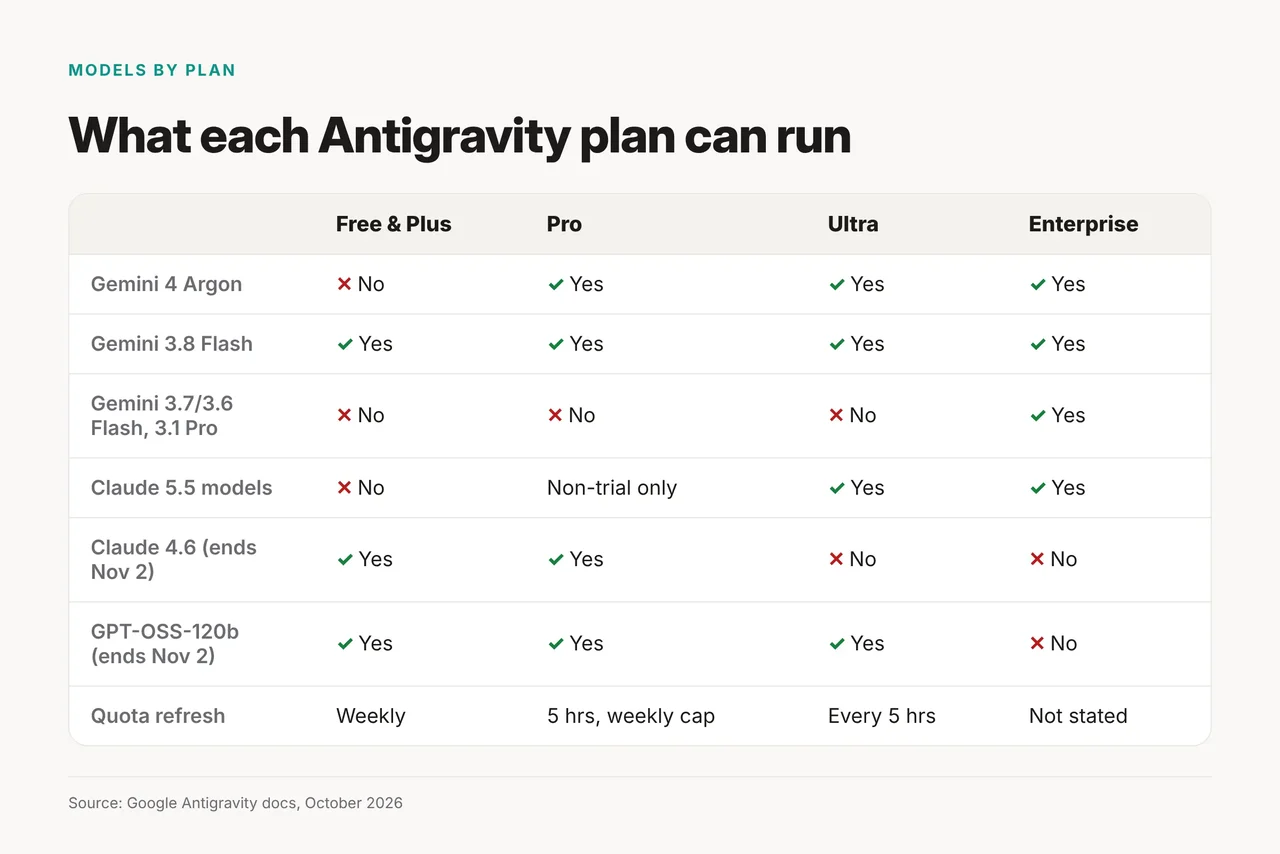
Your plan decides your models and how fast your quota comes back. This is the Antigravity models page as of October 21, 2026.
| Model | Free & Plus | Pro | Ultra | Enterprise |
|---|---|---|---|---|
| Gemini 4 Argon | No | Yes | Yes | Yes |
| Gemini 3.8 Flash | Yes | Yes | Yes | Yes |
| Gemini 3.7 Flash, 3.6 Flash, 3.1 Pro | No | No | No | Yes |
| Claude Sonnet 5.5, Opus 5.5 | No | Non-trial only | Yes | Yes |
| Claude Sonnet 4.6, Opus 4.6 | Yes | Yes | No | No |
| GPT-OSS-120b | Yes | Yes | Yes | No |
"Free & Plus" means the $0 Individual plan and Google AI Plus.
Claude Sonnet 4.6, Claude Opus 4.6 and GPT-OSS-120b "will be removed on November 2, 2026." The page names no default model. You can set thinking to "Low, Medium, or High."
Per Google's plans page, Ultra quota refreshes "every five hours", Pro every five hours "until the weekly limit is reached", and other plans weekly. Pro and Ultra users can buy AI credits above the baseline quota. Bring-your-own-key is not supported.
Prices: the Antigravity pricing page lists no price for Google AI Pro or Ultra. Business, via Google Cloud, starts at $30 per seat per month, and pay-as-you-go has a $0 seat fee. For Ultra, Wikipedia and TechCrunch report a $100 tier and a $200 top tier. TechCrunch says those give 5x and 20x the Pro plan's Antigravity limits. Treat these as secondary until Google lists them.
Don't confuse it with Gemini CLI, Cursor or Windsurf
These tools overlap with Antigravity, but they are separate products.
| Term | What it is | How it differs |
|---|---|---|
| Gemini CLI | Google's earlier terminal agent | Per Wikipedia, the Antigravity CLI replaced it for consumers |
| Gemini | Google's model family and chat app | Antigravity runs Gemini models plus Claude and GPT-OSS |
| Cursor | An AI code editor | One editor; Antigravity spans app, CLI, extensions and SDK |
| Windsurf | An AI code editor, now Devin Desktop | See our Cursor vs Windsurf test |
Decision rule: if you want one editor with its own agent, compare Cursor first. If you want the same agent in a desktop app, a terminal and Python, Antigravity covers all three.
FAQ
Is Google Antigravity free?
Yes. The Individual plan is $0 a month, with unlimited Tab completions and Command requests and basic weekly rate limits. On the free plan, agent quota refreshes weekly.
Which models are on the free plan?
Gemini 3.8 Flash, Claude Sonnet 4.6, Claude Opus 4.6 and GPT-OSS-120b. The last three leave on November 2, 2026, which leaves Gemini 3.8 Flash.
Does Google train on my code?
The FAQ says you can opt out of data collection in the Settings panel. It does not state training use and points to the Terms of Service.
Which should you install first?
Install agy if you work in a terminal, the app if you want to manage several agents, and the SDK if you are scripting. Use an IDE extension if you want the agent inside your current editor. Then run /usage and decide on a plan after a week of real work.