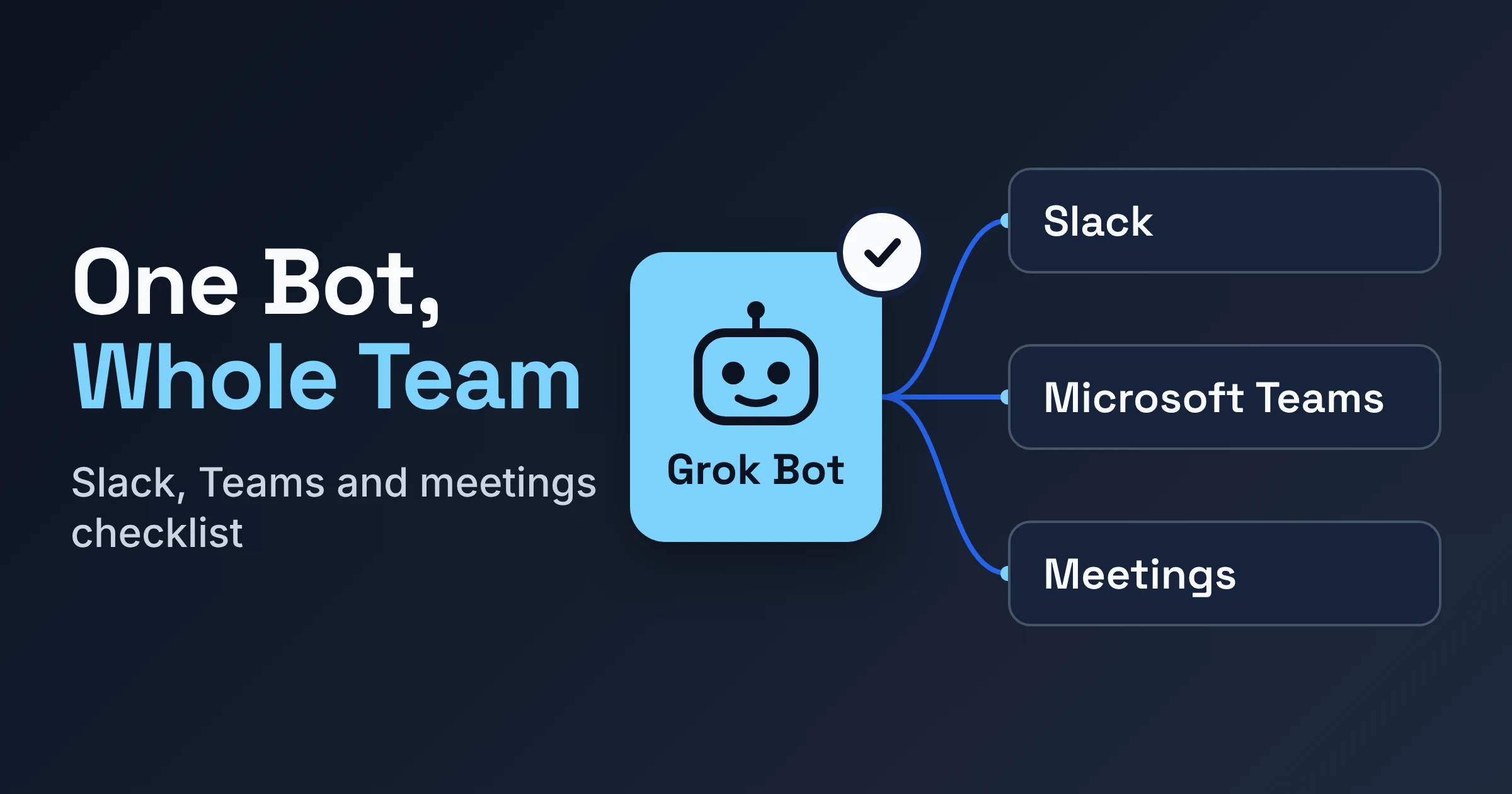
Grok Bot Team Bots are the shared Bots you can bring into Slack, Microsoft Teams and meetings. They need a Team or Enterprise plan, while Meetings on their own also work on Ultra. Before anyone shares a Bot, a team admin should settle who may share Bots, whether shared logins are allowed, and (on Enterprise) whether Meetings are on.
Each teammate's chat stays private. In Slack channels, though, the Bot acts through its owner's apps, so the owner you pick matters more than any other choice.
Grok Bot comes from xAI, the company behind the Grok assistant. Below is everything a small business owner or team lead needs to check, pulled from xAI's launch post, changelog, and Team Bots and Meetings docs. A single admin checklist near the end lets you work through it with whoever runs your settings.
Which plan do I need for Grok Bot Team Bots and Meetings?
As of November 2026, xAI says Grok Bot Team Bots are available on Team and Enterprise plans, and Meetings are available on Team, Enterprise and Ultra plans. On Enterprise, admins control Meetings and can turn it on in settings.
| Feature | Team plan | Enterprise plan | Ultra plan | Best for |
|---|---|---|---|---|
| Team Bots (one Bot shared with teammates in Slack and Microsoft Teams) | Yes | Yes | Not listed | Teams that want one Bot many people can ask |
| Meetings (a Bot joins your video calls) | Yes | Yes, if an admin has it turned on | Yes | Anyone who wants notes and a summary without typing them |
Source: xAI's Grok Bot 1.0 announcement.
So an Ultra subscriber can send a Bot to calls, but xAI doesn't list Team Bots for Ultra. If sharing is the point, you need Team or Enterprise, the plans where both features appear.
One more gate: Team Bots always run in the cloud, per xAI's Team Bots docs. A Bot that runs on your own computer can't be shared, so a Bot living on your laptop stays yours alone.
xAI's pages we checked don't list per-seat prices, so confirm cost with xAI before you commit.
What changed between the Nov 2 launch and v1.0.1 on Nov 11?
xAI's Grok Bot 1.0 launch post is dated Nov 2, 2026 and announced that Bots can be shared and brought into Slack, Microsoft Teams and video calls. The changelog entry v1.0.1, dated Nov 11, 2026, is where the meeting-joining details and the Microsoft Teams setup steps appear, and xAI's changelog also documents several admin switches.
If you read only the launch post, you missed the switches that matter most to admins. Here's how the two fit together.
| Date | Source | What it says |
|---|---|---|
| Nov 2, 2026 | Grok Bot 1.0 launch post | xAI names three major improvements: multiplayer, proactive and more capable teammates. Bots can be shared, can monitor ongoing projects and suggest next steps unprompted, and learn from teammates. |
| Nov 11, 2026 | Changelog v1.0.1 | Bots join Google Meet, Zoom or Microsoft Teams calls from a link. Adds Microsoft Teams setup. xAI's changelog also documents Allow Shared Logins, Review learnings, Bot sharing limits and a Bot Computer Retention Period. |
xAI also says it made Bots "more efficient, reducing the resources required to complete tasks", but gives no numbers. We found no independent testing of Grok Bot 1.0 yet, so treat that as a vendor claim.
Who in my Slack workspace can use a shared Grok Bot?
As of November 2026, Grok Bot's Slack Workspace Access setting is on by default, and in an organization it applies to every team. Slack guests, Slack Connect channels and other Slack workspaces are never included, per xAI's Team Bots docs.
In practice, a freelancer you added as a Slack guest, or a client in a shared Slack Connect channel, sits outside that reach. Your full workspace members are the people to plan for.
A few more things decide who can actually get going:
- Sharing rights. Anyone on the team can share a Bot unless an admin sets Bot sharing to Admins only.
- Slack app approval. If the app shows Awaiting admin approval, a Slack workspace admin needs to approve it.
- Linked accounts. Each person should link their Slack account so the Bot knows who they are and can use their apps.
Can teammates read each other's chats with a Team Bot?
No. According to xAI's Team Bots docs, each person's chat with a Grok Bot Team Bot is private, sharing doesn't make a copy, and the owner and Managers can't read your chats (and you can't read theirs).
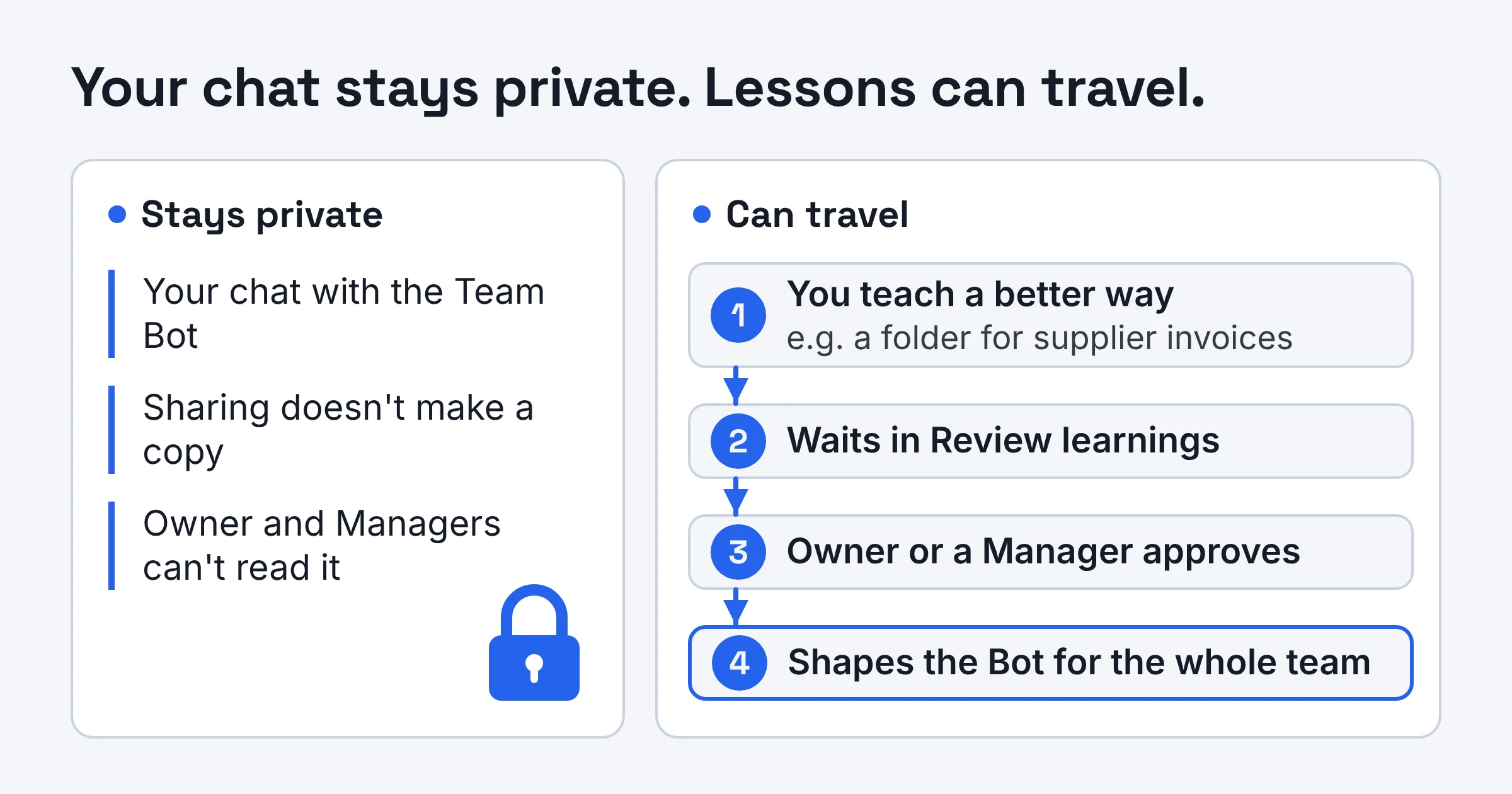
What can travel is what you teach it. xAI says that when someone teaches a Bot a better way to complete a task, the improvement can benefit everyone who uses it. Per xAI's changelog, those lessons wait under Review learnings until the owner or a Manager approves them.
Example: your office manager teaches the Bot to file supplier invoices in a certain folder. The chat stays private, but the lesson lands in the review queue, and once approved it shapes the Bot for the whole team. Name a reviewer who will actually read that queue.
Public channels are different from private chats: anything the Bot posts in a channel, everyone in that channel sees. xAI says Bots check whether information is appropriate to share in a public channel, but that's a vendor claim we couldn't verify.
Whose accounts does a Team Bot use in Slack channels?
In Slack channels, threads and group chats, a Grok Bot Team Bot uses only its owner's apps and asks before it uses your accounts, according to xAI's Team Bots docs. When it needs yours, it posts an action card with Allow once or Deny, and only the person who asked can answer it.
Think of the owner as the person whose keys the Bot carries into every shared room. If your sales lead owns the Bot and has their calendar and CRM (customer relationship software) connected, a teammate asking in #deals gets answers powered by the sales lead's apps.
Your own accounts stay out of it unless you tap Allow once. Nobody else in the thread can tap it for you.
So before you create a Team Bot, choose an owner whose connected apps you're comfortable having the Bot use in public threads. A founder whose inbox holds payroll conversations is a poor pick.
What are Allow Shared Logins, and are they safe?
Allow Shared Logins is a Grok Bot team admin switch that lets Owners and Managers share their own app login as a shared connector (a saved link between the Bot and an app). Once shared, everyone who uses the Bot acts through that account, including to make changes, per xAI's Team Bots docs.
Whether it's safe depends entirely on which account you share. xAI's own advice is to connect the app for yourself first and only share an account that holds nothing sensitive or private.
| Account type | Share it? | Why |
|---|---|---|
| A team project board everyone already edits | Reasonable candidate | Teammates acting through it changes little |
| Your personal email | No | Everyone using the Bot would act as you, including making changes |
| Finance, payroll or HR tools | No | Sensitive data, and mistaken changes are costly |
That table is our judgment guide, built on xAI's rule of thumb. xAI also says Bots respect each person's permissions and ask before taking sensitive actions; we found no independent tests of those safeguards, so your choice of account is the real protection. A sensible default is to keep Allow Shared Logins off until you've written down which accounts qualify.
Whose usage allowance does a Team Bot reply use?
As of November 2026, a Grok Bot Team Bot reply uses the Grok Bot usage of the person it's answering, according to xAI's Team Bots docs. The owner's allowance doesn't pay for everyone else's questions.
Example: if your whole marketing team leans on one shared Bot for campaign drafts, each marketer's replies come out of their own usage. Heavy users run through their own allowance, not the owner's.
What we can't tell you: the xAI pages we checked don't say how much usage each plan includes. Ask xAI before budgeting for heavy daily use.
Can Grok Bot join my Zoom, Google Meet or Microsoft Teams calls?
Yes. Since changelog v1.0.1 (Nov 11, 2026), on Team, Enterprise and Ultra plans, a Grok Bot can join a Google Meet, Zoom or Microsoft Teams call from a link, answer in the meeting chat and send a summary afterward. On Enterprise, admins control Meetings, and when it's off, Bots can't join or read meetings.
Per xAI's meetings docs, here's what happens on a call:
- Getting in: when the meeting starts, the host admits the Bot, and it appears labelled as transcribing.
- During: it listens, takes notes and answers questions in the meeting chat.
- After: it sends you a summary and action items when the call ends.
- On autopilot: a Bot that follows your calendar can also join scheduled meetings on its own.
The calendar option is the one to think hard about. Before a Bot starts turning up to client calls, decide whether your clients are comfortable with a transcribing guest, and tell them it's coming.
How does a Team Bot get into Microsoft Teams itself?
Bringing a Team Bot into Microsoft Teams (separate from joining a Teams call by link) takes three roles, per the v1.0.1 changelog: a team admin turns it on, an owner or Manager connects the Bot, and a Teams admin approves it. In a small company those may all be you; in a larger one, book time with your Microsoft Teams admin early.
What should a team admin set before turning on Grok Bot Team Bots?
Before a Grok Bot Team Bot goes live, an admin should check Bot sharing, Slack Workspace Access, Allow Shared Logins, Meetings, Review learnings and the Bot Computer Retention Period. Here they are in one place, as documented by xAI in November 2026.
| Switch or step | Default or rule (per xAI) | Who handles it | Sensible starting choice |
|---|---|---|---|
| Bot sharing | Anyone on the team can share | Team admin | Admins only during your pilot |
| Slack Workspace Access | On by default; applies to every team in an organization; never covers guests, Slack Connect or other workspaces | Check your team settings | Leave on if your Slack workspace is all staff |
| Slack app approval | May show Awaiting admin approval | Slack workspace admin | Line them up before launch day |
| Allow Shared Logins | Owners and Managers can share logins only after a team admin turns it on | Team admin | Off until you've listed safe accounts |
| Meetings (Enterprise) | Admin-controlled; when off, Bots can't join or read meetings | Enterprise admin | On once attendees know a transcribing Bot may join |
| Microsoft Teams | Three roles: turn on, connect, approve | Team admin, owner or Manager, Teams admin | Do it after Slack is working |
| Review learnings | Teammate lessons wait for approval | Owner or a Manager | Name one reviewer |
| Bot Computer Retention Period | Inactive members' Bot computers are terminated after the period an admin sets | Admin | Set one so leavers' Bot computers don't linger |
| Team Bot owner | Bot uses only the owner's apps in channels | The Bot's owner | Someone with nothing sensitive connected |
One warning before anyone tidies up: per xAI's docs, deleting a Team Bot removes it for your whole team, teammates lose their chats and routines on it, and it can't be undone. Agree in advance on who gets to make that call.
How should a small team pilot Grok Bot Team Bots?
The safest way to pilot Grok Bot Team Bots is to start with one Bot, one low-risk owner, sharing locked to admins and shared logins off. Widen access once you've seen how it behaves in real channels.
- Today: confirm your plan (Team or Enterprise for Team Bots), set Bot sharing to Admins only, and pick an owner with nothing sensitive connected.
- This week: get Slack app approval, have pilot members link their Slack accounts, and name your Review learnings approver.
- Before any client call: decide on calendar joining, tell attendees about the transcribing Bot, and on Enterprise, turn Meetings on only then.
Pick Grok Bot Team Bots if your team already works in Slack or Microsoft Teams and wants one shared assistant with private per-person chats. If you're still comparing options, our roundup of agentic AI apps for automation puts Grok Bot next to other agent tools.
Plan details checked on xAI's pages in November 2026; they change often.