
Picture a teacher on a Sunday evening. There's a unit to plan, a reading passage half the class will find too hard, and a parent email to send in two languages.
In a Gallup survey, teachers who use AI at least weekly estimated it saves them 5.9 hours a week on average. So the real question is which jobs to hand over, and how.
The short answer: use AI for the prep around teaching. Think lesson plans, worksheets, re-leveled readings, quizzes, rubrics, feedback drafts and parent notes. Start with a free teacher tool such as ChatGPT for Teachers or Gemini in Classroom, and check every result before students see it.
What teachers already use AI for
The jobs teachers hand to AI most often are prep work: the planning and making that happens before a lesson starts. In the 2024-25 school year, six in 10 teachers used an AI tool for their work, Gallup found.

Gallup asked about nine work tasks, and the top three were all prep. Preparing to teach came first, with 37% using AI for it at least monthly. Making worksheets or activities came next at 33%, then changing materials to fit students' needs at 28%.
Across those tasks, 32% of teachers use AI at least weekly, and 28% use it less often. The weekly users estimate they save 5.9 hours a week, which over a 37.4-week school year is the equivalent of six weeks. Those are teachers' own estimates, not stopwatch timings.
The fear that AI just adds work doesn't show up much, either. Only 7% or fewer say it makes their work take longer.
So the seven tasks below aren't exotic. They're the kinds of jobs teachers already use AI for.
A useful way to picture AI here is a keen student teacher who has never met your class. It drafts fast and never gets tired, and you read everything before it reaches a student.
What AI is free for teachers?
Three tools give teachers a free place to start: ChatGPT for Teachers, Gemini in Google Classroom and the free plan of MagicSchool. Which one fits depends mostly on where you teach and which accounts your school already has.
| Tool | Who can get it | Cost | Student data |
|---|---|---|---|
| ChatGPT for Teachers | Teachers, staff, school leaders and district admins at accredited U.S. K-12 schools or districts; not students | Free through June 2028 | Not used to train OpenAI's models by default; OpenAI says it's built to help schools meet FERPA (the U.S. student records law) |
| Gemini in Google Classroom | Educators with a Google Workspace for Education account, any edition | No cost; feedback drafting needs Education Plus or the Teaching & Learning Add-on | Not covered here; ask your school's IT team |
| MagicSchool | Teachers; the free plan includes teacher and student tools | Free plan; Plus is $12.99 a month, billed monthly | Says it is FERPA, COPPA, SOC-2, GDPR and Ed Law 2-D compliant |
ChatGPT for Teachers is a teacher version of ChatGPT. You sign up with your school or district email. Then SheerID, an outside company, checks that you're an educator.
OpenAI's help page says it's free through June 2028 for verified U.S. K-12 educators. After that, OpenAI says it may introduce or adjust pricing, "with the goal of keeping the plan affordable for educators."
If you teach outside the U.S., this plan isn't open to you. OpenAI hasn't published eligibility for other countries.
Gemini in Classroom lives inside Google Classroom. Google provides it at no cost to all educators with Google Workspace for Education accounts.
When Google announced it in June 2025, it counted over 30 AI tools. If your school already runs on Classroom, this is the shortest path.
MagicSchool lists 80+ AI teacher tools. Its pricing page doesn't spell out the free plan's limits. Plus, for individual teachers, is $12.99 a month when billed monthly.
1. Plan a unit in one sitting
Start with planning. Preparing to teach is the job teachers already hand to AI most.
One teacher example on OpenAI's ChatGPT for Teachers page asks for "a plan for a 20-day unit with 55-minute classes." That's a good model, because it gives the AI firm limits to plan inside.
Here's a fuller version to paste:
Help me plan a unit for [grade] [subject] on [topic].
Length: [number] days, [number]-minute classes.
My students: [what they already know, reading levels, any needs].
Goals or standards: [paste them].
For each day, give a learning objective, a short warm-up,
the main activity and a quick exit check.
Flag any day that tries to cover too much.
Before you start, ask me up to three questions if anything is unclear.
What to change: everything in brackets. The more you say about your students, the less generic the plan.
Save retyping: you can tell ChatGPT to remember details like your grade level, curriculum and preferred format. In Gemini in Classroom, the Outline a lesson plan tool generates learning objectives and lesson plans.
ChatGPT is the familiar pick here. In RAND's survey from the 2023-24 school year, it was by far the most common tool teachers and principals mentioned.
A good first draft has one clear objective per day, pacing that looks doable, and a build from easy to hard. Expect to cut and move things around. It's a student teacher's draft, not a finished plan.
If the answer feels flat, our prompting techniques ranked by evidence show what to try next.
2. Make worksheets and activities
Worksheets are the second most common AI job in Gallup's survey, and the best ones start from your own lesson. ChatGPT for Teachers can bring in lesson plans and files from Google Drive or Microsoft 365. So attach what you already taught instead of describing it.
Here is my lesson on [topic] for [grade]. [Attach or paste it.]
Make a one-page worksheet that practices only what this lesson teaches.
Include [number] questions that go from easy to hard,
one question where students explain their thinking,
and an answer key on a separate page.
Use the same words for key ideas that my lesson uses.
What to change: the question count and the kind of task. Swap worksheet for a card sort or a partner activity and the rest still works.
Turn it into slides: OpenAI says you can build presentations with Canva inside ChatGPT.
Share it: custom GPTs (saved versions of ChatGPT with your instructions built in) let you create templates with other teachers at your school or district. One teacher could set up the worksheet maker for the whole grade.
Check: solve the worksheet yourself, with the answer key open. A key is only useful if it's right.
3. Re-level a reading passage for every reader
Rewriting one text at several reading levels lets the whole class read the same content. It's also a job teachers in RAND's survey described handing to AI. Here's a made-up example of one sentence at three levels:
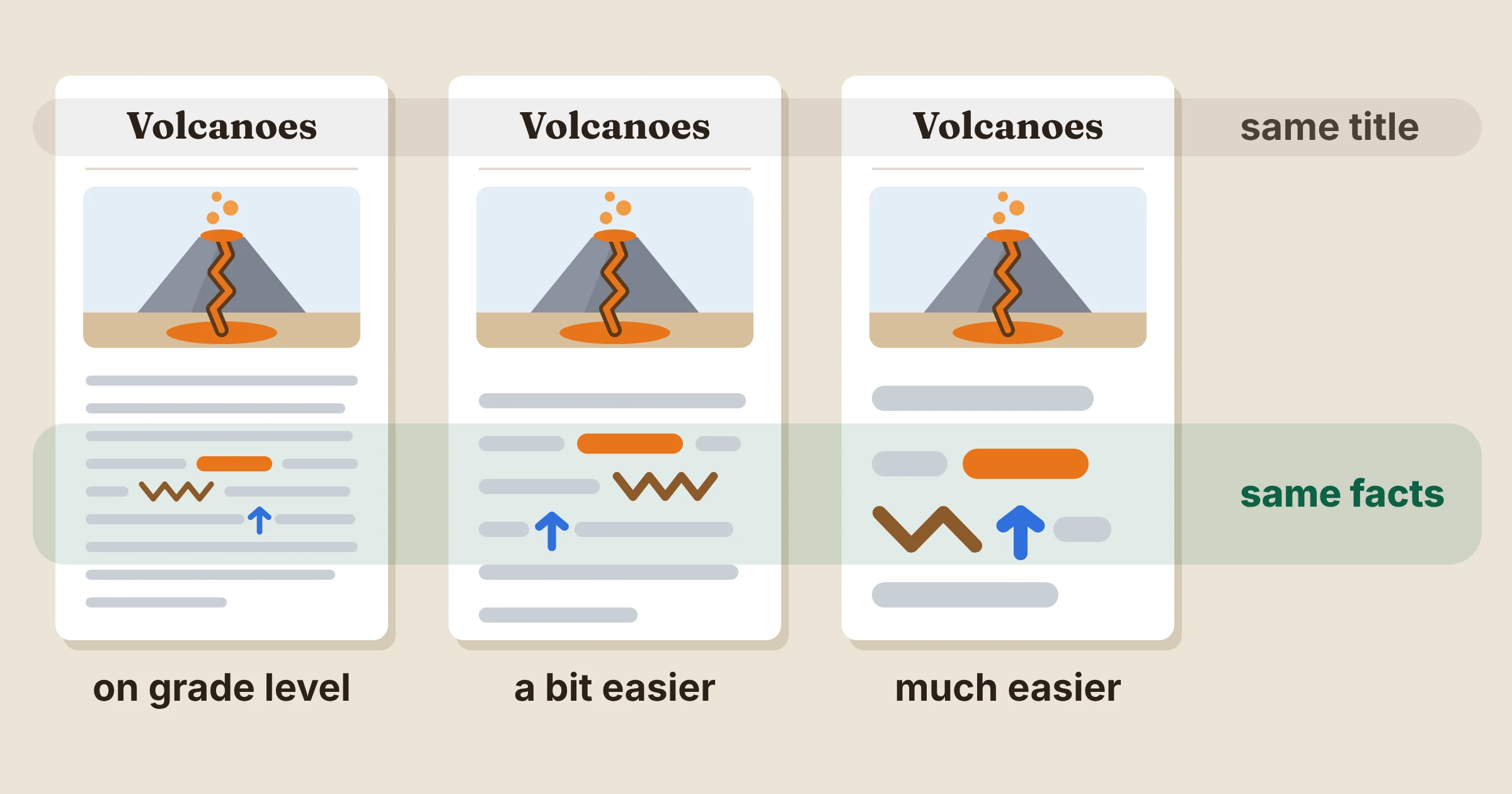
- On grade level: Volcanoes form where magma, or melted rock, rises through cracks in the Earth's crust and erupts at the surface.
- A bit easier: A volcano forms where hot, melted rock pushes up through cracks in the ground.
- Much easier: Deep under the ground, rock gets so hot it melts. It pushes up through cracks. That is how a volcano forms.
Notice what stayed: the melted rock, the cracks, the push upward. Re-leveling should simplify the words, not the facts.
Rewrite this passage at three reading levels:
[grade level], about two grades lower, and about four grades lower.
Keep every key fact and these words: [vocabulary list].
Give all three versions the same title,
so no student can tell which one is the easier one.
Passage: [paste]
Some tools do this as a built-in feature. Gemini in Classroom has a Re-level text tool that makes a simpler version for a specific reading level.
In RAND's survey, two tools came up most for differentiating, which means adjusting work to fit each student. They were ChatGPT and Diffit, an AI tool that adapts content to different reading levels.
Check: read the easiest version next to the original. That's where a fact can quietly get bent or lost.
4. Draft a quiz and a rubric
Draft the quiz and the rubric together, because the same learning objectives should drive both. Here's one order to follow.
- Paste your objectives and ask for the quiz.
Here are my learning objectives for [topic]: [paste].
Write a [number]-question quiz for [grade].
Label each question with the objective it checks.
Include an answer key with a one-line reason for each answer.
For multiple choice, make the wrong options mistakes
a student in [grade] would really make.
- In the same chat, ask for the rubric.
Now write a rubric for [the task] using the same objectives.
Use [number] levels, from "not yet" to "beyond".
Describe what student work looks like at each level,
in words a [grade] student can understand.
- Take the quiz yourself. Check that every answer in the key is right and every objective gets at least one question.
- Using Gemini in Classroom instead? Its Generate a quiz tool writes questions to check understanding, and you can export the quiz to Google Forms. Its Create a rubric tool sets out criteria and expectations for students.
Built from the same objectives, the quiz and the rubric ask for the same things. Students aren't left guessing what counts.
5. Get a first pass of feedback on writing
AI can draft first comments on student writing, but this is the task where the smallest share of teachers who use AI for it say it improves their work.
In Gallup's survey, most teachers who use AI for a task say it improves the quality of their work. That share ranges from 57% for grading and feedback to 74% for administrative work. Few, 16% or less, say the quality of their work drops.
So treat this as a first pass and keep your own voice in it. Use your school's teacher account rather than a personal one, and take the student's name off first.
You're helping me give feedback on a [grade] [type of writing].
This assignment focuses on: [for example, using evidence].
Here are two comments I've written before, so you can match my tone: [paste].
For the student work below, draft one specific strength,
one thing to fix next, and one question that pushes their thinking.
Don't give a grade. Keep it short.
Student work, name removed: [paste]
In Google Classroom, Gemini can draft feedback for written assignments from a student's work, grade level and focus areas. That feature needs Google Workspace for Education Plus or the Teaching & Learning Add-on, so your account may not have it.
Check: read the essay yourself before you read the AI's comments. Keep what's true, cut what's generic, and say it the way you would.
You know this student. The AI only knows the page.
6. Write and translate a note home
A note home is short and low stakes, which makes it a good first task. About 100 teachers in RAND's survey reported using AI for admin tasks such as drafting parent emails.
- Draft it: Write a short, friendly note to families about [event, date, what to bring]. Use plain words and no school jargon. End with how to reach me.
- Translate it: Translate this note into [language]. Keep the tone warm. Keep names, dates and times exactly as written.
- Or use the built-in tool: Gemini in Classroom's Translate text tool translates text into over 100 languages to share with your class.
- Check it: ask the AI to translate it back into English and compare. Check every date and time by hand. For anything sensitive, have a fluent colleague read it first.
7. Build example answers students can critique
Sample answers of mixed quality give students something concrete to judge before they write their own. Another teacher example on OpenAI's page asks ChatGPT to "generate seven different example responses" for an assignment.
Here is an assignment for [grade]: [paste the task and rubric].
Write [number] example answers of clearly different quality.
Don't label them or put them in order.
Give each one a clear strength and a clear weakness.
After the answers, add a key for me only:
the order from weakest to strongest, and why.
In class: pairs rank the answers, then defend their order using your rubric. It turns the rubric into something students use, not just read.
In Google Classroom: you can create custom AI tools, such as Guided Learning, Gems or Gemini Notebooks, and assign them to your students. Try one as a student would before you assign it.
Check: make sure the strongest answer really is strong, and that the weak ones go wrong the way your students actually do.
The three-question check before anything reaches students
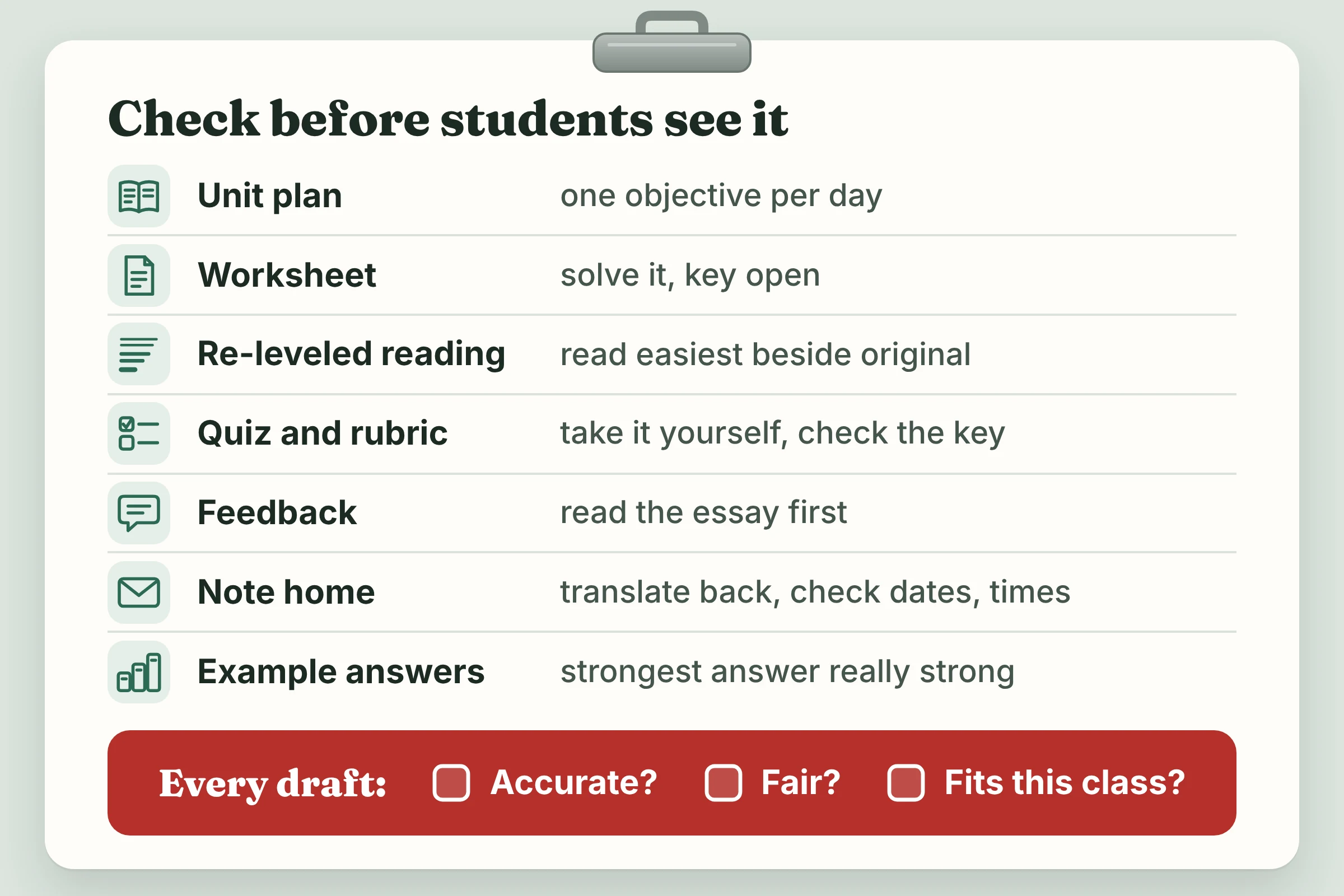
Before any AI draft reaches students, ask three questions: is it accurate, is it fair, and does it fit this class? That's Common Sense Media's advice in plain words: "Always evaluate AI-generated material for accuracy, bias, and appropriateness before classroom use."
The group rated AI teacher assistants as "Moderate Risk" overall, in a review that included Google Classroom's Gemini Teacher Assistant. One worry it raised: many platforms make it "too easy to push AI-generated material directly to classrooms without review."
- Is it accurate? Check every fact, date, answer key and quote against a source you trust. If you can't confirm it, cut it.
- Is it fair? Look at the names, the examples and any guesses about students' homes or backgrounds. Every student should feel fairly treated.
- Does it fit this class? Check the reading level, the pacing, your standards and the students who need something different.
It's the same read you'd give a student teacher's worksheet before it goes out. For a longer document full of facts, our AI fact-checking workflow shows how to check claims one at a time.
What not to hand to AI
Some documents are too important to draft with AI. Common Sense Media names two: individualized education plans (IEPs, the written plans for students who get special education) and behavior plans.
Keep these away from AI. Common Sense found that tools generating IEPs and behavior plans lack the full data these documents need. It also said they can show "problematic bias based on perceived student backgrounds." The stakes for one child are too high for a draft you can't fully trust.
Ask your school what's allowed before you paste in anything about a student. Many schools hadn't said.
In RAND's survey, only 18% of principals reported that their school or district had provided guidance on using AI. That was the 2023-24 school year, so yours may have caught up.
Can AI replace teachers?
No. Teachers report AI saving them time, while their own judgment stays the part that matters. Common Sense Media said the most effective uses "amplify rather than replace educator knowledge and judgment."
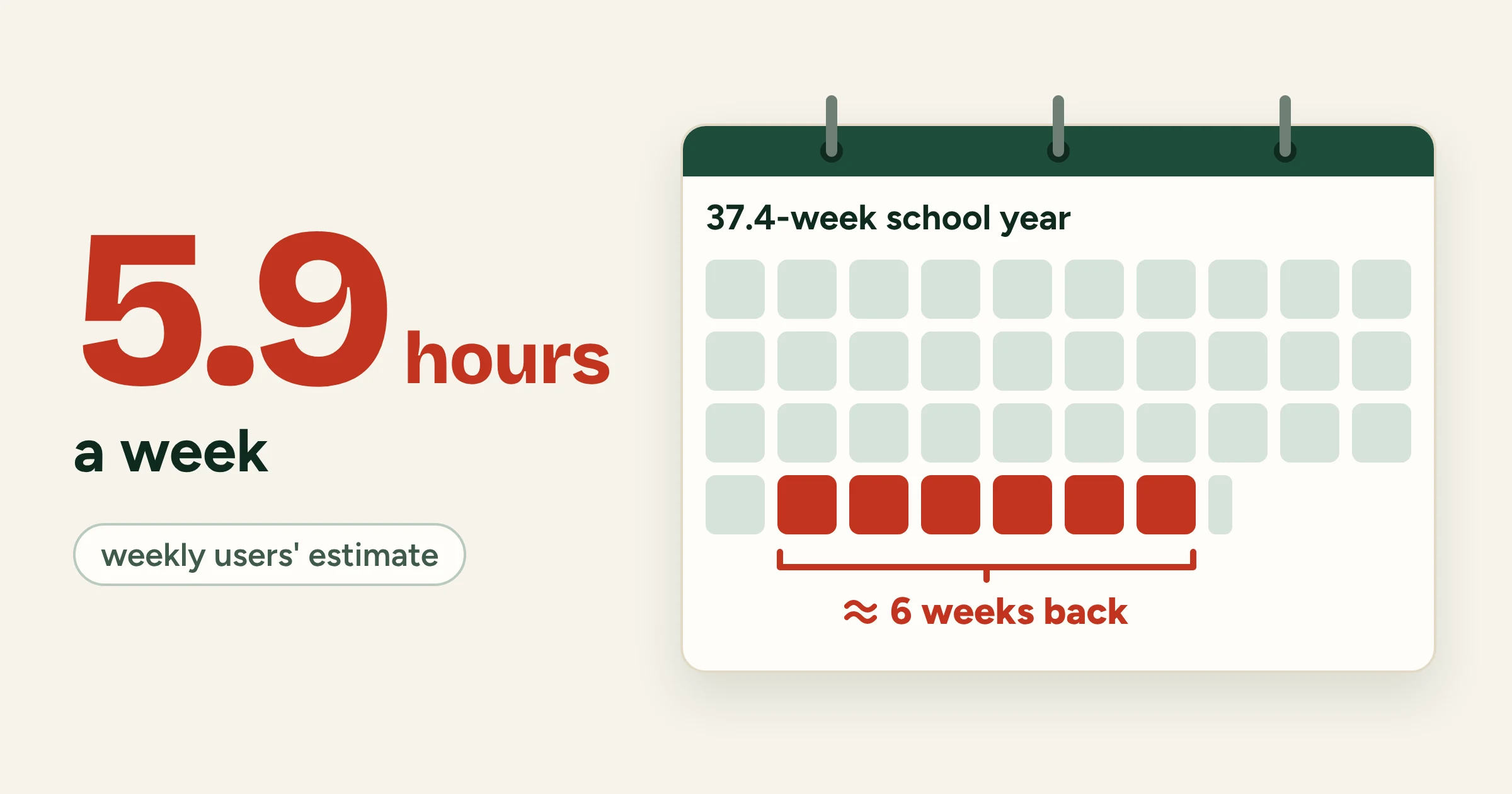
Use isn't universal, either. In RAND's 2023-24 survey, about one in four English language arts, math and science teachers used AI tools for planning or teaching. The win Gallup found is time: weekly users estimate 5.9 hours back each week.
This is where the student-teacher comparison stops working. A student teacher grows into a teacher. The AI keeps drafting, and the calls about your students stay yours.
So start small. Pick one task from this list for this week and run it in a free teacher tool. Then give the result the three-question check before anything reaches students.
Add a second task only once the first is saving you time. Prices and plan details here were checked on the vendors' pages in November 2026 and change often.