You type one sentence, and an AI hands you ten tidy slides. The catch comes later, when your boss or teacher wants the .pptx file and the free version has put a badge on it.
So the best AI tool for making a PPT (a PowerPoint deck) depends on where your file must end up. Gamma drafts decks from one prompt, Copilot or Gemini work inside PowerPoint or Google Slides, Plus AI adds AI to both, SlideSpeak converts Word files, and Canva suits designed decks.
Quick answer: the best AI tool for making a PPT, by where it ends up
The six picks differ most in two ways: how a PowerPoint file comes out, and what the free version holds back.
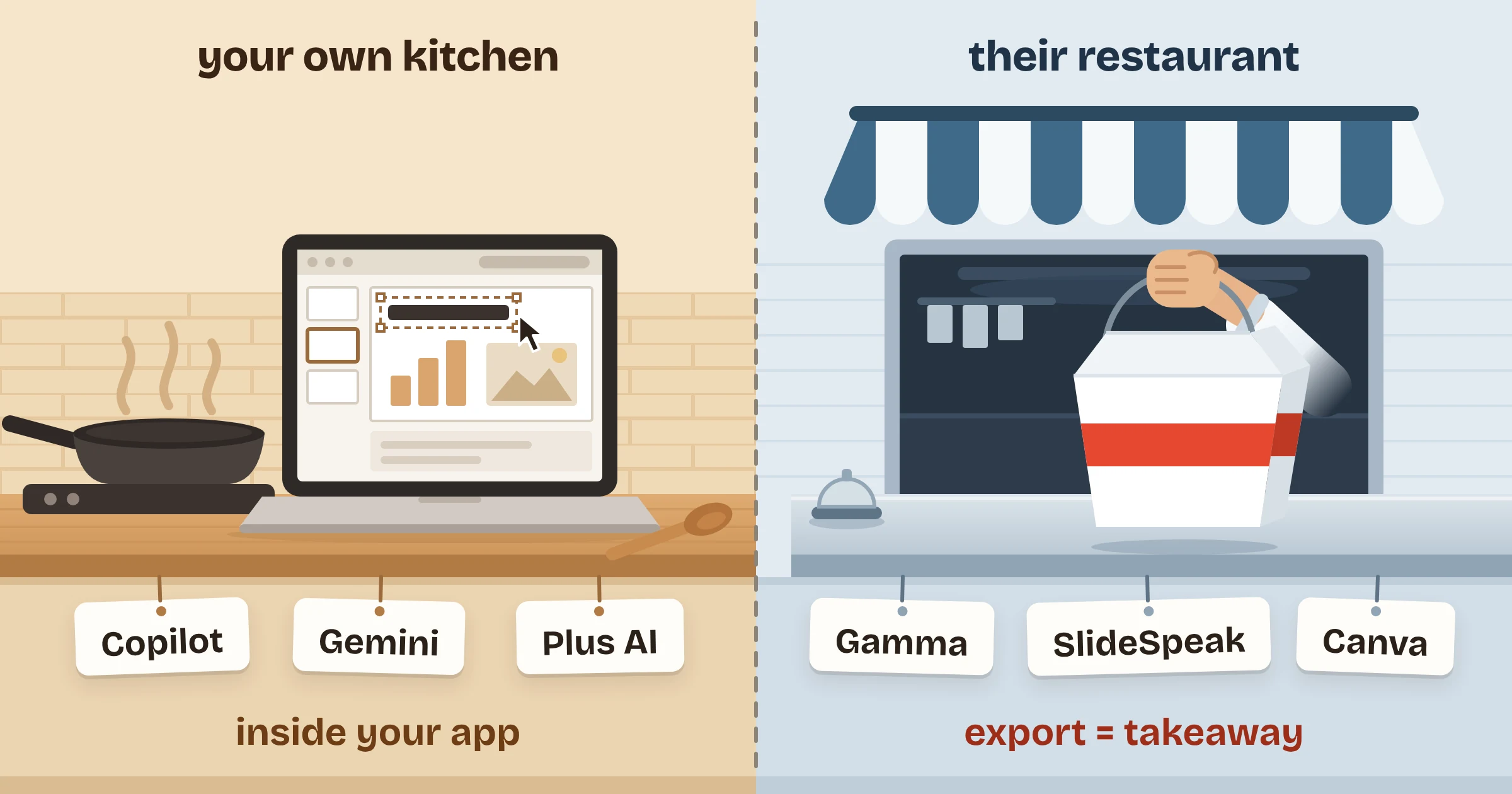
Think of it like dinner. Copilot, Gemini and Plus AI cook in your own kitchen, because the deck is built inside PowerPoint or Google Slides. Gamma, SlideSpeak and Canva cook in their own restaurant, and the export is the takeaway box you carry home.
| Pick | Best for | Free way in | How a PowerPoint file comes out | Main catch |
|---|---|---|---|---|
| Gamma | A full deck from one prompt | Free plan, 400 credits once, no card | Share, then Export to PowerPoint | Free exports carry a "Made by Gamma" badge |
| Copilot in PowerPoint | People who already pay for Microsoft 365 | Comes with some Microsoft 365 plans, not all | It is built in PowerPoint already | Best in English; some features need a Designer license |
| Gemini in Google Slides | Classes and teams that live in Google | Needs an eligible Google plan | Email it as a PowerPoint attachment | Desktop and English only |
| Plus AI | AI inside Slides or PowerPoint | 7-day trial with 1,000 credits | It runs inside PowerPoint itself | The trial needs a credit card |
| SlideSpeak | Turning a Word or PDF file into slides | Free forever, 100 credits at sign-up | Export to PPT is listed on Premium | Free-plan download not confirmed |
| Canva | Decks that must look designed | Canva Free, with limited AI | Save the deck as a PowerPoint | Free gets a limited AI allowance each month |
These picks are matched to needs using each company's own help and pricing pages. No hands-on quality test sits behind this list, so read best as best fit.
1. Gamma: a full deck from one prompt, free to start
Gamma turns one typed prompt into a whole deck, and you can start on its free plan without a credit card.
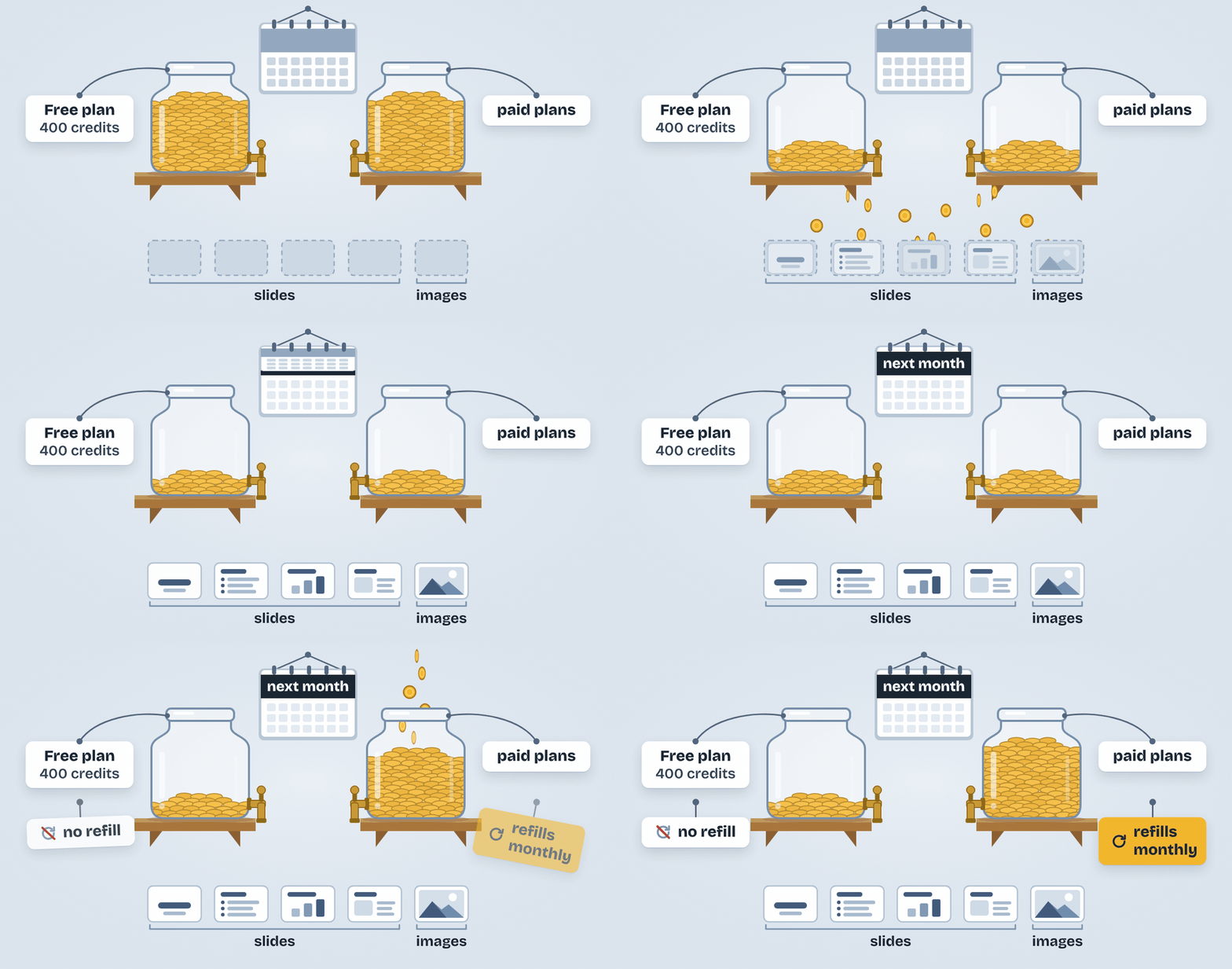
- What free gives you. Every new account starts on the Free plan with no time limit and 400 credits, says Gamma's page on its plans. Credits are Gamma's AI coins: each slide and each image it makes costs some.
- The coins don't come back. On Free, every AI action uses credits, and they do not refresh. So 400 credits is a one-time pile, not a monthly one.
- No trial clock. Gamma does not offer a traditional free trial. The Free plan is how you try it.
- Deck size. Free can generate up to 10 slides in one prompt. You can add more slides by hand.
- Getting the .pptx out. Click Share at the top right, then Export, and choose PowerPoint. Tables arrive as real, editable tables.
- The catch. On Free, a "Made by Gamma" badge appears on PDF and .pptx exports, per Gamma's export help page. It's the restaurant's sticker on your takeaway box.
- What paying changes. Paid plans remove the badge. They also add credits that refresh monthly, unlimited exports, and up to 100 slides from one prompt.
Gamma is the pick when you want a whole first draft in one go, and a small badge won't bother anyone.
2. Copilot in PowerPoint: if you already pay for Microsoft 365
If Copilot comes with your Microsoft 365 plan, it builds the deck right inside PowerPoint, so there is no export step. This is cooking in your own kitchen. Here is how it starts, following Microsoft's guide to Copilot in PowerPoint.
- Open PowerPoint and click the Copilot icon at the bottom-right of the screen. That opens Copilot Chat.
- Describe the deck you want in the prompt box, such as a short talk on ocean plastic for my science class.
- Answer its follow-up questions. Copilot may ask who the audience is and how long the deck should be.
- Or build from a document you already wrote. Copilot works best with Word files smaller than 24 MB.
Your plan changes what Copilot can read. With Copilot Pro (the home version), it can build a deck from a single Word file. With Microsoft Copilot for work, it can also use a PDF.
Can't find Copilot at all? It may not be included in your Microsoft 365 subscription.
Some features also need a Microsoft Designer license. Using your company's own branding needs a work Microsoft Copilot license.
One more thing: Microsoft expects the quality to be highest in English. If your class runs in another language, try a short test deck first.
3. Gemini in Google Slides: if your class or team lives in Google
Gemini can plan and build a fully editable deck inside Google Slides, as long as your Google plan includes it. It needs an eligible Google Workspace or Google AI plan. On a personal account, it is available through Google Workspace Experiments. That is a trusted tester program (an early-access group that tries features first).
For now, it works on desktop and in English only. So a phone won't help you the night before.
Here is how it goes, per Google's help page on making decks with Gemini. You describe your topic and goals to Gemini in the side panel. If you like, you can let it pull in material from the web, your Drive, Chat or Gmail.
Next, Gemini shows you a plan for the deck before it builds anything. Once you click Approve, it makes the slides with text and images.
Then you wait. Google says to "Keep the tab open until Gemini generates your presentation," and that may take a few minutes. Later, Gemini can also add one slide or several to a deck you already have.
This is Google's kitchen, not PowerPoint's. To serve it as PowerPoint, Google Slides can email the deck as a PowerPoint or PDF attachment.
4. Plus AI: AI inside the Slides or PowerPoint you already use
Plus AI is an extension (an add-on that runs inside an app you already have). One subscription covers both Google Slides and PowerPoint.
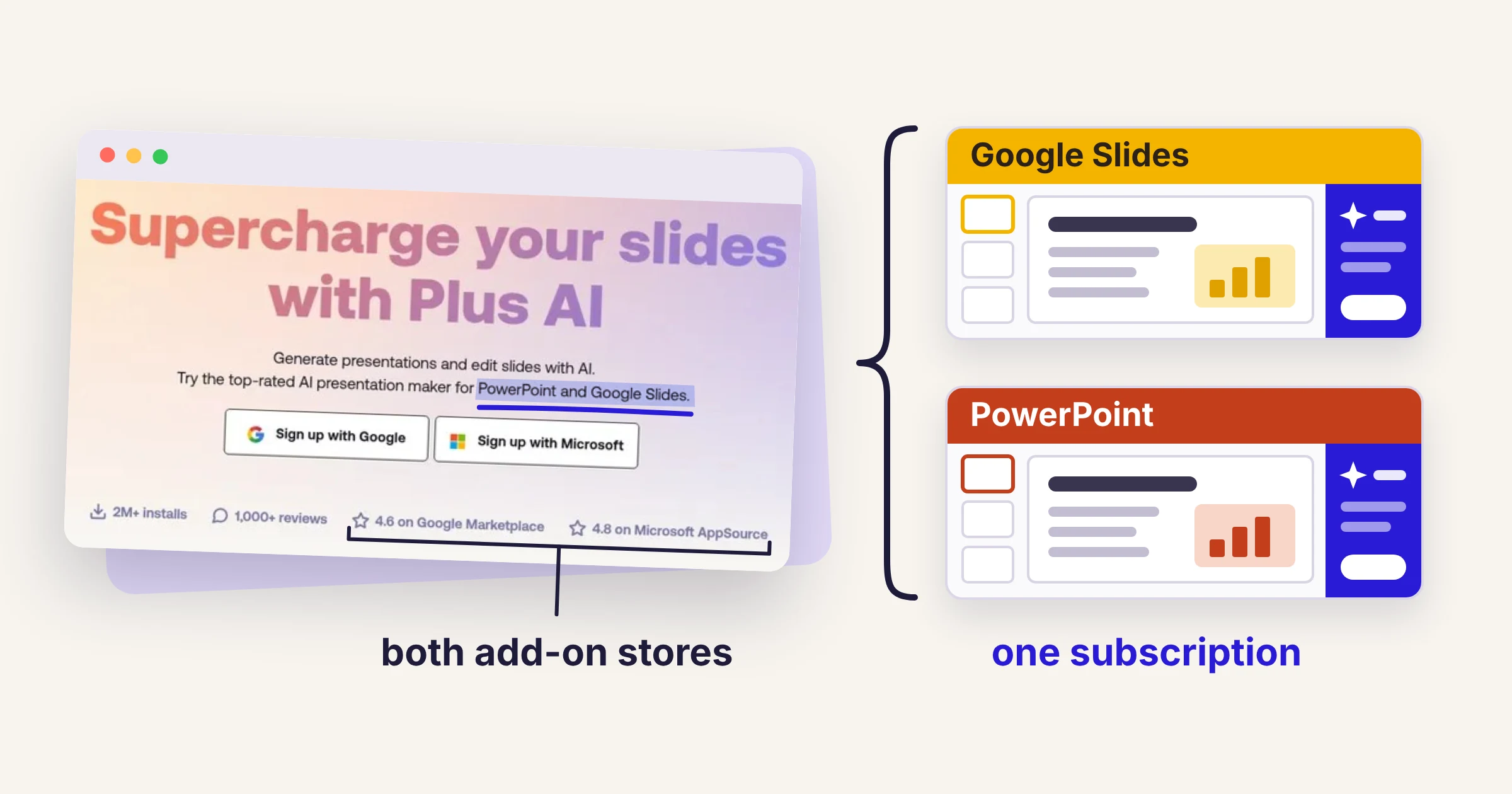
- Where it works. The same subscription includes the extension in Google Slides and in PowerPoint. Your deck never leaves your own kitchen.
- Document uploads are a Pro feature. Plus AI lists uploads of PDF, docx or txt files under its Pro plan, not Basic.
- What it fixes. It can rewrite and remix slides you already made.
- The free part is a trial. Every plan starts with a 7-day free trial with 1,000 AI credits, and you need a credit card to start it, says Plus AI's pricing page.
- How far the credits go. A typical task uses 40 to 170 credits, depending on how complex it is. So 1,000 trial credits cover roughly 6 to 25 tasks.
- After the trial. Paid plans start at $10 a month per user, billed yearly. The Basic plan includes 1,500 AI credits a month.
Set a reminder before day seven if you only want the trial. For a closer look at how it stacks up against Gamma, see our Gamma vs Plus AI vs Beautiful.ai comparison.
5. SlideSpeak: turn a long Word or PDF file into slides
SlideSpeak starts from something you already have: a file, a link or an idea. In kitchen terms, you bring the ingredients.
- Word files. SlideSpeak's Word page says you can upload any Microsoft Word file from your device to make a presentation. Uploading a Word doc is free for 3 presentations.
- PDF files. A separate PDF to PPT tool turns a PDF into an editable PowerPoint. The pricing page does not say which plan includes it.
- Free plan. SlideSpeak calls it free forever, with 100 credits at sign-up, according to SlideSpeak's pricing page.
- File size. Free takes files up to 50 MB. That is about twice the 24 MB that Copilot handles best.
- Getting a PowerPoint file. SlideSpeak says its decks export, fully editable, to PowerPoint or Google Slides. Its pricing page lists "Export to PDF, PPT, & more" under Premium. It does not confirm that Free downloads a .pptx, so test that early.
- What Premium adds. Premium comes with 1,000 credits a month.
SlideSpeak fits best when the hard work is already done in a long report, and you need the slides to follow it.
6. Canva: when the deck has to look designed
Canva is the pick when the deck has to look polished. Canva even has its own lesson on saving a presentation as a PowerPoint.
The AI is where the free plan pinches. Canva Free gets limited access to Canva's Standard and Premium AI tools. That use comes from an allowance that resets each month.
Canva Pro and Canva Education get 10x more AI allowance than Free, says Canva's page on AI usage.
Deck length matters too. In Canva's own words, "a 40-slide presentation will use more than a 5-slide presentation." So a short deck stretches a free allowance further.
Test two things before a deadline. Does the PowerPoint download work on Canva Free? And does the design hold up once the file opens in PowerPoint?
For what else Canva Free includes, see our guide to free AI tools for beginners.
Worked example: one 12-page report, three ways to a deck
The right pick depends less on the tool than on what you already have. Picture Maya, a made-up student with a 12-page Word report. Her teacher wants a short PowerPoint deck by tomorrow.
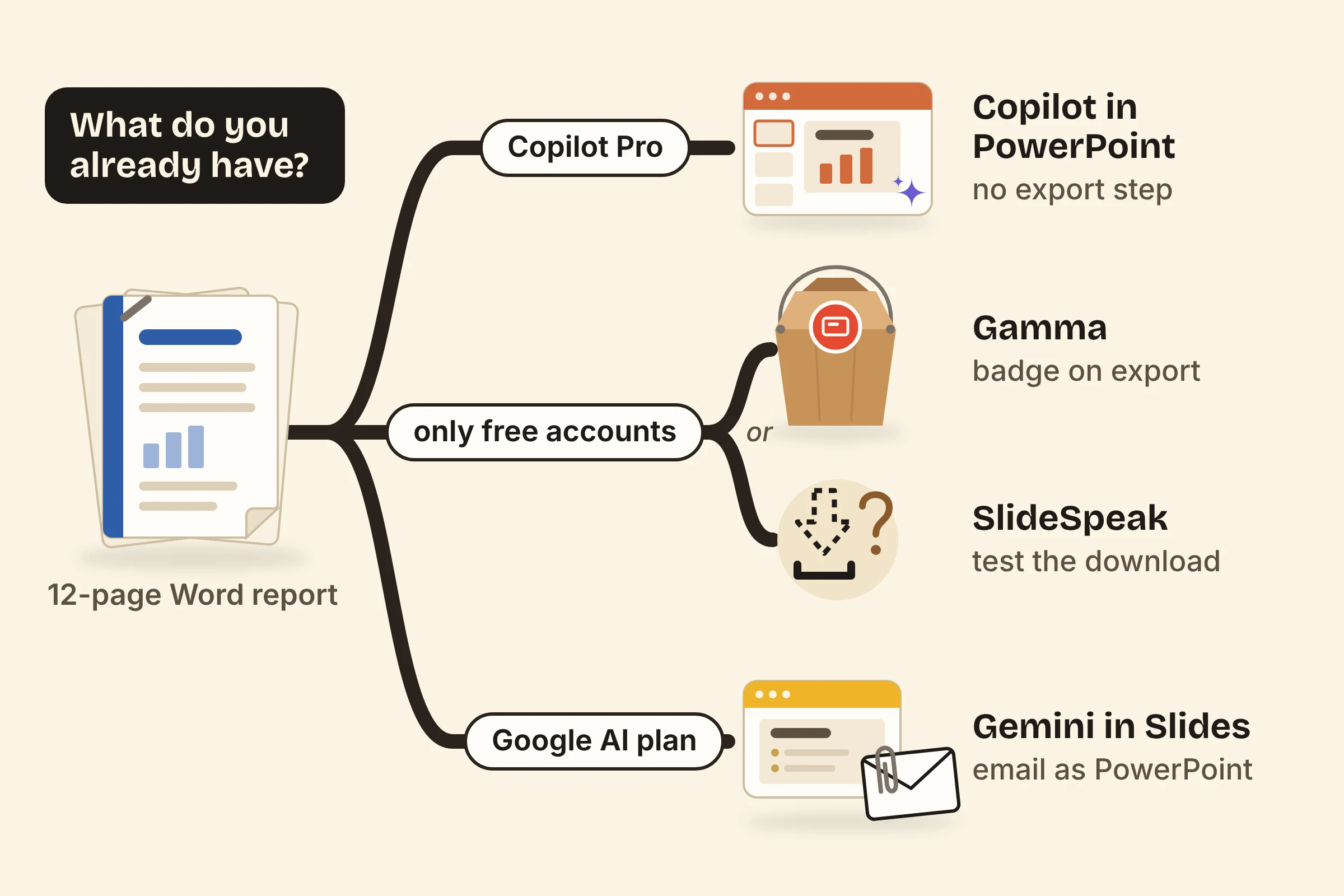
If she has Copilot Pro. She opens PowerPoint, clicks the Copilot icon and asks for a deck built from her Word file. Copilot Pro can work from a single Word file, and it works best when that file is under 24 MB. The deck is a PowerPoint file from the first slide, so there is nothing to export.
If she only has free accounts. Gamma is the simple route. She pastes her report's main points into one prompt and gets up to 10 slides. The .pptx export works, but it carries the "Made by Gamma" badge.
Or she could upload the Word report itself to SlideSpeak, which says Word uploads are free for 3 presentations. Its free plan takes files up to 50 MB and gives 100 credits to start. She should test the PowerPoint download tonight, since export to PPT is listed on Premium.
If she has an eligible Google AI plan. She opens Google Slides and lets Gemini pull from her Drive, where the report lives. She approves Gemini's plan, and it builds the deck. Then she emails it to her teacher as a PowerPoint attachment.
Same report, three situations, three different picks. The deciding fact was never slide quality. It was what Maya already had, and where the file had to land.
Before you hand it in: four checks on the exported file
An exported deck is a takeaway box, so open it and check four things before you serve it.
- The badge. On Gamma's Free plan, the badge sits on PDF and .pptx exports. Paid plans remove it. Decide if your teacher or boss will mind.
- Present Mode. Gamma's exported file matches how the deck looks in Present Mode, not Edit Mode. Flip to Present Mode before you export, so nothing surprises you.
- Where your edits go. If you open a PowerPoint file in Google Slides, your changes save to the original Office file. Keep a copy if you want the first version.
- The format they asked for. From Google Slides, you can email the deck as a PowerPoint or a PDF attachment. Send the one they asked for, then open it and click through every slide.
Here the dinner comparison breaks down. A takeaway meal is finished when it lands, but an exported deck is a file you can still open and fix.
So decide where the deck must end up first. If it has to be an editable .pptx, start inside PowerPoint with Copilot or Plus AI. Or use Gamma, accept the free badge, and check which parts stay editable. Then try one pick on a real assignment today, while the deadline is still friendly.
Prices, credits and plan limits here were checked on each vendor's own pages in November 2026, and they change often.