
You know the moment. You have 4,000 rows of orders, your manager wants "paid but not shipped" by end of day, and you cannot remember whether it's SUMIFS, COUNTIFS, or something with an f-array that you saw once in a LinkedIn post. So you type a sentence into an AI and it hands you back a formula. It looks plausible. It has the right shape, the right parentheses, a confident little explanation underneath. You paste it into row 2, drag it down, and the column fills with numbers.
Here is the uncomfortable part: a filled column is not a correct column. AI formula generators, whether that is a dedicated tool like Formula Bot, Copilot inside Excel, or a chat window with ChatGPT or Claude, are genuinely good at producing something that looks like the right formula. They are also completely unbothered by producing one that is subtly wrong. A 2023 EuSpRIG conference study on ChatGPT-generated spreadsheet formulas found order-of-operations errors, failures on "neither/nor" negation, and accuracy that fell as the request needed more inference. The models are far better now, but the failure classes have not gone away, because most of them are not model failures at all. They are spreadsheet failures, and spreadsheets have not changed.
So this guide has two halves. First, how to ask for a formula in plain English so you get a good one. Second, and more important: a sixty-second test that catches most wrong ones before they matter. Because the vendors themselves, Microsoft and Anthropic included, now put verify-before-relying language right in their own documentation. They are not being modest. They are being accurate.
Step 1: Say what you want, the way the sheet sees it
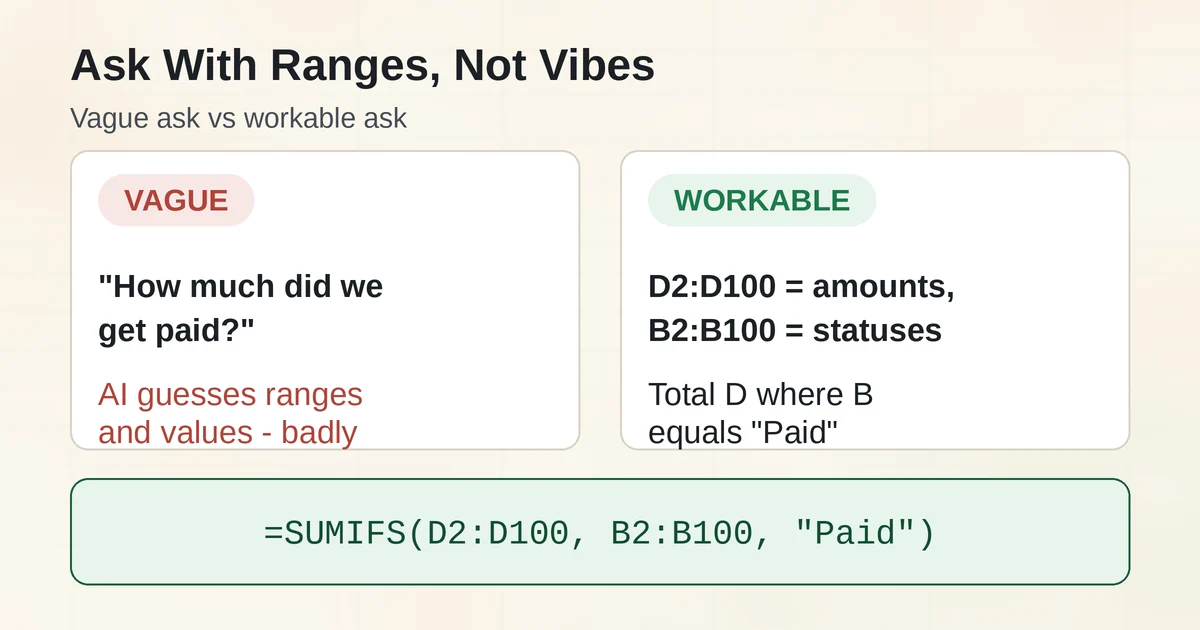
The single biggest reason an AI writes the wrong formula is that the request described the goal but not the data. Compare two versions of the same ask:
Vague: "How much did we get paid?" Workable: "In D2:D100 I have payment amounts, in B2:B100 I have the status which is either Paid, Pending, or Refunded. Write one formula for the total of column D where column B equals Paid."
The second one gives the AI four things it otherwise has to guess: the exact ranges, the exact column meanings, the allowed values, and that you want one formula, not a tutorial. Nine times out of ten, the vague version gets you a SUM with a made-up range and a note saying "adjust as needed."
Practical checklist for the request itself:
- Name the columns by letter and range (B2:B100, not "the status column").
- List the actual values a category column can contain ("Paid", "Pending", "Refunded"), including capitalization, because SUMIFS does not forgive.
- State where the answer goes (one summary cell vs a new column copied down).
- Say which spreadsheet and version you are on. This matters more than people think: XLOOKUP, TEXTBEFORE, and TEXTAFTER do not exist in Excel 2016 or 2019, and an AI that assumes Microsoft 365 will hand you a #NAME? error with total confidence.
- Mention the weird stuff up front if you know it: merged cells, numbers stored as text, trailing spaces in status fields.
That last point is the one that bites. Data that looks clean in a preview is rarely clean underneath, and the AI cannot see your data at all if you are pasting from a chat window.
Step 2: Pick your tool (three good options in September 2026)
Formula Bot, now Better Analyst. The tool that practically owned the "English to Excel formula" search has rebranded. Formula Bot is now Better Analyst, same accounts and files, run by the same company (Datasetmatch LLC), and the formula generator still lives inside it, but the product has grown into a full analytics workspace with scheduled dashboards, custom agents, and connected data. The free tier gives you 10 messages and 25 AI Actions a month, which is enough to remember it exists; paid plans start at $20 a month with the Excel and Google Sheets add-ons at the Starter level. If you want a sentence turned into a formula and nothing else, a chatbot still does that job more directly. If your sentence is actually the first step of recurring reporting, Better Analyst is now built for the whole job.
Copilot in Excel. Microsoft's Copilot generates formulas, creates charts and PivotTables, applies formatting, and can make direct edits to your workbook. It now runs in three modes: edit, plan, and chat, with plan mode showing you the intended approach before anything touches your sheet. It also has a model switcher supporting Claude models from Anthropic and GPT models from OpenAI, though switching requires a commercial Microsoft Copilot subscription or Microsoft 365 Premium. Two things worth knowing. First, Microsoft's own FAQ says to "review, edit, and verify anything Copilot creates before you rely on it," which is exactly the right instinct. Second, the futuristic =COPILOT() function, which would have let you call AI from inside a cell, was retired on September 14, 2026, barely a year after its preview debut, before ever reaching general availability. Microsoft's conclusion matches everyone else's: AI proposes the formula, shows its work, and a human accepts it. That is the workflow that survived.
ChatGPT or Claude. The paste-back option, and still the most flexible. ChatGPT for Excel and Google Sheets is an official add-in now, available globally on Free, Go, Plus, Pro, Business, and Enterprise plans, and it can build and edit sheets in plain language rather than just hand you a formula. Claude for Excel is an add-in generally available to Pro, Max, Team, and Enterprise plans, and its signature move is cell-level citations: when it explains a change, it points at the exact cells. Both vendors also publish the honest caveats, and Anthropic's docs warn that spreadsheets from external sources can carry hidden instructions that manipulate the add-in, so only point these tools at files you trust.
Google Sheets users: Gemini in Sheets can create formulas, tables, and conditional formatting, and as of June 2026 it gained a Fix button that diagnoses formula errors straight from the error cell. If you live in Sheets rather than Excel, the same ask-and-verify workflow below applies unchanged.
Step 3: The worked example
Here is a real request, run through the whole workflow. The sheet: 4,000 orders, where B holds status (Paid, Pending, Refunded), C holds ship date, D holds payment amount, and A holds order date. The manager wants a column flagging late shipments: more than 5 days between order and ship.
Ask: "In this sheet, A2:A4000 is the order date, C2:C4000 is the ship date, both real Excel dates. Write one formula for column E that shows Late if shipping took more than 5 days, On Time otherwise. I'm on Microsoft 365."
Answer you will get, and it is a good one:
=IF(C2-A2>5, "Late", "On Time")
Read it aloud: if ship date minus order date is greater than 5, say Late, otherwise say On Time. That read-aloud step is not decoration. Saying the formula in words forces your brain to compare what the formula does with what you asked for, and mismatched logic is much easier to hear than to see. If the AI had written C2-A2>=5, the spoken version, "five or more days is late," might not match your intent, depending on whether day 5 counts. Reading it aloud catches that instantly.
Step 4: The three-row test (the part most people skip)
Before you trust any AI formula, paste it against three specific rows: one perfectly normal row, one row with a blank in the key column, and one row with a zero. These three rows catch an astonishing share of AI formula errors.
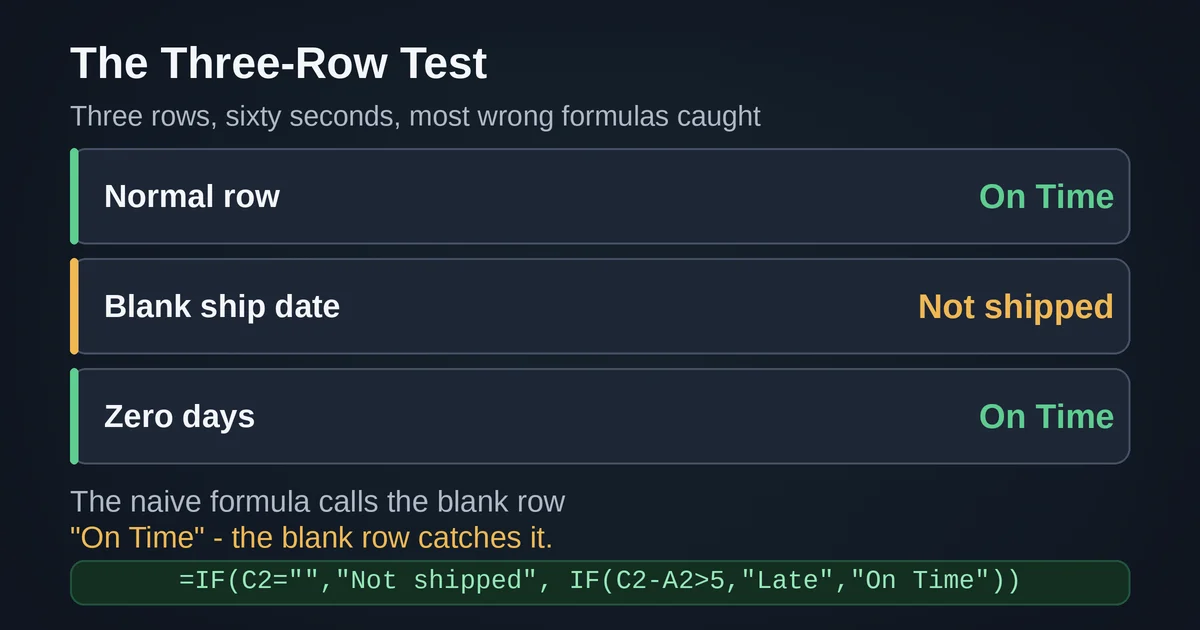
Back to the shipping flag. Your three test rows:
- Row 2: ordered March 1, shipped March 4. Should say On Time. Does. Good.
- Row 3: ordered March 1, shipped March 4, with a blank in column C because the order never shipped yet. What does the formula say? Because a blank in arithmetic behaves as zero, C3-A3 becomes a large negative number, negative 400-odd, which is not greater than 5, so the formula cheerfully says "On Time" about an order that has not shipped at all. That is a real business error, not a cosmetic one, and the formula did exactly what it said.
- Row 4: shipped same day, so zero days. Says On Time. Correct here, but note that zeros are where thresholds live.
The fix, and the reason you test: =IF(C2="","Not shipped", IF(C2-A2>5, "Late", "On Time")). Now the blank is handled on purpose instead of by accident. This pattern, an AI formula that is right for every normal row and quietly wrong for the blanks, is the single most common AI formula failure, which is exactly why the blank row and the zero row earn their place in the test.
The same test catches other classics. Ask for "the average of column E, ignoring blanks" and an AI will sometimes write =AVERAGEIF(E2:E4000, ">0"). But AVERAGE already ignores blanks, and the ">0" version also throws away legitimate zeros, silently inflating the average if a zero is a real score. The zero test row catches it. Ask for a lookup on product codes and you get XLOOKUP, which is correct on Microsoft 365 and a #NAME? error on Excel 2019, and which returns #N/A the moment "0042" is stored as text in one place and a number in the other. The normal-row test on a real data sample catches the first; only checking formats catches the second.
Sixty seconds, three rows, and a read-aloud. That is the entire verification method. It is not sophisticated, which is why it works: it does not test whether the AI is smart, it tests whether the formula survives your actual data, which is the only question that matters.
Where AI formulas go wrong, in order of frequency
- Blanks treated as zeros (arithmetic) or ignored (AVERAGE), when you meant "missing" to mean something.
- Zeros discarded by well-meaning ">0" conditions.
- Text that looks like data: "paid " with a trailing space does not match "Paid", numbers stored as text break lookups, dates as text break subtraction.
- Modern functions on old Excel: XLOOKUP, TEXTBEFORE, TEXTAFTER, LET all assume Microsoft 365.
- Logic that is almost right: >= vs >, OR vs AND, an "at least" that arrives as "more than".
The 2023 EuSpRIG research found that accuracy dropped as prompts required more inference, and that is still the shape of the problem in 2026: the more the AI has to assume about your intent or your data, the more you need the three-row test. If your request was vague enough that the AI had to choose between two reasonable readings, do not check whether the formula looks right. Check which reading it chose.
When you must not skip the check
The vendors put this in writing, so take it as the floor, not the ceiling. Microsoft's guidance is to avoid using Copilot for decisions in sensitive areas such as finance, legal, or medical topics, and to verify anything it creates before you rely on it. OpenAI notes that ChatGPT is not a financial or accounting advisor and not a substitute for professional judgment. Anthropic's documentation is the most specific of the three: do not use Claude for Excel for final client deliverables without human review, or for audit-critical calculations without verification.
Translated into practice: a late-shipment flag on a marketing tracker is a low-stakes place to learn the habit. A payroll sheet, a tax calculation, an audit trail, or anything with a legal or financial obligation attached is not. There, the rule is not "run the three-row test and move on." It is: generate the formula with AI if it helps, but a human who understands the calculation checks it against manually computed expected values before it touches real money, and the AI's explanation is a starting point for that review, not a substitute for it. No AI vendor disputes this. Neither do we.
Two questions people actually ask
Is a dedicated formula tool better than ChatGPT or Claude for this? For pure formula generation, the honest answer is that the gap has narrowed to almost nothing. Dedicated tools give you structured input, add-ins that read your actual ranges so the AI stops guessing, and integration into the spreadsheet. A chatbot gives you a free-form conversation where you can paste five rows of sample data and argue about the edge cases, which is often the faster path to a correct formula. If you are doing this all day, use both: an add-in for speed, a chat window for the weird ones. For a deeper comparison of how these AI spreadsheet tools differ in practice, see our breakdown of Julius, Rows, and Claude for Excel.
Why does the formula work on my data but break on my colleague's? Almost always one of three things: they are on a different Excel version (the #NAME? mystery), their data has blanks or text-stored-as-numbers yours does not, or their columns are laid out differently so the ranges shifted. The three-row test on a sample of their data, not yours, is the quickest diagnosis. And if you want to understand why a confident-looking formula can still be flat wrong, the underlying reason is the same one behind why AI models hallucinate: fluent output and correct output are separate things.
The workflow, compressed: describe your columns and ranges precisely, say your Excel version, read the formula aloud in plain words, and test it on a normal row, a blank row, and a zero row before you trust it. Asking the right way, tailored to the tool you are talking to, gets you a better formula on the first try. The three-row test is what makes it safe to actually use. Whether you end up in Better Analyst, the Copilot pane, or a Claude or ChatGPT chat window, the asking is the easy half. The sixty seconds of checking is the half that pays.
Pricing and plan details are as published by the vendor around September 2026 and can change - confirm on the official site.