Every serious ChatGPT user eventually hits the same wall: the sidebar. You have a chat about a client's product launch from three weeks ago, another one where you pasted half the brand style guide, and a third where ChatGPT finally nailed the tone, except now you cannot remember which one it was, and none of them remembers anything about the others. ChatGPT Projects exist to end exactly that. A project is a workspace that keeps one ongoing effort's chats, files, instructions, and memory in a single place, so the context you build on Monday is still there on Friday.
This guide walks through how Projects actually work in September 2026: how to set one up, what instructions and files really do, how project memory differs from ChatGPT's normal memory, and the limits that surprise people, like file caps, the sharing rule that permanently changes a project, and which kinds of chats simply cannot be moved in. Everything here is checked against OpenAI's current documentation, which has changed as recently as August 2026.
What a ChatGPT Project actually is
OpenAI's help center describes Projects as "smart workspaces that keep everything related to a long-running effort in one place." Strip the marketing and the mechanics are simple: a project is a named container, with an icon and a color, that holds chats, uploaded files, a block of instructions, and its own memory rules. Any chat you start inside the project can draw on the files, read the instructions, and reference the other chats in that same project.
The feature launched on December 13, 2024, during OpenAI's "12 Days" event, originally for paid plans, and reached Free users in September 2025. Today it is available to all free and paid subscription types globally, and you can create an unlimited number of projects.
What a project is not matters just as much:
- It is not a smarter model. Projects run the same models as regular chats.
- It is not more usage. Your plan's rate limits apply inside a project exactly as outside it.
- It is not a distribution mechanism. A project organizes your work; it is not something you publish to other people the way you might have shared a custom GPT.
The honest test for whether something belongs in a project: will you return to this subject more than two or three times with shared context? A one-off question about a recipe does not. A six-week product launch, a monthly newsletter, a course you are studying, a house hunt: those do. If you have ever re-pasted the same background into a fourth chat because ChatGPT "forgot," that was a project trying to happen.
When a normal chat is still the right tool
Projects add a small amount of structure, and most conversations do not need it. A regular chat is right when the question is self-contained, when you will not reuse the context, or when you want ChatGPT to bring all of its knowledge about you to the table, not a walled-off slice.
There is also a performance angle people rarely mention. Because project chats prioritize the project's own files and conversations, a project stuffed with 40 documents can make answers narrower, not richer. ChatGPT deciding what is relevant across 40 files is not always better than you pasting the one paragraph that matters. For scattergun questions, general chats stay the better tool.
And if your real goal is "answers only from my documents, with citations I can click," a source-grounded notebook like NotebookLM does that job more rigorously, because it answers only from the sources you select and shows you exactly which passage each claim came from. Projects blur the line; tools like that draw it sharply. Many people end up using both: a notebook for verified research, a project for the ongoing writing and planning that research feeds.
Setting up your first project: the 10-minute version
The setup itself is almost trivially short. Doing it in the right order is what separates a project that works from a folder full of chats that still need hand-holding.
- Create the project. Click New project in the sidebar, name it, and pick an icon and color so it is findable later. Boring advice, but a sidebar full of unnamed projects recreates the original mess one level up.
- Write the instructions before anything else. Open the three-dot menu, choose Project settings, and write the instructions. This is the step that changes everything downstream, and it deserves its own section.
- Choose the memory setting. You pick default or project-only memory when you create the project, and since August 2026 you can change it later in settings (more below).
- Add your files. Upload the reference material: PDFs, spreadsheets, docs, images, or pasted text.
- Start a chat inside the project. Not in the main window. A chat only inherits the project's context when it lives inside it.
A concrete example makes this clearer than a feature list. Say you edit a newsletter for a client:
- Instructions: "Act like my newsletter editor. Draft in the client's brand voice: plain sentences, no marketing adjectives, headlines under 45 characters. When unsure about a product claim, flag it instead of inventing one."
- Files: the client's style guide, two past issues, a product one-pager, and a page of audience notes.
- Memory: project-only, because this is client work and nothing in it belongs in your personal ChatGPT memory.
With that in place, a chat that begins "draft the intro for the September issue" already knows the voice, the audience, the products, and the format. That is the entire value proposition in one sentence: you stop re-explaining your work every time you sit down.
Project instructions: the three lines that do the work
Project instructions are a private rulebook that applies to every chat in the workspace. OpenAI's example is "Act like my marketing mentor. Be concise. Use bullet points. Ask clarifying questions." Good instructions are less about persona and more about the recurring decisions that waste your time.
The three instruction types that changed my drafts most, in order of impact:
- Output shape rules. "Always give me the subject line options first, then the draft." This single line eliminates the scroll-and-dig that eats the first minute of every session.
- Style constraints with a concrete anchor. "Plain sentences, no marketing adjectives, headlines under 45 characters" beats "be concise" every time, because the model has a test it can apply.
- Honesty rules. "If a claim about the product is not in the uploaded documents, flag it instead of inventing it." This turns the project into something you can actually trust, which is the difference between a drafting tool and a liability.
Two things worth knowing before you write them:
- Project instructions override your global custom instructions. OpenAI's help page is explicit: they "only apply inside the respective project and will override your global custom instructions." They replace, not stack. If you tuned your account-wide instructions carefully, those rules go quiet inside any project with its own instructions set. Copy the global rules you cannot live without into each project.
- There is no published character limit for project instructions. Write what you need, but like any prompt, the focused version outperforms the exhaustive one.
Files: what they can and cannot do
Files uploaded to a project become sources that every chat in the workspace can draw on. PDFs, spreadsheets, documents, images, and pasted text all work. You can also paste links from supported connected apps to use as project sources, with one documented quirk: the Google Drive app does not sync files added within a project, so ChatGPT searches and accesses them live rather than pre-loading their content.
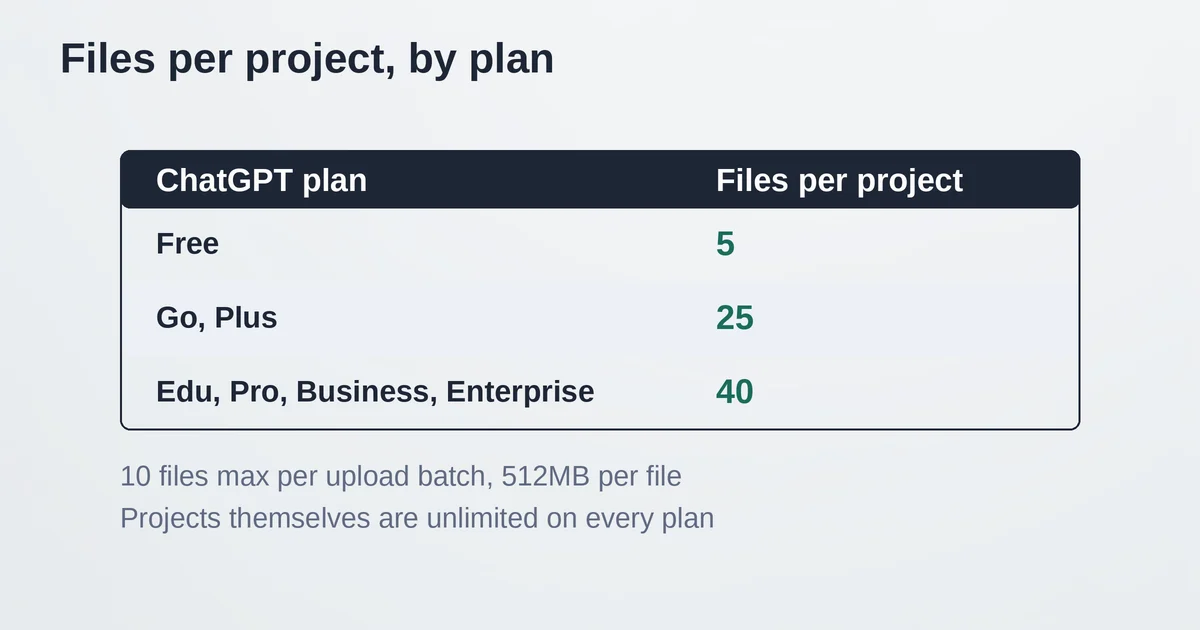
The limits are where planning matters. Per OpenAI's plans and limits table:
| Plan | Files per project |
|---|---|
| Free | 5 |
| Go, Plus | 25 |
| Edu, Pro, Business, Enterprise | 40 |
Only 10 files can be uploaded in one batch regardless of plan, and any single file uploaded to ChatGPT is capped at 512MB. Projects themselves are unlimited: you can run a dozen of them, each with its own instructions and file set, which is often the better answer to "my project is full." Split by subject, not by quota.
What files do not do: guarantee recall. "Available as a source" is not "fully read into every answer." Long PDFs get retrieved selectively, so for facts that must never be missed, like pricing, deadlines, or product specifications, put the key facts into the instructions themselves rather than trusting retrieval to surface them. When you hit the cap, OpenAI's own guidance is to remove stale uploads, combine files, or split the work across projects.
Project memory: the part most guides get wrong
This is the section that dates fastest, so here is the September 2026 state of play, verified against OpenAI's documentation.
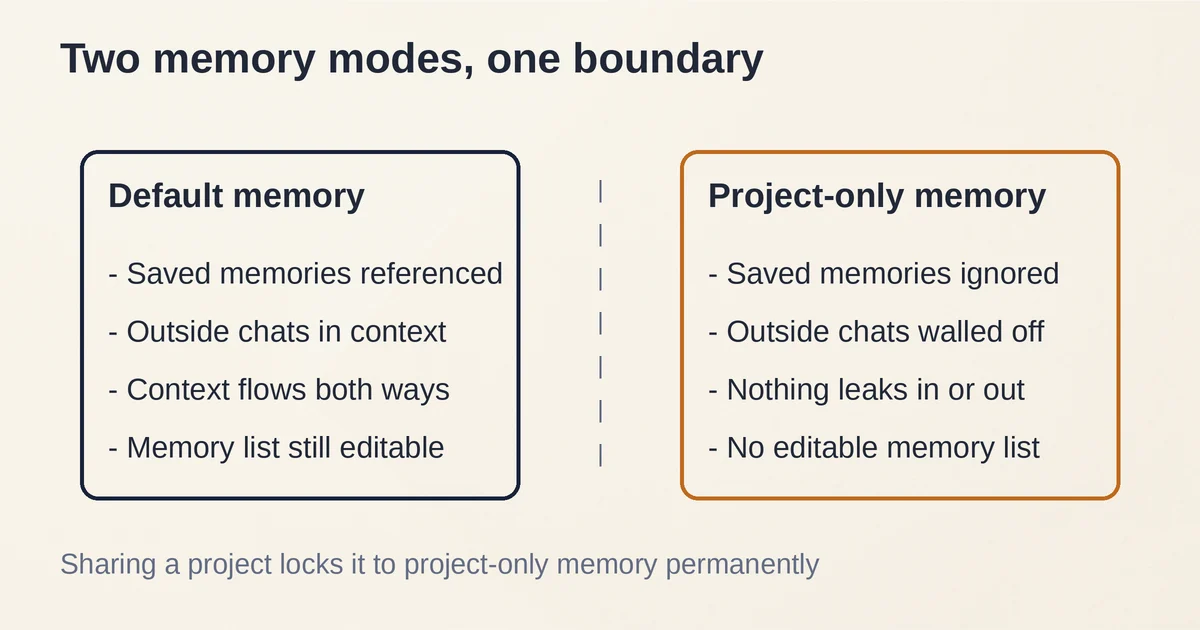
Projects have built-in memory: chats inside a project remember the project's other chats and files, so work picks up where it left off. The choice you control is the boundary around that memory. There are two modes:
- Default memory: your saved memories are referenced, and on personal plans (Plus, Pro, and the like), project chats can also reference conversations outside the project, and vice versa. On Enterprise and Edu, chats stay contained within the project even on default.
- Project-only memory: saved memories are ignored, outside chats cannot be referenced in either direction, and what accumulates in the project stays out of the memory used everywhere else.
For a long time the setting could only be chosen at creation, which forced people to rebuild projects to change it. That changed on August 14, 2026: you can now open an existing project, select the three-dot menu, choose Project settings, and switch between default and project-only memory. OpenAI notes the change may take a few hours to take effect, so a project that still seems to "know" your other chats right after the switch is behaving normally, not failing.
Three gotchas to hold onto:
- Sharing locks the setting. The moment you share a project, it flips to project-only memory, and it cannot be switched back, even after you remove every collaborator. If you want a project to keep benefiting from your personal context, never share that project.
- Project memory has no list. Personal memory shows you an editable list of saved memories. Project memory does not. The only lever is blunt: delete a conversation or move it to another project.
- ChatGPT Work is unavailable in projects using project-only memory, per the August 2026 release notes. If you use Work mode for that effort, the privacy wall and the tool are mutually exclusive.
Why choose project-only at all? Two reasons, one obvious and one better. The obvious one is privacy: client work, medical questions, a job search, anything you do not want bleeding into your general chats. The better one is quality: a sealed project cannot drag your day job into your novel, or your weekend plans into your client's white paper. Contamination is a real output problem, not just a privacy one.
Sharing a project: read the fine print first
Project sharing is now open to all plans, including Free, Go, Plus, and Pro. You can invite teammates with edit or chat-level access, so a group can work from the same files and instructions. The difference is capacity: Pro projects allow up to 100 collaborators, Plus and Go up to 10, and Free up to 5. Members can also move their own chats in, and in a shared project those chats stop appearing outside it.
Before you hit Share, three things are worth checking, because all of them are irreversible or annoying in ways the share dialog does not advertise:
- Memory goes project-only forever. Shared projects have no access to any member's outside context, custom instructions, or memories, by design. Sensible! But the switch is permanent, so if the project's quality depended on your personal context, share a copy of the work instead, or accept the downgrade.
- Shared files are shared files. Deleting a file in a shared project removes it for everyone, though it can be re-added later.
- A shared chat link is not the same as a shared project. A chat link freezes one conversation at a moment in time. Project sharing brings people into the live workspace.
One honest catch: personal plans still cannot manage projects the way workspace admins can. Sharing on Business, Enterprise, and Edu comes with admin controls, data-residency options, and role-based access; on personal plans you get the invite button and the collaborator cap, and that is the whole feature. If you need anything more formal than that, exporting the materials and letting colleagues build sibling projects is still the cleaner path.
Moving chats in, and the ones that cannot be moved
Ordinary chats can be moved into a project by dragging them in the sidebar or using the chat's options menu. Once inside, they inherit the project's instructions and file context. This is how most people rescue existing work: create the project, move the best chats in, and let the instructions take over from there.
Two categories refuse to move, and both surprise people:
- Chats created with a custom GPT cannot be moved into a project. The GPT's configuration is part of the chat, and projects do not adopt it.
- Temporary chats cannot be added either, since they are designed not to persist.
The custom GPT limitation lands differently in September 2026, because custom GPTs are winding down: OpenAI has announced a retirement timeline with new GPT creation ending September 25, 2026 and GPTs scheduled to stop running December 11, 2026, with plugins as the official migration target. If you are untangling a GPT-based workflow, our custom GPT retirement guide covers that transition in detail; for "my workspace of chats and files" use cases, a project with good instructions replaces most homegrown GPTs outright, while "a tool other people install" use cases are headed to plugins instead.
Projects vs. custom GPTs in one table
Since the question is unavoidable right now, here is the compressed comparison:
| Projects | Custom GPTs | |
|---|---|---|
| What it is | A workspace for evolving work | A configured tool for repeatable tasks |
| Memory | Remembers the work, accumulates context | Starts fresh each chat |
| Files | Per-project sources (5 to 40 by plan) | Knowledge files, up to 20 per GPT |
| Instructions | Replace global instructions in that project | The GPT's own configuration |
| Sharing | Invite collaborators (all plans, 5 to 100 by plan) | GPT Store or links |
| Status in Sep 2026 | Core, actively developed | Retiring Dec 11, 2026 |
The rule of thumb survives the transition: a project is where work accumulates; a GPT was something you ran. If you mostly built GPTs to hold your own instructions and files, Projects are the natural landing spot, and the setup takes less effort than the GPT builder did.
A workspace that earns its keep
The through-line of everything above: Projects are organization, not magic. The value is not that ChatGPT gets smarter inside a project. It is that you stop paying the re-explaining tax on work that spans weeks. The people who get the most out of Projects are not power users with 40-file vaults; they are the ones who write three good instructions, upload the four documents that actually matter, seal off the memory when the subject is sensitive, and then just work.
The features inside ChatGPT worth knowing go well past Projects; if this kind of hidden-depth digging is useful, our roundup of overlooked features in the top AI tools is the next rabbit hole.
Pricing and plan details are as published by the vendor around September 2026 and can change, so confirm on the official site before making plan decisions.
Frequently asked questions
Are ChatGPT Projects free? Yes. Projects are available on all free and paid plans globally, including Free. The difference between plans is capacity, not access: Free gets 5 files per project, Go and Plus get 25, and Edu, Pro, Business, and Enterprise get 40.
How many projects can I create? Unlimited, on every plan, per OpenAI's plans and limits table. The per-project file cap is the constraint that actually bites.
Does a project share memory with my other chats? On default memory and a personal plan, project chats and outside chats can reference each other. With project-only memory, nothing crosses the wall in either direction, and information from the project stays out of the memory used by your other chats.
Can I change a project's memory setting after creating it? Yes, since August 14, 2026, for eligible unshared projects, on all plans. Open the project's settings and pick default or project-only under Memory. It may take a few hours to take effect. Shared projects are locked to project-only permanently.
What is the difference between sharing a chat and sharing a project? A shared chat link is a snapshot of one conversation. Project sharing invites people into the live workspace, where they can work from the same files, instructions, and new chats. Sharing a project also permanently switches it to project-only memory.
Can I move a custom GPT into a project? No. Chats created with a custom GPT cannot be moved into projects at all. Rebuilding the GPT's instructions as project instructions is the practical path, and given the GPT retirement timeline, a path most GPT-based personal workflows will end up taking anyway.