Somewhere in your ChatGPT sidebar there is probably a custom GPT you built in a burst of enthusiasm, forgot about, and quietly came to depend on. Maybe it turns messy notes into your company's voice. Maybe it answers policy questions using a handbook nobody else maintains. On September 11, 2026, OpenAI announced that this entire category of little assistants is being retired, and it published a timeline for when they stop running.
The good news: nothing has stopped working yet, and the parts of your GPT that actually matter, the instructions and the files, are portable. The less good news: the official migration path OpenAI is building goes to plugins, it is aimed at Enterprise workspaces first, and several things you care about, like chat history and share links, will not survive any version of this move.
This guide separates what OpenAI has actually committed to from what is still a plan, then walks through rebuilding a GPT as a ChatGPT Project, the fastest path for most personal accounts, and when you should hold out for the plugin migration instead.
What OpenAI has actually said
On September 11, 2026, OpenAI used its ChatGPT release notes to say it is planning to retire custom GPTs across ChatGPT plans, with a migration path to plugins. The detailed dates live in a dedicated help article, the Custom GPT retirement and migration FAQ, and that page is the only schedule worth planning around.
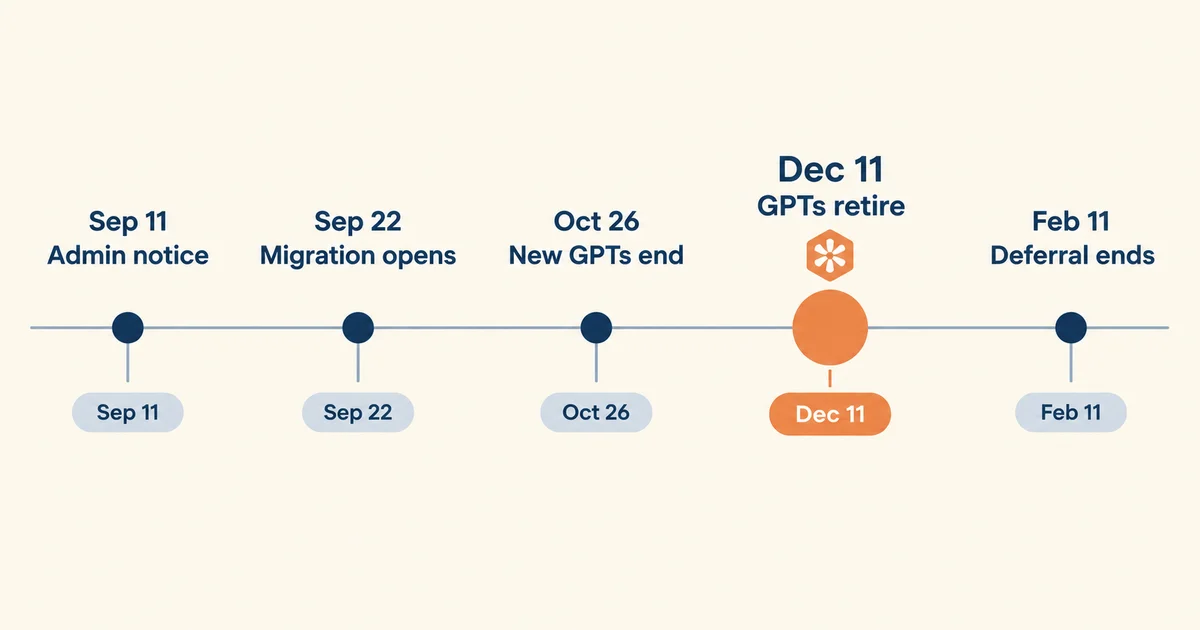
Here is the timeline as the FAQ states it, and how firm each date actually is:
| Date | What OpenAI says happens | How firm it is |
|---|---|---|
| Sep 11, 2026 | Admin notice to affected Enterprise workspaces | Already happened |
| Sep 22, 2026 | Target for the migration experience and user banner | A "target, not a guarantee" it is available in every workspace |
| Oct 26, 2026 | Creation of new custom GPTs ends (affected Enterprise workspaces) | Planned. Publish any drafts you need to migrate before this cutoff. |
| Dec 11, 2026 | Scheduled retirement. In the FAQ's words: "Custom GPTs and their GPT pages become inaccessible." | Scheduled, but labeled subject to change |
| Feb 11, 2027 | Retirement date for Enterprise workspaces with an approved deferral | Conditional, only for qualified, approved deferrals |
Two details in that table deserve emphasis.
First, the dates have already moved once. The FAQ originally targeted September 17 for the migration experience and September 25 for the end of new GPT creation. Around September 19, those became September 22 and October 26. That is not a scandal, it is a rollout being adjusted, but it is a warning: any article, this one included, can drift out of date within days. The FAQ is the source of truth, and OpenAI's own advice is to follow the notice in your account or workspace, including any different timeline communicated to you.
Second, the detailed schedule is an Enterprise schedule. For everyone else, the FAQ says the transition affects all ChatGPT plans and that other plans "may follow the same transition timeline", with in-product announcements coordinated with Enterprise. "May" is not a date, so treat every date in this article as the working schedule: the FAQ's general answer now states that "Custom GPTs are scheduled to retire on Dec 11, 2026," with Enterprise deferrals running to February 11, 2027, and it still tells you to follow the notice for your account or workspace.
One more wrinkle that matters if you depend on someone else's GPT: public GPTs created in affected Enterprise workspaces follow the Enterprise timeline even when you open them from a personal account. Where the GPT was created decides its fate, not where you use it.
What still works today
Less has stopped than the headlines imply. Here is the current state, plan by plan:
- Existing GPTs still run. OpenAI's FAQ is blunt about this: existing GPTs remain usable until the retirement date, subject to their existing access and workspace permissions. Your GPT has not vanished, and it will not vanish before the date that applies to where it was created.
- Personal plans (Free, Go, Plus, Pro) can no longer create or publish new GPTs. OpenAI's help page on creating and editing GPTs now states this directly, while noting that existing GPTs can still be used, and still edited where plan and permission requirements are met.
- Business, Enterprise and Edu workspaces can still create, edit and publish GPTs where their workspace settings allow it. Affected Enterprise workspaces face the planned October 26 cutoff for new creation.
- Editing works, for now. Finish any essential edits before you migrate. After a GPT is migrated to a plugin, the original becomes read-only and its creator can no longer delete it.
The practical conclusion: even where creation still works, do not build anything new inside a container with a scheduled end date. The durable version of your workflow is a set of instructions and files that live outside any single feature. The GPT, the Project and the plugin are all just delivery mechanisms for it.
So this week's job is not migrating. It is inventorying. List every GPT you rely on, note who created each one and where (personal account or which workspace), and flag any that use custom actions, because those need the most rebuild time.
What to copy out of a GPT
Before any migration or rebuild, get the valuable parts out of the GPT editor and somewhere you control. Open your GPT, click Edit, and open the Configure tab. Grab five things:
- The instructions. Copy the whole field, verbatim, into a document you own. This is the asset. If you migrate to a plugin, these instructions become a skill; if you rebuild as a Project, they become project instructions. The same text works in either place, and in other assistants too. If you want this work to outlive whatever container comes next, writing instructions as durable, reusable context rather than a one-off prompt is the habit that carries, which is the argument we make in our guide to context engineering.
- The knowledge files. Download every file you uploaded. These are your reference documents, and you will want them wherever the workflow lands.
- The conversation starters. Copy them too. Projects have no equivalent feature, and the migration FAQ no longer promises they copy through, so treat them as your content: fold the best one into the instructions themselves.
- A few test prompts. OpenAI itself suggests recording a few familiar prompts, plus at least one harder case, so you can compare the replacement fairly. Run these in the old GPT now and save the answers while you still have the original.
- The connected apps and actions. Write down which apps the GPT uses. For any custom actions, record what API they call, what the schema looked like and how authentication worked. These do not transfer through migration, and you will need the details to rebuild.
Do this even if you plan to wait for OpenAI's migration button. Nothing in the migration copies your data out of ChatGPT for you, and the single most common regret in a platform transition is realizing too late that the draft you never published, or the file you never downloaded, was the one that mattered.
Rebuild it as a Project
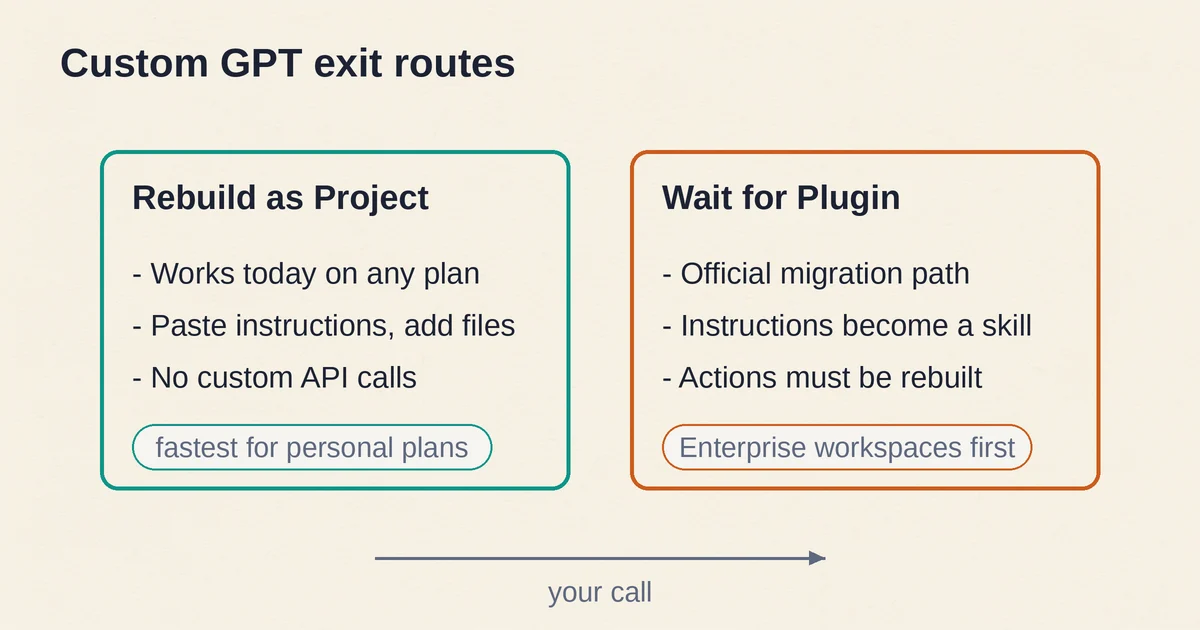
For personal accounts, and for teams without Enterprise migration access yet, a ChatGPT Project is the closest like-for-like rebuild available today. A Project holds chats, files and instructions together, so every conversation inside it starts with your context already loaded. No waiting, no code, no review queue.
Here is the rebuild, step by step:
- Create the project. In the sidebar, select New project, give it the same name as your GPT so people recognize it, and pick an icon and color.
- Add the instructions. Click the three dots in the upper right, choose Project settings, and paste the GPT's instructions into the instructions field. Then re-read them. GPT instructions often reference capabilities toggles, conversation starters or the GPT Store, none of which exist in a Project. Adapt the text to the new home. One thing to know: project instructions apply only inside that project and override your global custom instructions, so write them as a complete set, not a delta.
- Upload the files. Add the knowledge files you downloaded as project sources. Mind the plan limits: 5 files per project on Free, 25 on Go and Plus, 40 on Pro, Business, Enterprise and Edu, with at most 10 uploaded at a time. If you have more, combine related documents or split the work across two projects.
- Choose the memory mode. Default memory lets chats draw on your broader account context where your plan allows. Project-only memory seals the workspace, so chats reference only what is inside the project, which is usually what you want for client work or anything sensitive. You pick this when creating the project, so decide before you upload anything confidential.
- Accept the fresh start on chats. Here is the hard limit: per OpenAI's Projects help article, chats created with a GPT cannot be moved into a project. The history stays behind with the GPT. If old conversations contain conclusions you still need, open them, copy the useful material into a note file, and upload that file as a project source. That is the only way context crosses over.
- Test with your saved prompts. Run the familiar prompts, plus the harder case, inside the new project and compare the answers to the ones you saved from the old GPT. Iterate on the instructions until the gap closes.
Sharing works if your GPT served a small team: project sharing is available across plans, with collaborator limits that scale from 5 on Free to 100 on Pro, and workspace projects can hold up to 100 people with either chat or edit access. Two cautions from OpenAI's documentation: in a shared project, deleting a file removes it for everyone, and deleting the project deletes everyone's chats in it.
What a Project cannot replace is distribution. There is no public marketplace for Projects, no store listing, no share link a stranger can open. A Project is an invitation, not a product page. If your GPT's whole point was being discoverable by people you have never met, read the next section, because your problem is access, not setup.
When the plugin is the better target
OpenAI's recommended destination is a plugin, which packages reusable instructions, reference files and connected apps together. Under the planned migration, your GPT's instructions become a skill inside the new plugin, and its connected apps are added as apps. If you are in an Enterprise workspace, this is the official path: when migration is available, open your published GPT and select its migration button, or ask your workspace admin to run it.
Before you press that button, four caveats from the FAQ:
- Only the creator or a workspace admin can migrate a GPT, and only if it is published. Publishing does not require sharing it publicly. Drafts cannot migrate, so finish and publish anything you want to keep.
- After migration, the original GPT becomes read-only and its creator cannot delete it. All future changes happen in the plugin.
- The replacement starts private. People who used the GPT do not automatically get the plugin, and a redirect link does not grant access. Sharing has to be rebuilt deliberately.
- A migrated plugin may respond differently. OpenAI says to test familiar prompts and at least one harder case, and to review the migrated files, templates and tools before relying on the replacement.
What transfers and what does not, in one table:
| In your custom GPT | In the plugin | What to do |
|---|---|---|
| Instructions | Become a skill inside the plugin | Retest that the skill actually gets followed |
| Connected apps | Added as apps | Each keeps its own authorization, re-approve access |
| Knowledge files | Copied into reference files | Review them before relying on the copy |
| Custom actions | Do not transfer | Rebuild via a supported connector or a custom MCP server |
| Selected model | Does not carry over | Workspace defaults apply, retest outputs |
| Conversation starters | Not promised in the current FAQ | Save them separately |
| Previous chats | Do not move | Keep using the original GPT until retirement if you need them |
The custom actions row is the expensive one, and it deserves its own paragraph. OpenAI's FAQ is blunt: "GPT custom actions do not transfer through the migration workflow." If your GPT called your CRM, your booking system or an internal API, someone has to rebuild that integration using a supported connector or a custom MCP server, and OpenAI explicitly warns that a rebuilt integration should not be assumed to provide every capability of the original action. If MCP is new to you, this is the month to learn it: our MCP explainer covers what the protocol does and why OpenAI keeps naming it as the route for custom integrations. Start these rebuilds now, not in the second week of December.
If you are on a personal plan, do not sit and wait for a migration button that may arrive with your plan's in-product notice at an unannounced time. The Project route above works today, and if your GPT was mostly instructions plus files, the rebuild takes an afternoon.
What you will lose
Some losses are common to every path through this transition. Here is the honest accounting:
| What you had | In a Project | In a plugin |
|---|---|---|
| Your instructions | Pasted in as project instructions | Migrated into a skill for you |
| Knowledge files | Re-uploaded manually | Copied automatically, review anyway |
| Custom actions | No custom API calls; connected apps only | Rebuilt with a connector or MCP server |
| Your chosen model | Default model applies | Workspace defaults apply |
| Chat history | Stays behind; GPT chats cannot move in | Stays behind; chats do not migrate |
| Conversation starters | Folded into instructions | Not promised in the current FAQ |
| Public sharing or store listing | Invite-only sharing, no marketplace | Starts private; directory after review |
| GPT Store discovery | Gone | Plugin directory instead |
The pattern is consistent: the container dies, the instructions and files survive, and integrations, history and distribution are yours to rebuild. If your GPT was a good prompt plus a few PDFs, you will be fine. If your GPT was a thin wrapper over an internal API, you have a small engineering project on your hands, and the earlier you scope it, the more of the old GPT's running time you get to use as a reference implementation.
If you are not wedded to ChatGPT for this, the closest equivalents elsewhere are Claude Projects and Gemini Gems, and the choice between assistants has more to it than this one feature; we compare their current strengths head to head in a separate guide.
If the GPT you depend on is someone else's
A large share of GPT usage is parasitic in the nicest possible sense: you found a public GPT, it became part of your week, and you never met its creator. OpenAI's FAQ has two hard sentences for you.
Permission to use someone else's GPT does not give you permission to migrate it. And access to a public GPT does not guarantee access to its replacement plugin. The creator migrates it or nobody does, the replacement starts private, and even the redirect link only works for people who already have access to the plugin.
There is one more trap: public GPTs created in affected Enterprise workspaces follow the Enterprise timeline even when you use them from a personal account. A popular GPT built inside a company could stop on December 11 no matter what plan you pay for.
So, if you rely on someone else's GPT, do three things now: list the ones you depend on and note who built each one; ask those creators whether a replacement is coming and how access will be granted; and for anything truly load-bearing, build your own fallback. You cannot see another builder's instructions, so your fallback will be your own approximation of the behavior, tested against the prompts you actually use. That is less work than it sounds, and it converts a dependency into an asset you own.
Custom GPT retirement: the questions people actually ask
When exactly do custom GPTs stop working? December 11, 2026 is the scheduled retirement date, when custom GPTs become inaccessible and their GPT pages go down. OpenAI labels the dates subject to change and tells you to follow the notice for your account or workspace. Enterprise workspaces with a qualified, approved deferral have until February 11, 2027.
Can I still create a custom GPT? Not on a personal account. OpenAI's help pages state that new GPT creation and publishing are unavailable on Free, Go, Plus and Pro, while existing GPTs remain usable and can be edited where plan and permission requirements are met. Business, Enterprise and Edu workspaces can still create them where settings allow, until the planned October 26 cutoff in affected Enterprise workspaces.
Can I move my old GPT conversations into a Project? No. OpenAI's Projects article is explicit that chats created with a GPT cannot be moved into a project. Copy any conclusions you need into a document and upload it as a project source instead.
What happens to the GPT Store? At retirement, "Custom GPTs and their GPT pages become inaccessible" at the applicable retirement date. The FAQ no longer promises that old GPT links redirect anywhere, so do not count on share links surviving: check the notice on the GPT and any guidance from its creator, and confirm people can actually open the replacement plugin.
Should I rebuild as a Project or wait for the plugin migration? If you are on a personal plan and the GPT is instructions plus files, rebuild as a Project now; it is fast, fully available, and you control it. If you are in an Enterprise workspace, or the GPT has connected apps and custom actions worth preserving, plan for the plugin migration and start rebuilding the actions immediately, because they are the long pole.
Is the API affected by this? Custom GPTs are a ChatGPT product feature, not an API product. OpenAI announces API changes, including model retirements, separately from ChatGPT product changes, so if you run something on the API, check OpenAI's deprecations page rather than inferring from this rollout.
One last thought. The instinct in every platform transition is to wait for the vendor's tooling to make the move painless, and sometimes that instinct is right. Not here. The tooling is Enterprise-first, the dates are moving, and the parts of your GPT with real value fit in a document and a folder. Copy them out this week, decide the destination per GPT, and let the retirement date be somebody else's deadline.
Pricing and plan details are as published by the vendor around September 2026 and can change - confirm on the official site.