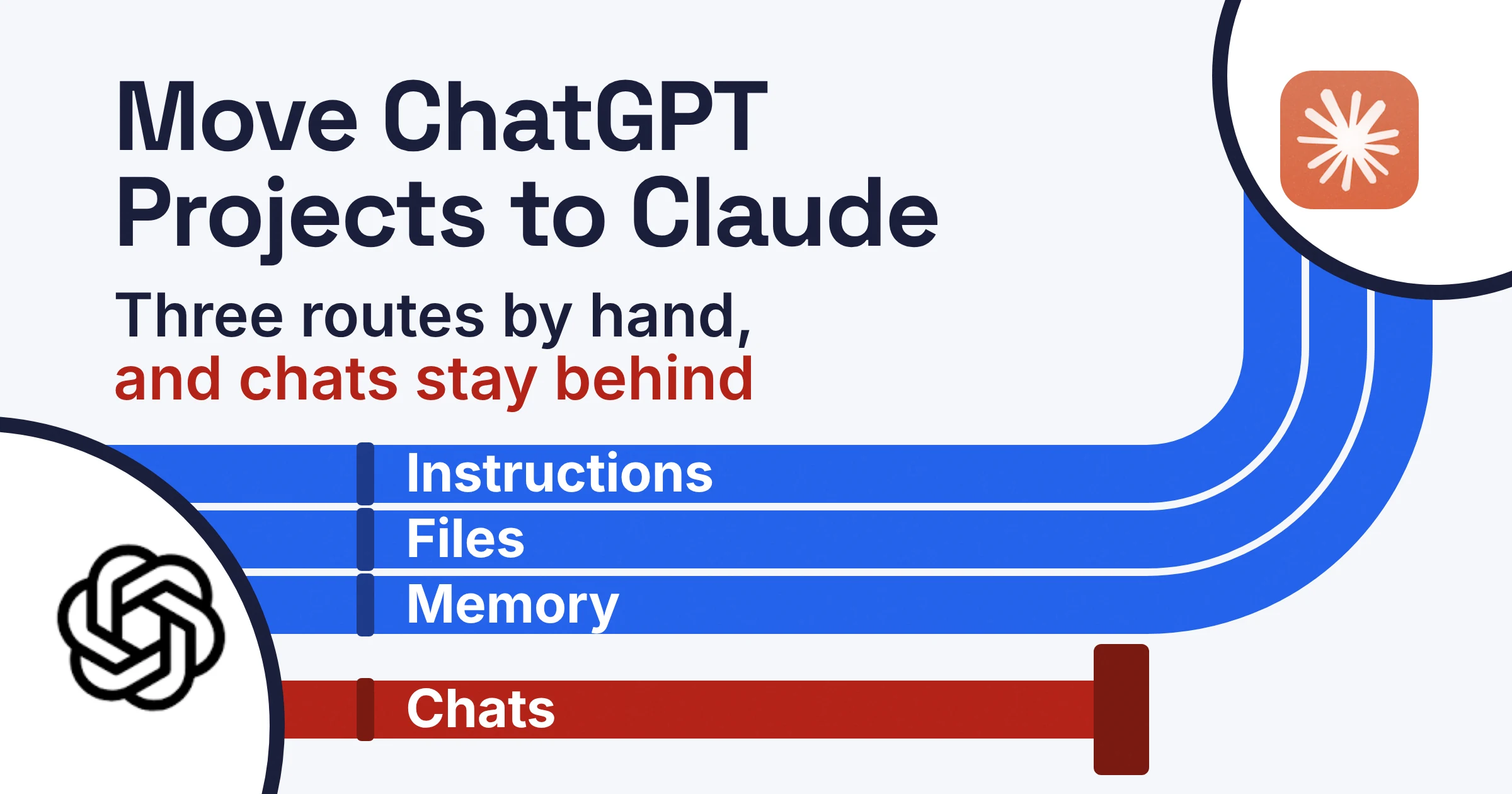
There's no button that exports ChatGPT projects to Claude. As of November 2026, neither OpenAI nor Anthropic documents a project export or a project import, so you rebuild each project by hand. Create a Claude project, paste in the old instructions, re-upload your files, and bring memory across with Claude's memory import tool.
Your old chats stay in ChatGPT, so turn what they taught you into a file before you leave. Think of it as moving house without a removal company: the furniture (your files) and the house rules (your instructions) arrive safely if you carry them yourself. The conversations you had in the old kitchen stay in the old kitchen.
Can you export ChatGPT projects to Claude directly?
No, you can't export a ChatGPT project directly to Claude as of November 2026. OpenAI's export help page describes no single-project export, and Anthropic's project pages describe no project import.
What does exist is three separate tools: ChatGPT's account data export, Claude's project settings and Claude's memory import. None of them talks to the others, which makes you the moving van.
OpenAI describes a ChatGPT project as keeping related chats, files and instructions in one place. Each of those pieces takes a different route into Claude, and one has no route at all. For a refresher on how they work on the ChatGPT side, see our ChatGPT Projects setup guide.
Where does each part of a ChatGPT project go in Claude?
As of November 2026, each part of a ChatGPT project has its own destination in Claude: instructions go to project instructions, files go to project knowledge, memory goes through Claude's memory import, and chats have no documented import. The map below uses only OpenAI's and Anthropic's own help pages.
| ChatGPT project part | Claude destination | How it gets there | What doesn't survive |
|---|---|---|---|
| Project name | Claude project name and description | Type it in when you create the project | Nothing, but Claude can't read the name or description, so keep rules out of them |
| Project instructions | Set project instructions on the project page | Copy the text, paste it, click Save instructions | Nothing, as long as you copy the full text |
| Project files | Project knowledge, added with the + button | Re-upload from your own copies, up to 30MB per file | Any file you only had inside ChatGPT, since OpenAI doesn't say project files are in its export |
| Chats in the project | No direct destination | Ask ChatGPT for a written summary, then upload it as a knowledge file | The chats themselves, because Claude has no documented chat-history import |
| Memory | Claude account memory, via Start import | Run Anthropic's prompt in ChatGPT and paste the answer into Claude | Whatever Claude doesn't keep, since the import is experimental |
| Sharing with other people | Not carried over | No documented export or import moves it | Every share stays with the ChatGPT project |
Two cells in that table catch people out.
First, Claude doesn't read a project's name or description. Anthropic's project page says plainly that "Claude will not have access to these details." So a rule like always write in British English belongs in the instructions, never in the description.
Second, Anthropic's project page notes: "Context is not shared across chats within a project unless the information is added into the project knowledge base." That's why the chat-summary file in the table matters so much.
Picture a Client newsletters project with a brand-voice instruction block, a style guide PDF, last quarter's issues and a long trail of chats where you landed on a subject-line formula. The instructions, the PDF and the old issues move with copy, paste and upload. The subject-line formula only survives if you write it down.
Does ChatGPT's data export include your projects?
OpenAI doesn't say whether the ChatGPT data export includes your project instructions, project files or project memory. As of November 2026, its help page describes the export as a ZIP file with "your chat history and other relevant account data".
Treat the export as a backup of your chats, not as a way to move a project. Here's how to request it on the web, following OpenAI's export instructions:
- Open Settings, then Data controls.
- Under Export data, select Export.
- On the confirmation screen, select Confirm export.
- Download the ZIP from the link you receive. OpenAI says the link expires 24 hours after you receive it, so don't leave it unopened over a weekend.
Not everyone can run the export themselves:
- You can export yourself on: ChatGPT Free, Go, Plus and Pro, and in eligible ChatGPT Edu workspaces.
- You can't on: ChatGPT Business, Enterprise and ChatGPT for Healthcare. OpenAI tells those users to contact their workspace owner about organization-managed data access.
Because the export doesn't spell out what it holds for projects, keep your own copy of every project file before you start. If the original PDF lives in your downloads folder or a shared drive, you're already set.
How do you move project files and instructions from ChatGPT to Claude?
You move ChatGPT instructions and files to Claude by hand: paste the instructions into a new Claude project's Set project instructions box and re-upload each file with the + button. As of November 2026, Anthropic's upload help page caps project files at 30MB each. There's no fixed file count, as long as the total fits within Claude's context window (the amount of text Claude can hold in mind at once).
The rebuild, step by step
- Copy your ChatGPT instructions. Open the project in ChatGPT, copy the full instruction text and paste it into a plain document, so nothing gets lost mid-move.
- Gather your files. Pull the originals from your computer or drive. If a file only ever lived inside ChatGPT, find the source or recreate it now, because the export may not carry it.
- Create the Claude project. Give it a name and description, remembering that Claude won't see either. Projects are available on every Claude plan, but free accounts can create a maximum of five.
- Add the instructions. Click Set project instructions, paste the text and click Save instructions. Claude applies them to every chat in that project.
- Upload the files. Click the + button to add project knowledge: documents, text files or code snippets. XLSX spreadsheets only upload once you've turned on code execution and file creation in your account.
- Write a chat-history file. In a chat inside the old ChatGPT project, ask for a summary of what you've settled together. Save the answer as a text file and upload it to the Claude project's knowledge.
- Test it. Start a new chat in the Claude project and ask something only the project should know, such as What subject-line formula do we use? If Claude answers from your summary file, the move worked.
Here's a summary prompt you can paste into ChatGPT for step 6:
Summarise everything we've settled in this project so far: tone and style rules, facts about my business you rely on, formats that worked, and anything I asked you to avoid. Write it as a plain-text document with short headings so I can save it as a file.
What if a file is too big for the project?
Upload it to a single chat instead. As of November 2026, Anthropic's limits let a file over the project's 30MB cap go into one chat, up to 500MB, though only that chat can use it.
| Where you upload in Claude | File size limit | Number of files | Best for |
|---|---|---|---|
| Project knowledge | 30MB per file | No fixed count, but the total must fit the context window | Reference files every chat in the project should see |
| A single chat | 500MB per file | Up to 20 files per chat | A big one-off file you only need for one task |
Paid plans get extra headroom. On Pro, Max, Ultra, Team and Enterprise, Claude turns on RAG mode (looking things up in your files first instead of reading everything) when project knowledge nears the context limit. Anthropic says that expands capacity by up to 10x.
Free accounts don't get this enhanced project knowledge, so trim big libraries down to the files you actually use.
Can you import ChatGPT memory into Claude?
Yes, Claude can import ChatGPT memory, but only as pasted text. As of November 2026, the import is available on Claude's Free, Pro, Max, Ultra, Team and Enterprise plans, on the web and Claude Desktop, and Anthropic labels it experimental.
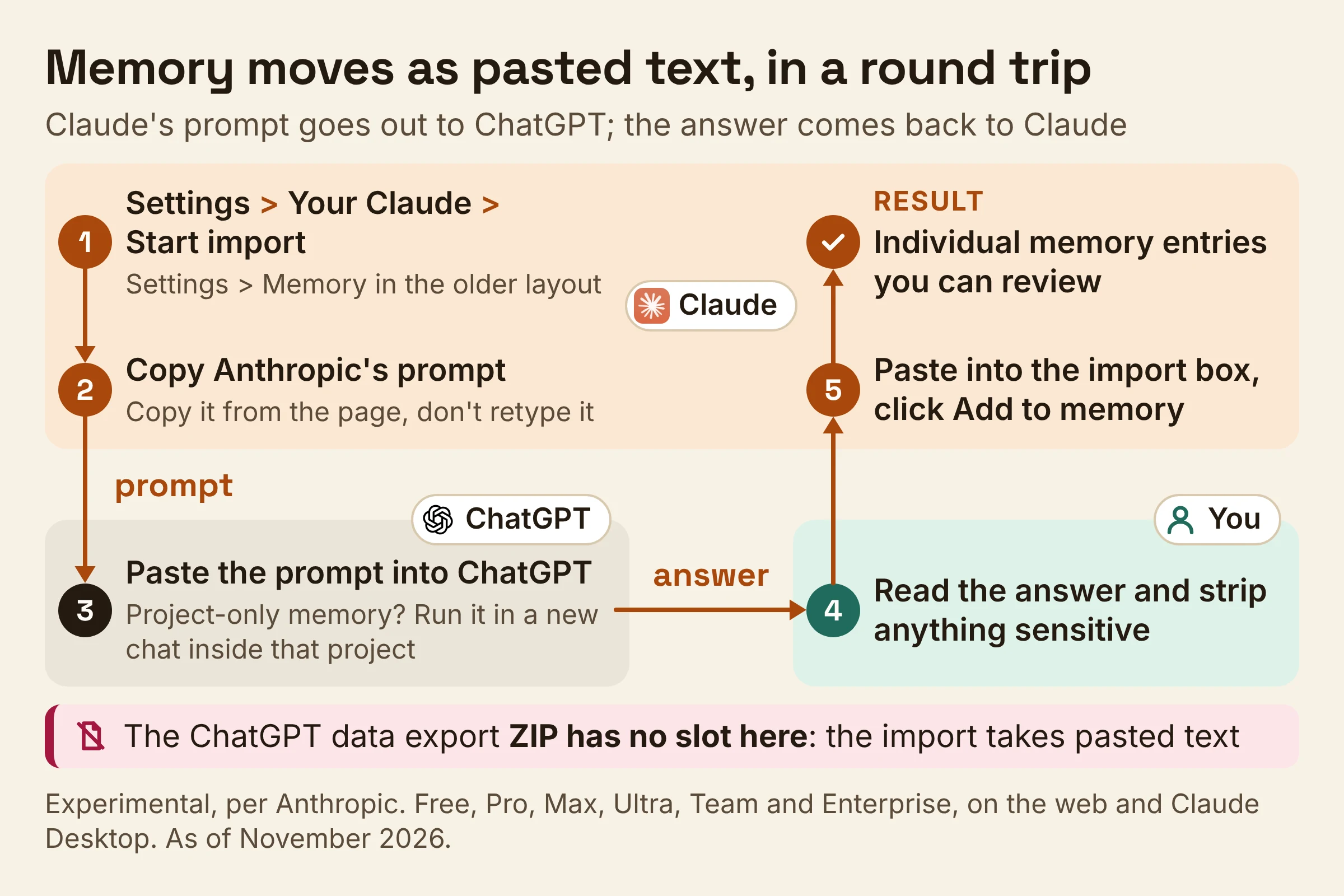
Here's the flow from Anthropic's memory import guide:
- In Claude, go to Settings > Your Claude (or Settings > Memory in the older layout) and select Start import.
- Copy the prompt Anthropic gives you. It includes the line "List every memory you have stored about me, as well as any context you've learned about me from past conversations." The full prompt is longer, so copy it from the page rather than retyping it.
- Paste it into ChatGPT. For a project that used project-only memory, run it in a new chat inside that project, because OpenAI says those chats can reference other conversations in the same project.
- Read the answer before you paste it anywhere. Anthropic says you can customise the prompt to leave out sensitive information, so strip anything you'd rather Claude didn't keep.
- Paste the result into Claude's import box and click Add to memory. Claude pulls out the key information and stores it as individual memory entries you can review. In the new memory experience, they appear shortly after the import completes.
The import is a text hand-off, so the ZIP from ChatGPT's data export has no slot here. Anthropic's steps have you paste text into a text box, and PCWorld reported that the Import Memory tool creates a text prompt you copy into Claude. If ChatGPT can create files, Anthropic's page adds that you can also ask it to export your memory as a Markdown file to keep a copy for your records.
Three things to know before you rely on it:
- It's still rough. Anthropic says "Memory imports are experimental and still in active development" and that Claude may not always successfully incorporate imported memories. Check the entries afterwards.
- Work comes first. Anthropic's import page says Claude's memory focuses on work topics and warns that "Claude may not retain imported personal details unrelated to work." Your dog's name might not make the trip.
- It lands in account memory. Anthropic's import page describes importing into your account memory and doesn't say you can aim an import at one project. Project-specific context is safer in the summary file from the rebuild steps.
Memory is on by default for Claude Free, Pro, Max and Ultra. On Team and Enterprise plans, owners control it, so ask yours if you can't find the setting.
ChatGPT Projects vs Claude Projects: what works differently after the move?
One key difference after the move, as of November 2026, is how chats share context. In a ChatGPT project with project-only memory, chats can reference other chats in the same project. In a Claude project, they share context through the project knowledge base and the project's own memory.
| Option | What it holds | How chats share context | Memory control | Best for |
|---|---|---|---|---|
| ChatGPT project | Chats, files and instructions in one place | With project-only memory, chats can reference other chats in the same project | You may be able to choose project-only memory when you create the project | Work where each chat builds on the last one |
| Claude project, Free plan | Its own chat history, knowledge base and instructions, up to five projects | Through the project knowledge base and the project's own memory | Turn off Use account memory on the project page to keep it separate | Moving one or two core projects first |
| Claude project, paid plan | The same, plus RAG mode that expands knowledge capacity by up to 10x | Knowledge base and project memory, plus search of past chats within that project | The same switch on the project page | Large file libraries and projects you open every day |
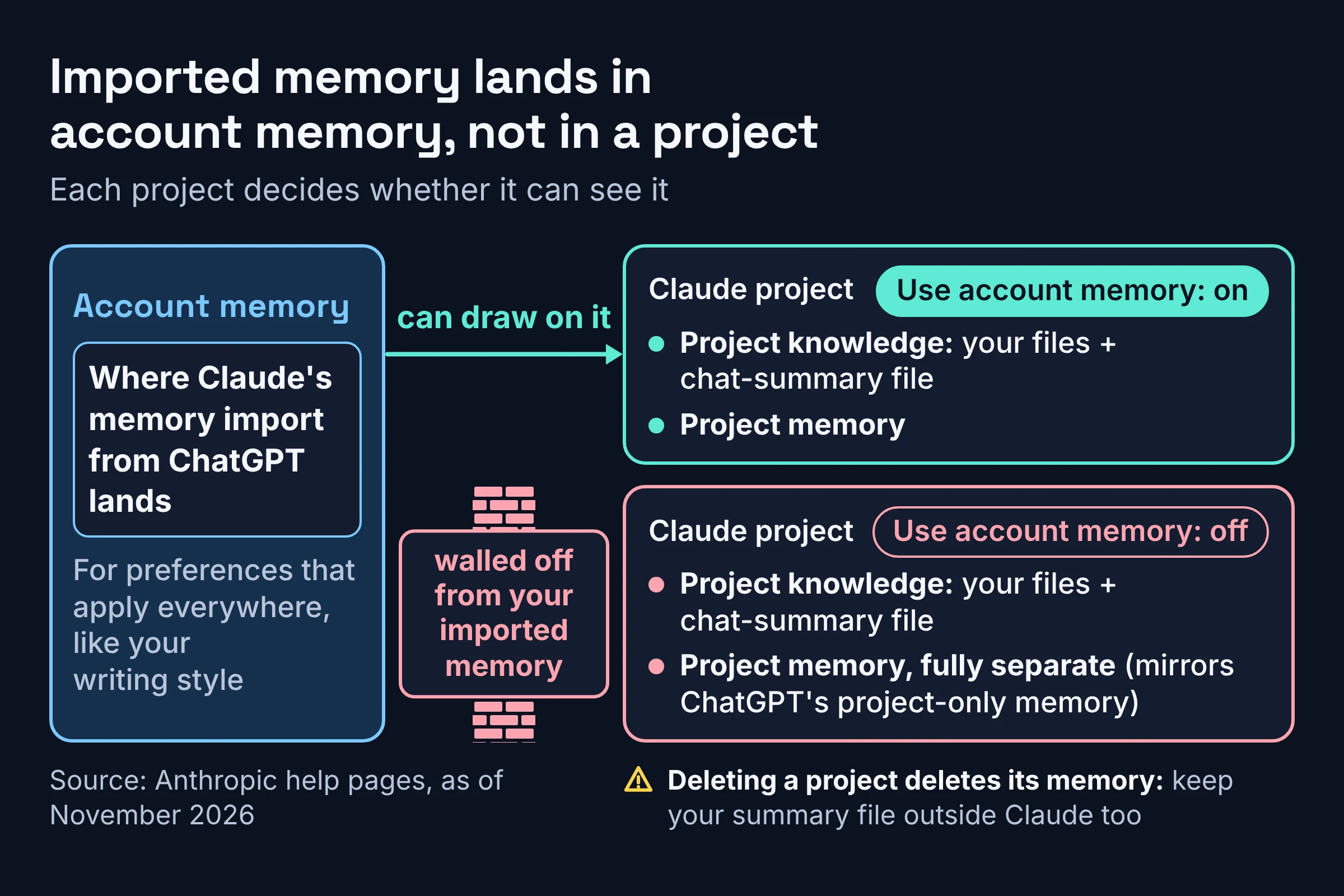
To mirror ChatGPT's project-only memory, turn off Use account memory under Memory on the Claude project's page. Anthropic says that keeps the project's memory fully separate. It also walls the project off from the account memory you just imported, so decide per project which one you want.
Delete with care: Claude deletes a project's memory when you delete the project. Keep a copy of your summary file somewhere outside Claude too.
Anthropic is also testing a new version of projects in beta. So far it's open to select Pro, Max and Ultra subscribers who use Claude Code, plus some users whose projects were moved to it. This guide covers the current projects; if your account has the new version, our explainer on how Claude Code Projects work covers it.
For a wider feature comparison that includes Gemini, see Claude Projects vs ChatGPT Projects vs Gemini Gems.
Do this next
Start with one project, not all of them: the one you open most often and whose original files you still have. On a free Claude account that's sensible anyway, since you only get five projects.
- Today: request the ChatGPT data export as a backup and download it before the 24 hours run out.
- This week: rebuild that project using the map above, in this order: instructions, files, then the chat-summary file. Run the test question.
- Next: run Claude's memory import and review every entry. If you're leaving ChatGPT for good, use our guide to deleting what ChatGPT, Claude and Gemini remember to clear the old copy.
Unsure where something belongs? Use one rule: preferences that apply everywhere, like your writing style, go in Claude's account memory. Anything that belongs to one client or one task goes in a project knowledge file.
Menu names, plan lists and file limits here come from OpenAI's and Anthropic's help pages, checked in November 2026. Both companies rename settings often, so trust the linked pages if a button has moved.