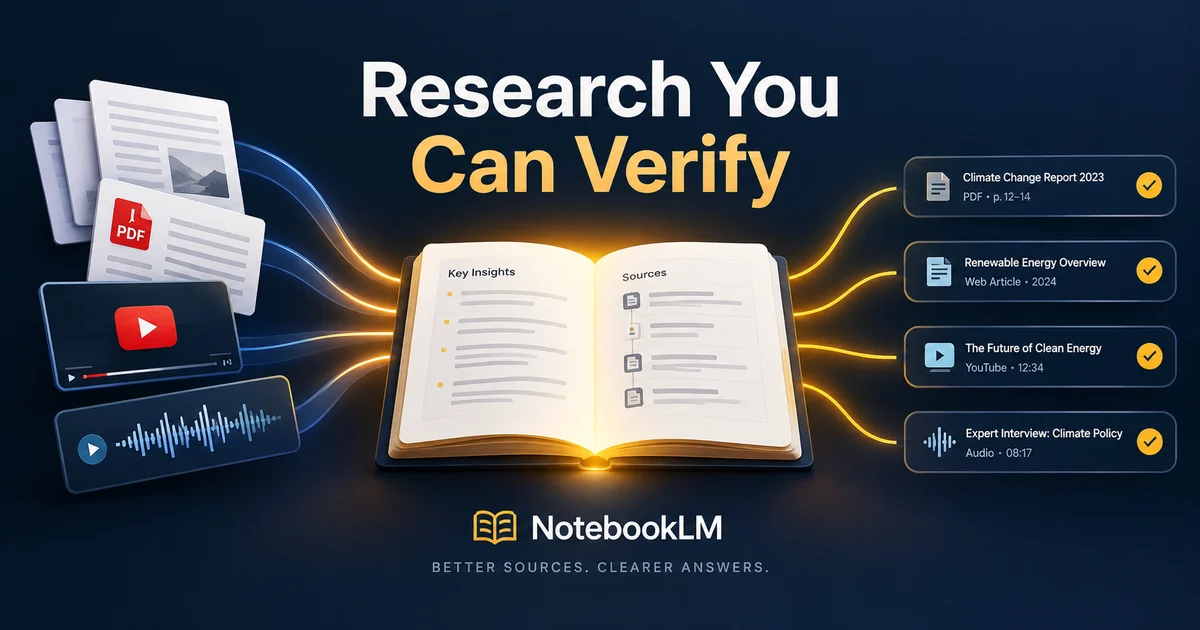
Google NotebookLM answers a question every researcher, student, and analyst eventually asks: how do I get AI to work from my documents instead of the open internet? You give it the documents. NotebookLM is a research notebook where the AI answers only from the sources you upload, with inline citations you can open and verify in context. The basic workflow: create a notebook, add your sources (PDFs, documents, web links, YouTube videos, audio), ask narrow questions with the right sources selected, check the citations, then generate structured outputs like study guides, briefing documents, and Audio Overviews. NotebookLM was renamed Gemini Notebook by Google on July 16, 2026; the product and your existing notebooks are unchanged, and this guide sticks with the familiar NotebookLM name.
In short: the whole playbook in five steps:
- Create a notebook at notebooklm.google and add up to 50 sources on the free plan.
- Scope the sources for each question with the Sources panel checkboxes.
- Ask narrow questions and verify every claim by opening the inline citations.
- Generate the structured output that fits the job: report, data table, mind map, flashcards, or Audio Overview.
- Run one notebook per project so your knowledge work compounds instead of scattering.
What Is NotebookLM, and Why Does Source Grounding Matter?
NotebookLM is Google's AI-powered research and note-taking tool, first shown as Project Tailwind at Google I/O 2023 and now used by more than 30 million people and over 600,000 organizations. What separates it from a generic chatbot is source grounding: chat responses use only the data from the sources you uploaded, and every claim arrives with an inline citation. If the information is not in your sources, NotebookLM says so instead of improvising. Where general AI search engines and research assistants roam the open web and their own memory, NotebookLM stays inside your notebook. You can hover any citation to see the exact quoted text, then click it to jump to the quote in its original context, which turns "trust the model" into "check the source". That verifiability is the reason researchers and analysts should care. Google's official help page describes this grounding behavior in detail.
Step 1. How Do You Set Up a Notebook and Add Sources?
Head to notebooklm.google (the old URL still works, and notebook.google.com also resolves) and create your first notebook. Here is what you can feed it, grouped by how you will actually use them:
- Documents and files: PDF, Word (docx), plain text, Markdown, CSV, PowerPoint, ePub, and common image formats.
- Google Workspace files: Docs, Slides (up to 100 slides), and Sheets (up to 100k tokens). Drive imports auto-sync every few minutes, but footnotes and comments do not come along.
- Web URLs: text only. Images, embedded videos, and paywalled pages do not import.
- YouTube videos: public videos with captions only, and just the transcript is used.
- Audio files: transcribed on import in roughly 60 languages; files without speech fail.
- Everything else: pasted text, eligible Google Play Books, and Gemini chats.
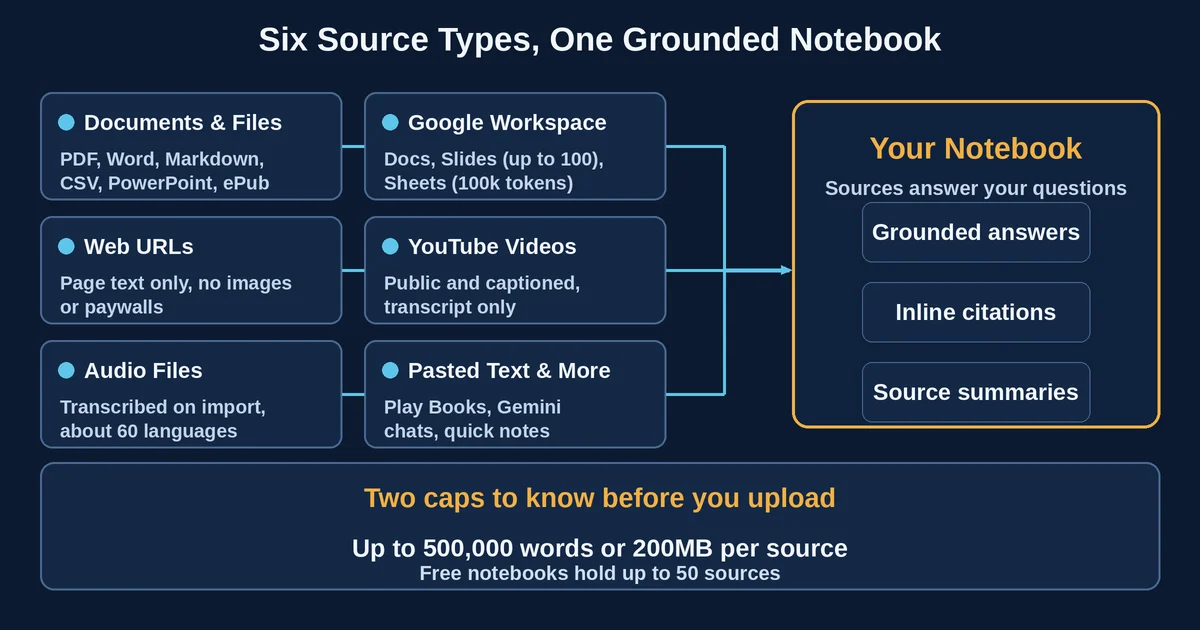
Two caps matter most: each source can hold up to 500,000 words or 200MB, and free notebooks accept 50 sources. If you are short on sources rather than time, Fast Research searches the web or Drive by query and imports what it finds, and in-notebook Deep Research (18+) compiles multi-page reports you can import alongside their sources. The official source types page has the complete list.
Step 2. How Do You Ask Questions That Get Answers You Can Verify?
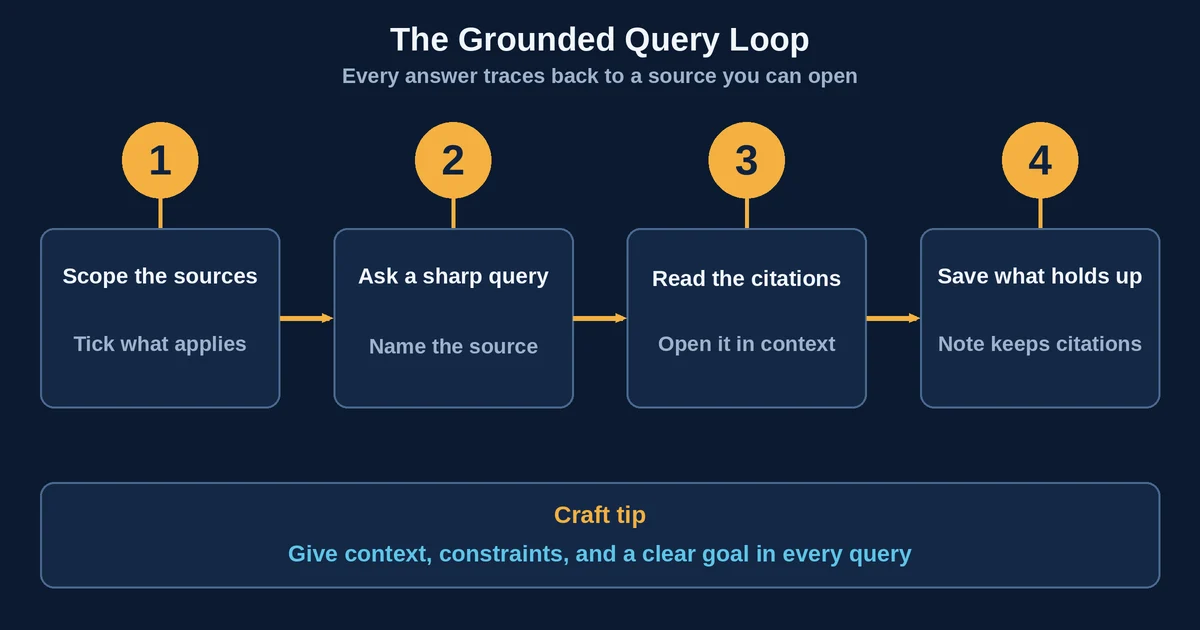
Scope before you ask; in my own research workflow this single habit improves answer quality more than anything else. The Sources panel checkboxes decide which sources answer a given question, so tick only what is relevant, and when several are selected, mention the source by name in the query. Ask narrow questions rather than broad ones: "What methodology does the Smith 2024 paper use?" beats "summarize everything". Then read the citations like a fact-checker: hover a citation to see the exact quoted text, and click it to jump to the quote in context inside the source.
Refine instead of restarting. Chat options let you switch between Default and Learning Guide styles and choose shorter or longer responses, and follow-up questions keep the thread. When an answer is strong, use Save to note: the response lands on your noteboard with its tables and clickable citations intact. Asking well matters as much as sourcing well. The same craft that separates system prompts versus user prompts applies here, so give context, constraints, and a clear goal in every query. Google's page on chat responses and citations covers the mechanics.
Step 3. Which Structured Outputs Should You Generate, and When?
Once your sources are in and queried, the Studio panel turns them into finished artifacts: reports (FAQ, study guide, briefing document, or custom), data tables, mind maps, flashcards and quizzes, slide decks, infographics, and video overviews. A one-line guide to choosing:
- Briefing document: the fastest way to synthesize a source set into a readable summary.
- Data table: for comparisons and extraction; export to Sheets and the citations land on a second tab.
- Mind map: for mapping an unfamiliar topic before you know what to ask.
- Flashcards and study guides: for exam prep and retention.
Your own notes get quick actions too: turn notes into a study guide with key questions and a glossary, get prompts for related ideas, or convert all current notes into a new source. If your study routine involves a second AI for practice and feedback, the NotebookLM and ChatGPT study duo is a good companion read.
Step 4. What Is an Audio Overview, and When Is It Worth Using?
An Audio Overview is a generated, podcast-style deep-dive discussion between AI hosts that summarizes the key topics in your sources, produced entirely from the notebook you are working in. Four formats, each with a job:
- Deep Dive: the default, two hosts discussing your sources.
- The Brief: a single speaker delivering key takeaways in under two minutes.
- The Critique: constructive feedback on material like an essay or design doc.
- The Debate: a formal back-and-forth on the strongest points.
You can generate in 80+ languages, pick a length, and add a custom prompt to focus specific topics or adjust the expertise level. Generation runs in the background while you keep querying, interactive mode lets you join by voice (English only), and you can share or download the result. One honest caveat: Audio Overviews are AI-generated and may contain inaccuracies or glitches, so treat them as a recap, not a source of truth.
Step 5. How Do You Organize Notebooks for Ongoing Knowledge Work?
Structure notebooks around projects, not topics you want merged, because notebooks are isolated: there are no cross-notebook queries. Inside a growing notebook, auto-label and categorize your sources once you pass five. For collaboration, share with viewer or editor roles, up to 50 collaborators on personal accounts (public link sharing is consumer-only). Two behaviors to plan around: exported Docs and Sheets never sync back into the notebook, and copies of a notebook carry sources and Studio content but not chat history or notes. Shared notebooks with at least four other users and with chat activity also pick up basic usage analytics, which is handy for team projects.
What Are the Honest Limits You Should Know Before Relying on It?
Grounding is a ceiling as much as a promise: output quality is capped by source quality, and weak sources produce weak, confidently cited answers. NotebookLM answers only from your sources, so creative or outside-the-scope requests can return "can't answer this question". There is no cross-notebook access, and very short documents may be cited wholesale without pinpoint quotes. On privacy, the official documentation is specific: uploads are not used to train foundational models unless you provide feedback; Workspace and Education uploads are not human-reviewed and not used for training; and Workspace data stays within your Google Cloud project with data regionalization honored.
How Much Can You Use It for Free After the September 2026 Limits Change?
The current model: since September 2, 2026, Gemini Notebook uses compute-based usage limits instead of fixed per-feature daily counts. Your quota factors in prompt complexity, the models and features used, and chat length, and it refreshes every 5 hours up to a weekly cap. Check what remains under Settings > Usage, and when you run dry, "Generate later" queues Studio outputs until your quota returns.
For reference, the pre-change published caps (now superseded, but still a useful scale signal):
| Limit (pre-change table) | Standard (free) | in Plus | in Pro |
|---|---|---|---|
| Notebooks per user | 100 | 200 | 500 |
| Sources per notebook | 50 | 100 | 300 |
| Chats per day | 50 | 200 | 500 |
| Audio Overviews per day | 3 | 6 | 20 |
| Reports per day | 10 | 20 | 100 |
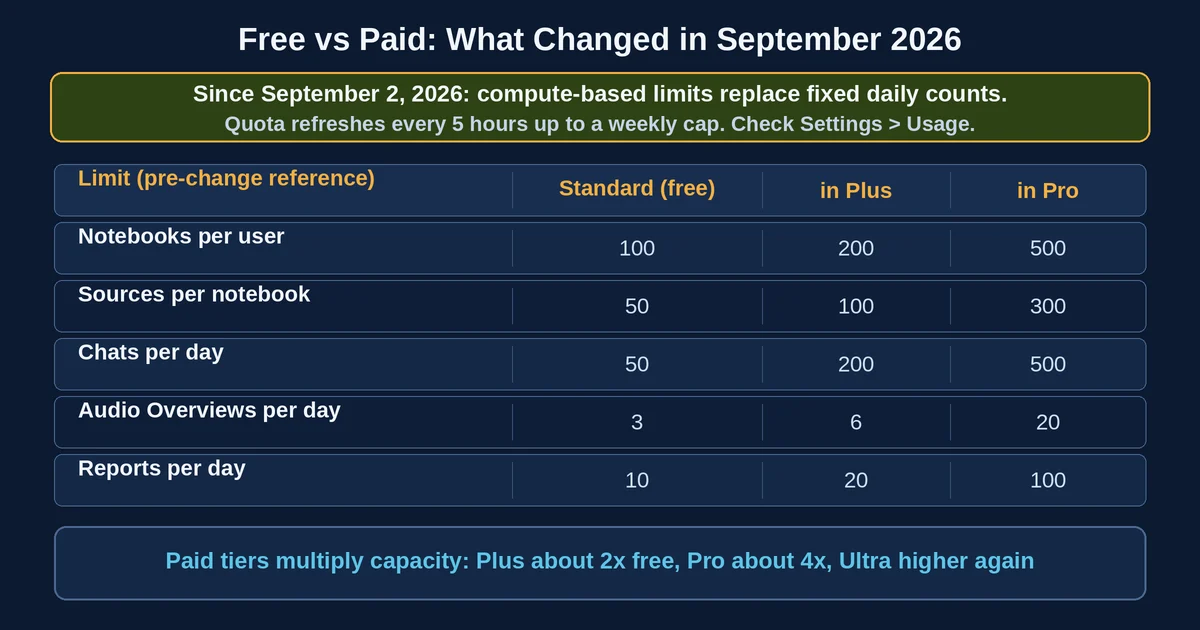
Paid tiers multiply that capacity: Plus runs at roughly twice the free tier, Pro around four times, and Ultra higher again. The free Gemini Notebook Standard tier remains a genuine research tool; heavy Studio generation is what pushes you toward paid plans. Pricing and plan details are as published by Google around September 2026 and can change - confirm on the official site.
Frequently Asked Questions
Do old notebooklm.google links and notebooks still work after the Gemini Notebook rename? Yes. The old URL still works, redirects preserve existing links, and your notebooks carry over untouched, so most NotebookLM guides (this one included) remain directly usable.
Can I add a YouTube video that has no captions? No. Only public videos with captions import, and only the transcript is used. Audio without speech fails the same way, so caption quality is import quality.
What happens when I run out of usage? The compute-based quota refreshes every 5 hours, up to a weekly limit. You can watch remaining usage under Settings > Usage, and "Generate later" queues Studio generations until your quota returns.
If you want more vetted AI tools for research and productivity in one place, browse the Toolbit directory.