
Prompt Engineering

System Prompts vs User Prompts: Why Most People Are Prompting Claude and ChatGPT Wrong

System prompts and user prompts do different jobs. Learn where to put permanent instructions, project rules, memory, formatting preferences, and one-time tasks in Claude, ChatGPT, and Gemini—and stop repeating the same instructions in every conversation.

Toolbit AI - Team
10 min read
System Prompts vs User Prompts: Why Most People Are Prompting Claude and ChatGPT Wrong

Most people prompt AI the same way every time. They open a new chat, type their request, get an answer, and if it's not quite right, they type a longer, more detailed version of the same request. More adjectives. More context crammed into one message. More frustration when it still doesn't stick.

The fix usually isn't a better sentence. It's understanding that every conversation with Claude or ChatGPT actually runs on two different kinds of instructions, and almost nobody is using the first one on purpose.


The two layers, in plain terms

A system prompt defines how the AI thinks for an entire session. A user prompt defines what it does for a specific request.

Think of it like a job description versus a task list. A system prompt is the job description: who this assistant is, what tone it uses, what it should never do, how it should format answers. A user prompt is the task list: write this email, summarize this document, debug this function. The job description shapes every single task without being repeated. The task list changes constantly.

What actually lives in a system prompt

  • Role definition - who the assistant is supposed to be
  • Tone - concise, formal, plain English, technical, and so on
  • Constraints and boundaries - what the model should never do or claim
  • Output format - bullets, JSON, Markdown, fixed sections
  • Domain scope - what topics it should focus on, what's out of bounds
  • Ethical guardrails - safety rules, escalation rules, compliance limits

A working example: "You are a customer service agent for a luxury travel brand. Keep replies under 80 words. Never promise refunds without escalating." That's it. Short, but it governs every single reply for the rest of the session.


What lives in a user prompt

Everything that changes. The actual question. The document you're pasting in. The follow-up correction. The new task. User prompts accumulate as a conversation goes on: by the tenth message, the model is seeing the system prompt plus every prior user and assistant message, then your newest one.

Why this distinction actually matters

Here's the part most people miss: a rule added to the system prompt takes effect on every single turn after it. A rule dropped into a user message only reliably affects that one turn. If you tell Claude "always answer in bullet points" halfway through a long conversation, it might follow that instruction for the next reply or two, but it's competing with everything else in the message history. If that same rule lives in a system prompt or in Claude's persistent Instructions, it holds for the entire session without you repeating it.

This is the actual reason so many people feel like they're "fighting" the AI to stay consistent. They're re-stating the same preferences in every new chat because they never moved those preferences into the layer that's built to hold them permanently.

A second reason it matters: token cost and memory behavior

System prompts and user prompts don't just behave differently, they get treated differently under the hood:

  • Compaction and long conversations. In long or agentic sessions, tools that compress context typically preserve the system prompt word-for-word and summarize the message history instead. That means anything you only said in a user message earlier in a long conversation is at risk of being quietly compressed away. Anything in the system prompt survives by default.
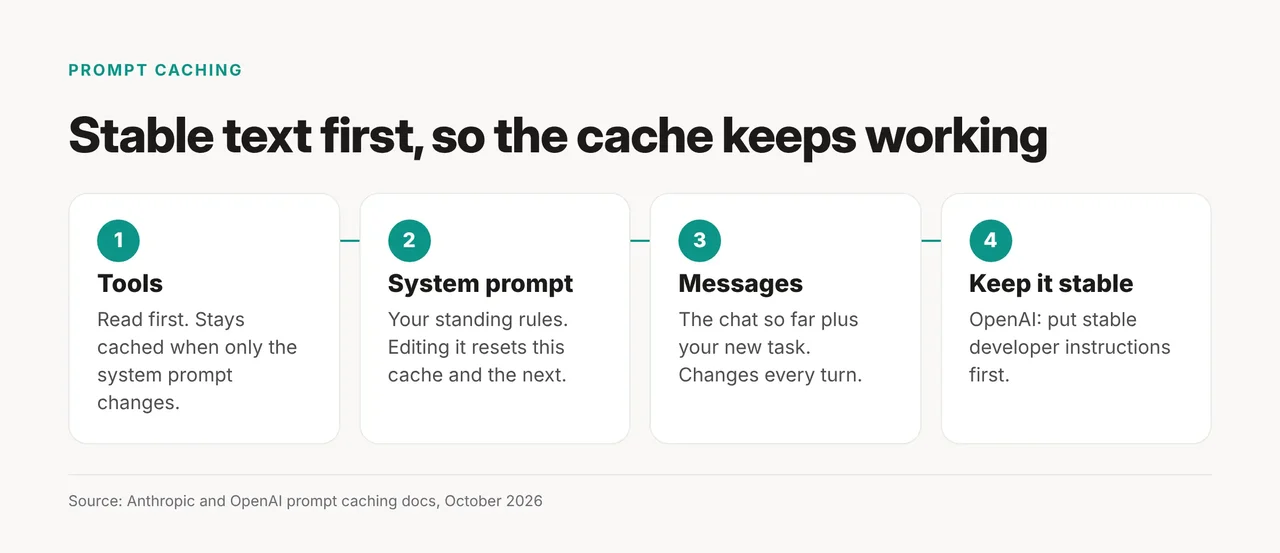
  • Prompt caching. All three major providers support caching on the stable part of a prompt. A system prompt that doesn't change between calls gets cached efficiently. A user prompt, which changes every time, can't be cached the same way. If you're building anything at scale, this is a real cost difference, not just a philosophical one.
  • It still counts as tokens. A system prompt isn't free. It's sent along with every single call, so a long one adds up fast across many requests. This matters more if you're building with the API than chatting casually, but it's worth knowing either way.

How this actually works inside Claude and ChatGPT

At the API level, all three major providers implement the same basic idea with different names:

ProviderHow the system layer is set
OpenAIsystem role at the start of the messages array
Anthropic (Claude)A separate system parameter
Google GeminisystemInstruction, passed as its own parameter

The concept is identical. The implementation detail, and how each one counts tokens, varies slightly.

But here's what most people don't realize: you don't need the API to use this

If you only use Claude.ai or ChatGPT in the browser or app, you already have access to a lighter version of a system prompt, and most people never touch it.

In Claude, this shows up in three stacked layers, from broadest to narrowest:

  • Instructions for Claude (Settings → Profile) - an account-wide rulebook that applies to every single conversation. Capped at 1,500 characters.
  • Project instructions - scoped to one Claude Project, roughly 8,000 characters, plus whatever documents you upload to that project.
  • Styles - tone presets you can swap per chat (Normal, Concise, Explanatory, Formal, or a custom one built from your own writing).

All three stack on every reply. Project instructions layer on top of your account-wide settings, and take precedence if the two conflict.

In ChatGPT, the same idea is called Custom Instructions. OpenAI expanded the character limit significantly in mid-2026, raising the cap from 1,500 to 5,000 characters per field for paid accounts (Free and Go plans stay at 1,500).

The instinct once you see that extra room is to fill it. Resist that. A system-style instruction that runs thousands of characters is harder for the model to reliably follow than a tight, well-organized one. More space should go toward specificity, not volume: name the four things that matter (who you are, how the assistant should behave, what to always include, what to never include), and stop there.


The mistake almost everyone makes

Most people put everything into the user prompt because it's the only box they know exists. They write one long, detailed message every time, re-explaining their job, their preferences, their formatting requirements, and their actual question, all mixed together. Then they do it again in the next chat.

That approach isn't wrong exactly. It works. But it's the AI equivalent of re-introducing yourself to a coworker at the start of every single conversation instead of them just knowing who you are.

Here's the practical shift:

  1. Anything that should be true in every conversation belongs in your account-wide Instructions or Custom Instructions, not typed fresh each time. Your job title, your tone preference, your standing formatting rules.

  2. Anything specific to one project belongs in a Claude Project or a ChatGPT Project/GPT, not your global settings. This keeps your account-wide instructions clean and lets project-specific context do its own job.

  3. Only the actual task, the thing that's different this time, belongs in your message.

Other common mistakes worth fixing at the same time

Once you start separating these two layers, a few related habits tend to surface. All of them are easy fixes once you see them.

  • Stuffing contradictory rules into one instruction block. "Be concise" and "always explain your full reasoning in detail" can't both live at the top of a system prompt without one quietly losing. If two rules conflict, the model has to guess which one wins, and it won't always guess the way you'd want. Pick one, or scope the second one to a specific project instead.
  • Never testing the instruction against an edge case. Most people write a system-style instruction once and never check whether it survives an off-topic question, a very long input, or an ambiguous request. A rule that only works for the one example you tested it with isn't actually reliable.
  • Treating memory and instructions as the same thing. Instructions are fixed rules you write once. Memory (where available) is the model recalling details from past conversations automatically. They solve different problems, and confusing them leads people to either over-rely on memory picking up slack that a written instruction should be covering, or to keep re-writing instructions that memory already handles.
  • Putting the actual question inside the system layer. Instructions should describe how to behave, not what to do right now. A one-off task buried inside your permanent Instructions will fire on every unrelated conversation afterward, which is rarely what anyone wants.

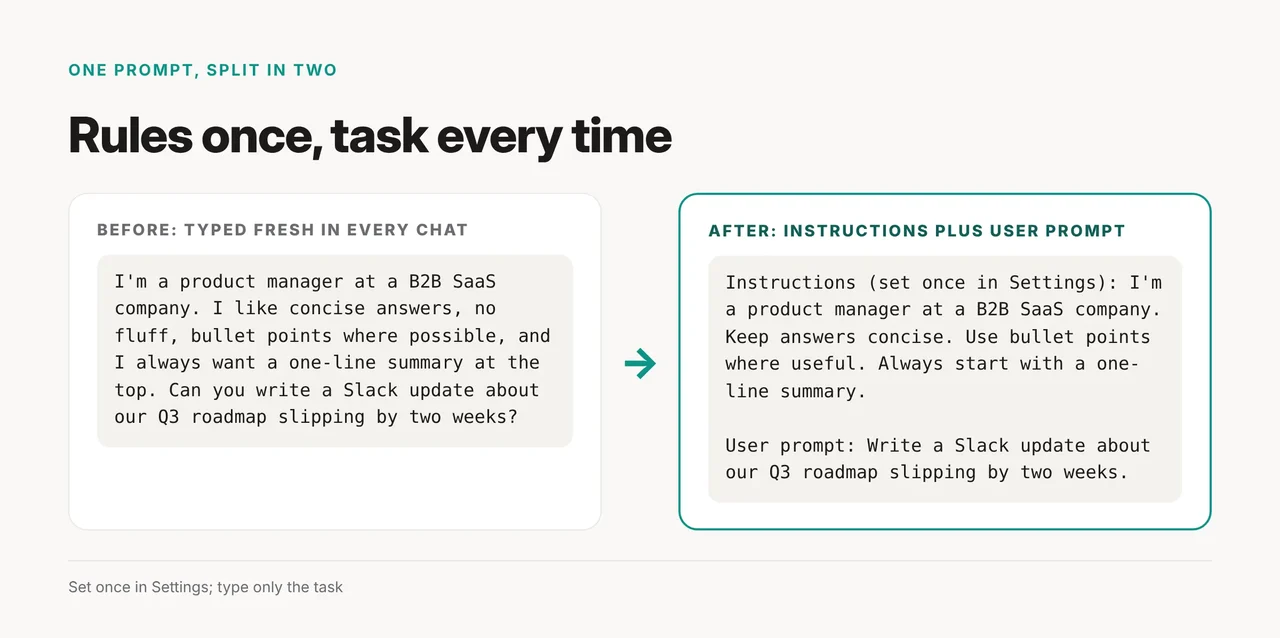
A quick before-and-after

Image

Before

"I'm a product manager at a B2B SaaS company. I like concise answers, no fluff, bullet points where possible, and I always want a one-line summary at the top. Can you write a Slack update about our Q3 roadmap slipping by two weeks?"

After

Instructions (set once in Settings): "I'm a product manager at a B2B SaaS company. Keep answers concise, no fluff. Use bullet points where useful. Always start with a one-line summary."

User prompt (every time you actually need something): "Write a Slack update about our Q3 roadmap slipping by two weeks."

Same output quality. A fraction of the typing, and it holds for the next fifty conversations too, not just this one.

A quick reference for where things go

Image
If it's true...Put it in
Every single conversation, foreverAccount-wide Instructions / Custom Instructions
Only within one specific project or workspaceProject instructions (Claude Projects, ChatGPT Projects/GPTs)
Only for this one messageThe user prompt itself
A tone or formatting style you switch betweenA Style preset (Claude) or a saved instruction variant
Facts about you the model should recall automatically over timeMemory, where the platform supports it, not a manually repeated instruction

Where this gets more advanced: agents and tools

If you're building anything with the API, particularly agents that call tools or run in loops, the system versus user split does even more work. The system prompt is generally where you describe which tools exist. The message history is where you can see which tools actually fired and what they returned. Keeping that division clean is part of why some agent setups stay reliable over long sessions while others start hallucinating tool names or forgetting constraints halfway through.

You don't need to build an agent to benefit from the underlying lesson, though. The core idea scales down perfectly to everyday chat use: stable, persistent stuff goes in one place. Changing, task-specific stuff goes in another. Most people are prompting Claude and ChatGPT wrong not because their questions are bad, but because they've never moved the stable stuff out of the question in the first place.


Final verdict

The gap between a mediocre AI response and a genuinely useful one is rarely about vocabulary or clever phrasing. It's about which layer an instruction lives in. Say something once in the right place, and it holds for months. Say it in the wrong place, and you're typing it again next week.

Start small: move your standing preferences, tone, formatting, and background context into your account-wide Instructions or Custom Instructions today. Keep project-specific rules inside the relevant Project. Leave your actual message free to just be the task. That one change alone is the difference between fighting an AI assistant every session and having one that already knows how you work.


Character limits, pricing tiers, and interface details referenced above (Claude's Instructions and Projects, ChatGPT's Custom Instructions) reflect the state of each platform as of mid-2026 and are the kind of setting that changes over time. Check each platform's current settings page if a specific limit matters for your workflow.

Share this article

Related articles

Continue exploring similar guides and insights