
Short answer: n8n Assistant is a preview feature that turns a plain-language goal into a standard n8n workflow you can open and edit. It suits small teams on Cloud Starter or Pro, or on self-hosted Docker with their own model key. Review what it builds before you publish anything important.
How does n8n Assistant work, from sentence to workflow?
You describe the outcome, and Assistant builds a normal workflow on the n8n canvas. n8n's changelog dates the Cloud release to July 9, 2026, self-hosted setup to August 18 (n8n 2.35), and the launch blog to September 9. The launch blog says it "still ships behind a preview flag".
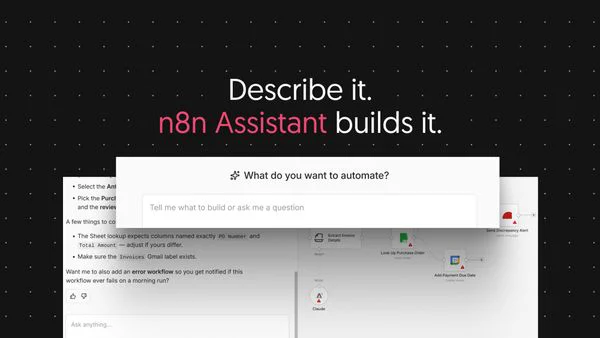
- Describe the goal. Name the trigger, the apps, what success looks like and what should happen on failure.
- Let it build on the canvas. The result is a standard n8n workflow, not a one-off AI action.
- Connect credentials. Third-party coverage describes a credential card in the editor. Assistant cannot create accounts for you.
- Approve each domain. The docs say it asks permission before accessing each external domain.
- Run and debug. Builds that need several debugging rounds cost more credits, per the launch blog.
- Review the graph and logs. The docs warn that "generated workflows may need manual review and correction."
- Confirm before publishing. It asks for confirmation before high-impact actions such as publishing or deleting.
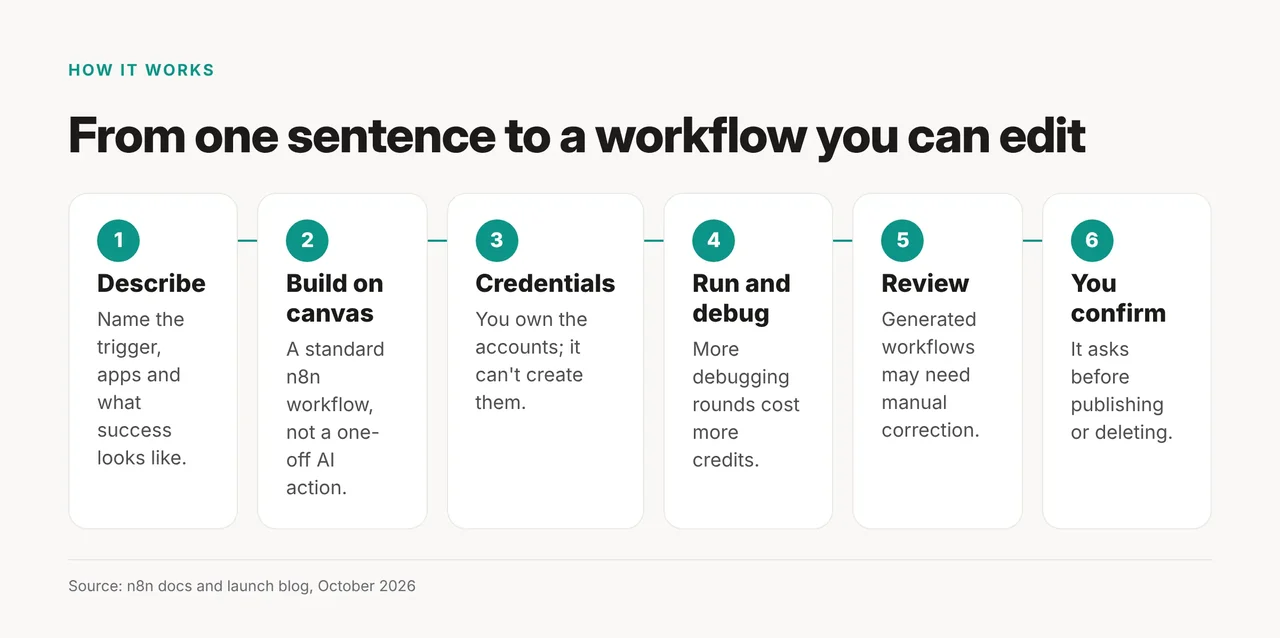
The loop runs from your description through build, credentials, run and debug, review, and a confirmation step that stays with you.
How is it different from the AI Workflow Builder and other n8n terms?
n8n's changelog says Assistant "supersedes the AI Workflow Builder, and the difference is autonomy." In practice, Assistant builds on the canvas, runs and debugs the workflow, and asks before touching external domains or publishing, all per n8n's docs and launch blog. The terms below are the ones people mix up most.
| Term | What it is | How it differs |
|---|---|---|
| AI Workflow Builder | n8n's earlier AI builder | Superseded by Assistant; usage is tracked separately |
| Assistant credits | Monthly Cloud allowance for chats with Assistant | Separate from Gateway credits; not used on self-hosted |
| Gateway credits | Credits for model calls your workflows and agents make | A separate balance from Assistant credits |
| BYOK (bring your own key) | Self-hosted Assistant using your own model provider account | Does not use Assistant credits |
The output is the point, because a saved workflow stays on the canvas for the next owner and a chat transcript does not. If you are still picking a platform, our Zapier vs Make vs n8n comparison covers that choice.
Try it yourself: a first build worth running
Pick a non-critical automation and give Assistant the outcome, not the node list. A prompt shaped like this is a reasonable start:
When a new Typeform submission arrives, create or update a HubSpot contact,
notify #ops in Slack with the form answers, and ask me before publishing.
If HubSpot fails, post the error to Slack and stop.
Then read the graph and the execution data yourself before you publish. If you are new to automation, start with how to build your first AI automation without code.
Who can use n8n Assistant today?
On Cloud, Assistant is on by default for new instances, except Enterprise Cloud. The Assistant docs list Starter and Pro. The pricing page says it is "included in all n8n Cloud plans except Enterprise". That adds Business, so the two vendor pages differ.
| Setup | Status (October 2026) | Notes |
|---|---|---|
| Cloud Starter, Pro | Available (preview) | On by default for new instances |
| Cloud Business | Listed on pricing, not in docs | Check vendor page |
| Cloud Enterprise | Preview on request | Ask your Customer Success Manager |
| Self-hosted Docker | Available (preview) | Community, Registered Community and Business editions |
| Self-hosted npm | Not supported | "n8n Assistant requires Docker" |
| Self-hosted Enterprise | Not ready yet | "On our roadmap, coming soon" |
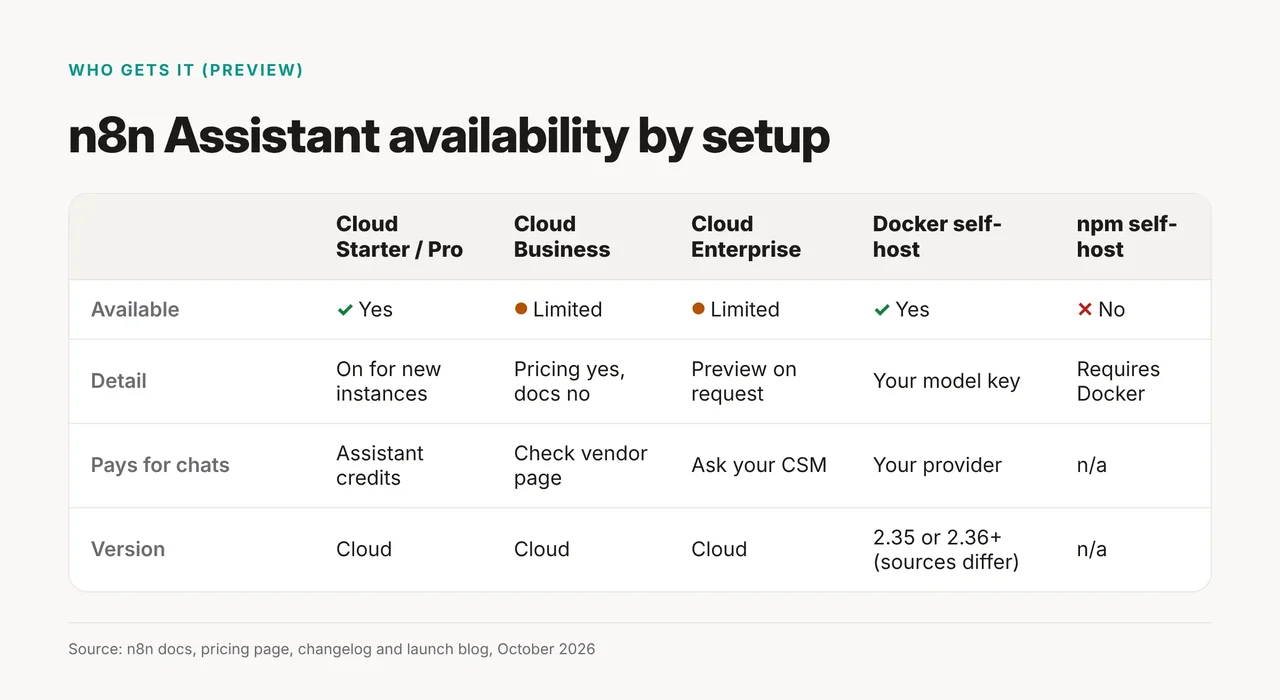
The minimum Docker version is disputed. The launch blog says to run "an n8n version from 2.36 onwards." The changelog introduces self-hosted setup in n8n 2.35. The setup docs say to run the latest stable release. Since both numbers come from n8n, run current stable rather than pinning either one.
Self-hosting needs an API key from Anthropic, OpenAI or OpenRouter, plus a sandbox. Daytona is recommended for production and search is optional. The one-line setup already runs the sandbox and bundled SearXNG search, so you only add the model key. Full steps are in Set up n8n Assistant.
What do n8n Assistant credits cost?
Each Cloud plan includes a monthly allowance of Assistant credits, listed on n8n's pricing page as of October 21, 2026.
| Plan | Price (billed annually) | Assistant credits per month |
|---|---|---|
| Free trial | Trial | 800 for the trial, expiring when it ends |
| Starter | 20€/mo | 1,600 |
| Pro | 50€/mo | 4,000 or 9,600 |
| Business | 667€/mo | Check vendor page |
| Self-hosted | Your model provider bill | Not used |
The page does not say which Pro setup gets 4,000 and which gets 9,600. Usage depends on "the size and complexity of what you're building," and the balance resets on the first of each month, while unused credits do not roll over.
You can now buy extra credits: the pricing page says they are "consumed once your plan's included credits run out." Back in September, the launch blog had only promised these top-ups "in the coming weeks."
What still needs a human before you trust it?
Assistant is in preview, and n8n says "availability, supported actions, and behavior may change." The same automation trust gap applies here as anywhere else.
- Accounts: someone must own the Slack workspace, CRM or form account, since Assistant cannot create them.
- Publishing: it asks before publishing or deleting, so treat that prompt as a real gate.
- Review: the launch blog says the first workflow is "not guaranteed to be production-ready."
- Scope: it is not proactive, works on one instance only and does not control your computer or browser.