Every few weeks someone shows me a ChatGPT task they set up like this: "Check my inbox every morning and tell me what needs a reply." Then they open the result and find a confident, well-formatted summary of emails that does not quite match their inbox. Not because ChatGPT is lazy. Because a scheduled task is not a window into your life. It is a prompt that wakes up on a clock.
That distinction matters more than any feature list. ChatGPT's scheduled tasks, rebuilt in June 2026 around a dedicated Scheduled page in the sidebar, are genuinely good at three jobs: generating a brief, sending a nudge, and watching a public source for change. They are quietly bad at anything that assumes the task can see your inbox, your calendar, or your project files the way a human assistant would. Here is where the boundary actually sits, verified against OpenAI's help center, and which side your use case falls on.
What a scheduled task can actually see and reach
A task runs with three possible sources of context, and nothing else.
The prompt itself. Whatever you wrote when you created the task, plus the conversation it lives in. This is why OpenAI's own walkthrough recommends a pattern worth copying: run the task once in a normal chat, refine the output until it looks right, then stay in that same chat and tell ChatGPT when to run it again. The task inherits a tested prompt instead of a guess.
Connected apps, if you connect them. Go to Settings > Apps and you can connect Gmail, Slack, and GitHub, plus plugins like Google Calendar. A task can then read from those connections on each run. This is real access, and the August 2026 update made it stronger: on eligible paid plans, Work can now create event-triggered tasks that fire when a new Gmail message arrives, a monitored Slack channel gets a message, or a GitHub pull request changes, up to 30 runs per hour and 720 per day across your event-triggered tasks. But the connection is opt-in per app. A task with no Gmail connected does not have Gmail.
The web, and your ChatGPT Health or Finances data where enabled.
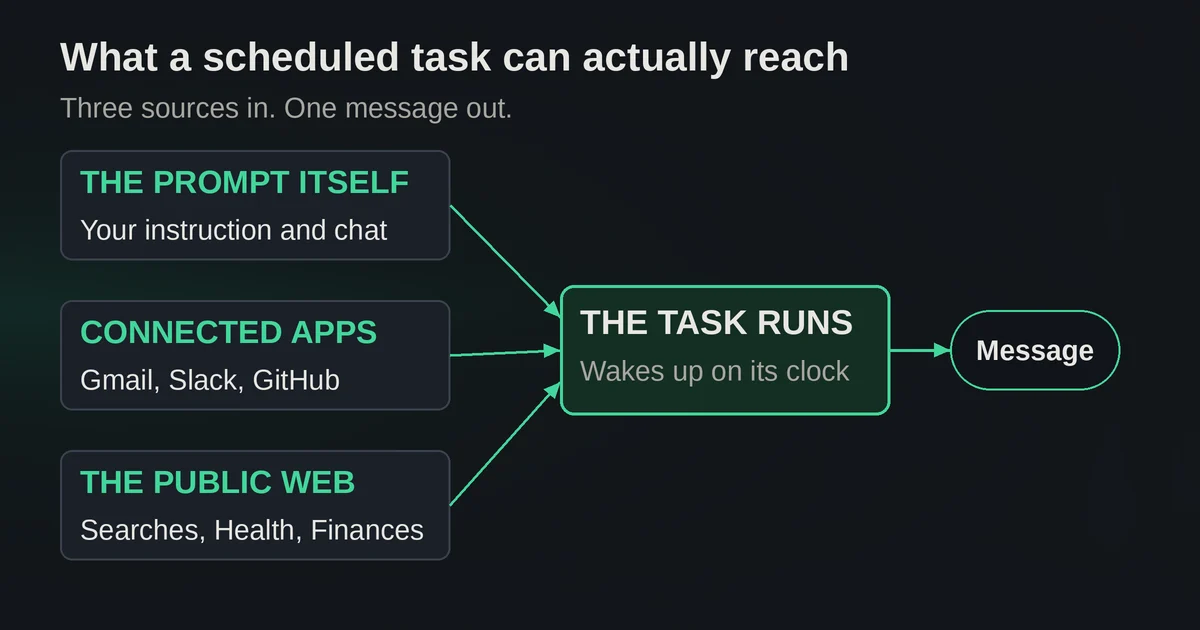
Monitoring tasks can search the web and check connected apps, remember previous runs, and notify you only when something meaningful changes. If you have ChatGPT Finances set up, a task can produce a portfolio update after market close or a spending review on schedule.
Now the exclusions, which OpenAI states plainly and which most " ChatGPT is now your personal assistant" posts skip:
- A task created inside a project cannot access uploaded files or files stored in that project. Read that twice if your plan was "drop the spec in a project, have the task summarize it weekly."
- Tasks do not support voice chats or GPTs.
- Recurring tasks on paid plans run at most once per hour. Free accounts are limited to a one-time or daily task in a flexible window like morning, afternoon, or night, not an exact time.
- Unattended tasks may automatically pause after a period of inactivity. A task is not a cron job you can forget about.
- Deleting the chat a task lives in pauses the task.
- Active task caps: 3 on Free and Go, 5 on Plus, 10 on Business and Edu, 15 on Pro and Enterprise.
The feature is also changing fast, which is worth knowing before you build a routine on it. The June 17 relaunch replaced the old Pulse proactive updates; on August 25, OpenAI added event triggers and task sharing, including Free-plan access. The release notes are the honest record of what exists today.
Three setups worth doing
1. The weekday morning brief
The single best use of the feature. One prompt, run every weekday at a set time, that gathers things you would otherwise check manually: news in your niche, a competitor's changelog, new papers or releases in your field. OpenAI's own example is a meeting brief built from connected Google Calendar and Gmail: review today's meetings, find the related emails, produce a short brief per meeting with objective, priorities, decisions, risks, next steps, with links back to the sources. Notice what makes that example work. Every input is either connected explicitly or public, and the output is something you can verify in ten seconds before acting on it.
A personal version: "Every weekday at 8:30 AM, check the connected Google Calendar for today's meetings. For each, write a two-line brief. Also give me three headlines in AI infrastructure from the web, each with a link." That task can see your calendar because you connected it. It is not guessing.
2. The monitoring task with a stop condition
Monitoring tasks are the underrated half of the feature. Instead of a fixed prompt, the task periodically checks for a change, remembers its previous runs, and notifies you only when something worth reporting happens, then stops when its end condition is met. Watching for a product restock, a policy page update, a conference CFP opening, a package status, a public status page going yellow. The once-per-hour cap is irrelevant for jobs like these, and the "notify only on meaningful change" behavior means your phone is not spamming you with 24 identical "nothing new" runs.
Keep monitoring tasks pointed at public sources. This is where they shine.
3. The recurring practice or check-in
The humblest and most reliable category: a scheduled nudge with generated substance. TechRadar's reviewer set a reminder to practice saxophone three evenings a week and a daily 4 PM suggestion for an activity with his kid, and his conclusion matches what the feature actually is: these tasks do not save enormous amounts of time, they remove small obligations from your mental to-do list. A weekly planning prompt every Monday morning, a daily writing warm-up, a Friday recap of what your team shipped, a biweekly spending review from ChatGPT Finances data. Low stakes, easy to verify, easy to pause when the habit sticks.
Three setups that fail silently
These are the ones that look reasonable in a demo and quietly disappoint in production. In all three, the task keeps running and keeps producing output. That is the problem.
1. "Summarize my project files every week"
You create a project, upload the spec and the Q3 deck, and ask for a weekly digest. The task accepts the instruction without complaint. And per OpenAI's documentation, it cannot access files uploaded to or stored in that project. What you get back is either an admission that it lacks the files, or worse, a plausible generic summary built from the prompt text alone. No error. No banner. Just a weekly document that is subtly wrong. The fix is to inline the needed material into the task's prompt or a connected app, or to move the job to a tool that can actually read your files.
2. "Watch my inbox and tell me what matters"
The classic. Without Gmail connected, a task has no inbox. With Gmail connected on an eligible paid plan, an event-triggered task can genuinely react to new messages, but that is a specific, permissioned pipeline, not ambient awareness. The silent failure happens in between: the task describes itself as having "reviewed your morning messages" and produces a summary of things you might plausibly receive. Generic output that reads like a real digest is the single most convincing failure mode in generative AI, and a scheduled task running unattended is where it does the most damage, because nobody is watching each run. If you need inbox triage you can trust, either connect Gmail properly in Work on an eligible plan and accept the supported-event limits, or use an automation platform where the data path is explicit. We have written about how people get this wrong generally in common automation mistakes.
3. "Text me the moment anything changes"
Scheduled tasks deliver notifications through the ChatGPT app: push notifications, email, or both, configured under Settings > Notifications. They do not deliver to your calendar, your SMS, your CRM, or a webhook. Sub-hourly recurring schedules are not possible; event triggers cover only Gmail, Slack, and GitHub; and unattended tasks pause themselves after inactivity, which means the one run you actually needed can silently not happen. If the word "the moment" appears in your requirement, or the delivery target lives outside ChatGPT, this is not the feature. There is also no public API for creating or managing scheduled tasks, so your code cannot rescue the setup either.
When to graduate to n8n, Make, or Zapier
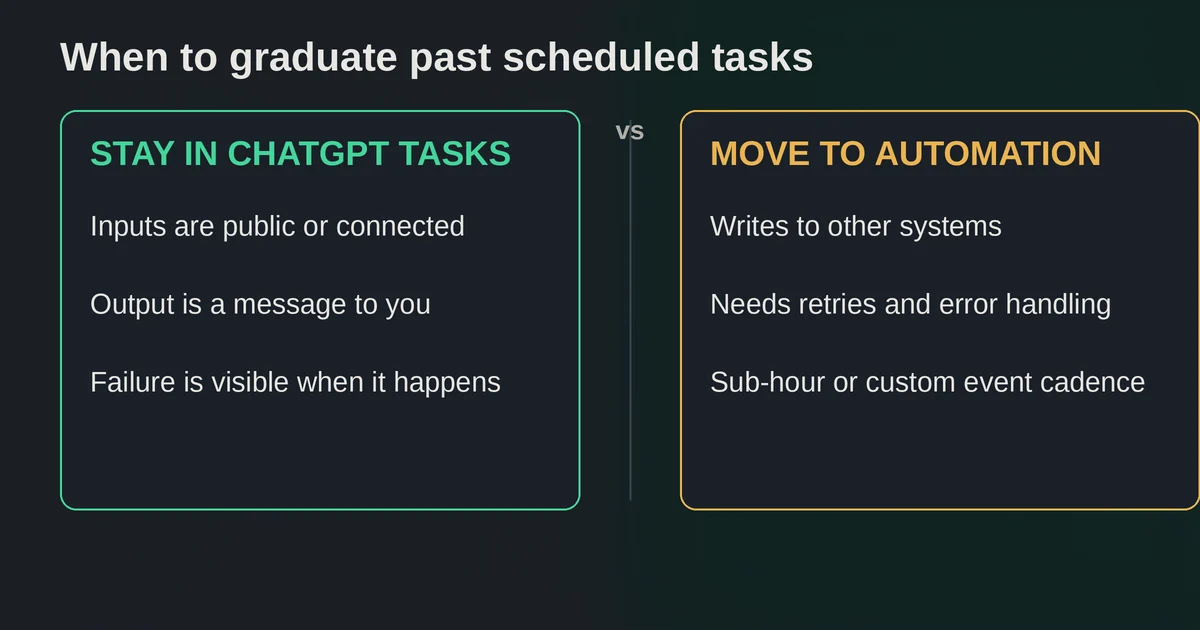
The boundary is easy to state. Scheduled tasks are for work whose inputs are public or explicitly connected, whose outputs are a message to you, and whose failure is visible. An automation platform is for work that writes to other systems, needs guaranteed delivery, retries, error handling, audit logs, sub-hour cadence on arbitrary events, or more moving parts than "prompt in, summary out."
Concretely, leave ChatGPT when:
- The task must create or update a record anywhere outside ChatGPT: a CRM deal, a Notion page, a spreadsheet row, a Jira ticket. Tasks can read connected sources; production automations write.
- You need reliable event coverage beyond Gmail, Slack, and GitHub. An order in your store, a form submission, a database row. The big automation platforms ship thousands of triggers, and we compared how they hold up for AI work in Zapier vs Make vs n8n for AI workflows.
- Failure must be handled, not just visible. Retry policies, branching, alerting on failure. A paused task tells you nothing until you happen to open the Scheduled page.
- The process is multi-step across systems with state. That is a workflow, not a prompt, and the difference between agents and automation is exactly this boundary: agents decide, automations execute.
The healthy pattern is to prototype the prompt side inside ChatGPT, where iteration is cheap and conversational, then move the orchestration outward when the job becomes a business process. If you have never built that kind of pipeline, your first AI automation is a better starting point than forcing Tasks to do it.
The limits that matter day to day
Three caps shape everything above. The cadence cap: recurring tasks max out at once per hour on paid plans, once per day on Free. The capacity cap: 3 active tasks on Free and Go, 5 on Plus, 10 on Business and Edu, 15 on Pro and Enterprise, so heavy users juggle and pause. The liveness cap: unattended tasks auto-pause after inactivity, and deleting the associated chat pauses the task too. Add the project-file exclusion and the absence of voice, GPTs, and external webhooks, and you have a feature designed to brief you, not to run you.
There is real polish here too. The Scheduled page shows every task with its next run time and run history, and tasks can be shared as links that recipients can review, customize, and schedule as their own independent copy, which is quietly useful for teams: build the Monday planning prompt once, send the link. Managed workspaces keep admin control over app connections and event-triggered tasks, and actions that change external data pause for human approval, a sensible default for anything that sends messages on your behalf.
Pricing and plan details are as published by the vendor around September 2026 and can change, confirm on the official site.
FAQ
Does ChatGPT Tasks work on the free plan? Yes, since late August 2026. Free accounts can hold up to 3 active tasks, each running once or recurring at most once per day in flexible windows such as morning or night, not at exact times. Hourly schedules and exact delivery times need an eligible paid plan.
What is the difference between ChatGPT Tasks and an automation tool like Zapier? A scheduled task is a prompt that runs on a clock inside ChatGPT and hands you a result. An automation tool moves data between systems with explicit triggers, retries, and error handling. If your job ends with "tell me", Tasks can do it. If it ends with "update the CRM", it belongs in an automation tool.