
Picture an agent that reads your Gmail and Drive through Google's REST APIs (the standard web interfaces programs call). From February 1, 2027, Google's rollout table says agents like it must use MCP servers instead. MCP, the Model Context Protocol, is the shared plug AI apps use to reach outside tools.
To set up Google Workspace MCP, run Google's quick setup in the Google Cloud console. It turns on the APIs and MCP services and creates an OAuth client (your app's sign-in ID), which you mark for AI agents. Then add each server's URL to your AI app; in Claude, that is a custom connector.
What is Google Workspace MCP?
Google Workspace MCP is Google's own set of MCP servers, with one server for each product. Google's setup guide puts it plainly: "Each Google Workspace product has its own dedicated MCP server." An MCP server is a small service that turns a product's actions, such as search mail, into tools an AI can call.
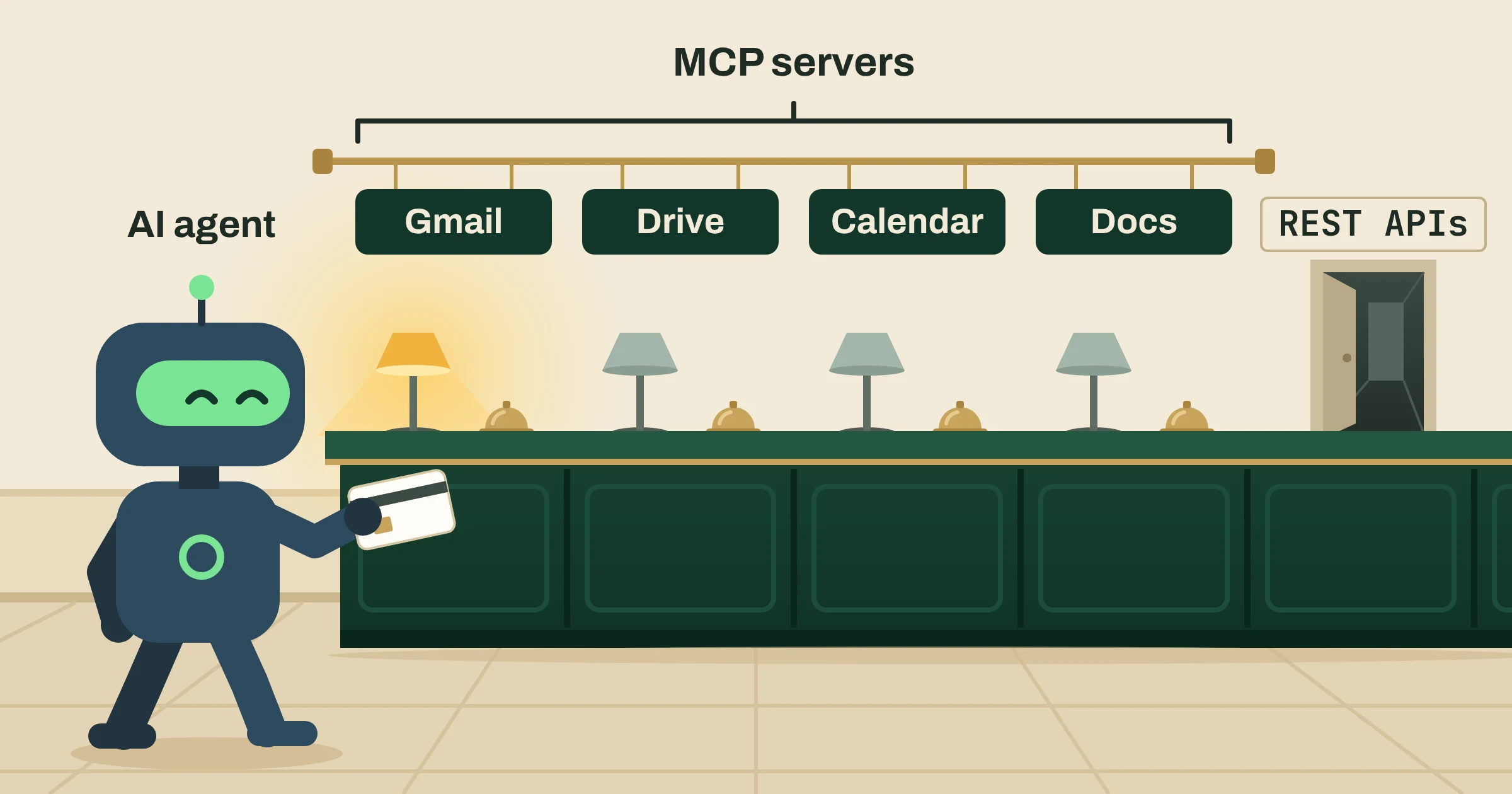
Think of Workspace as a hotel, and each MCP server as the front desk for one department. Your agent goes to the Gmail desk for mail and the Drive desk for files, and each desk has its own address. The REST APIs are the service corridors behind the desks.
The guide covers the generally available servers: Gmail, Drive, Docs, Sheets, Slides, Calendar, Chat and Tasks. The People API, Google Classroom and Universal Search servers come through a separate Developer Preview program. That program needs membership, so Google's setup commands leave those three out.
What can the main desks do? Google's rollout announcement listed them. Gmail offers profile access, drafting, searching, and reading and writing mail.
Drive fetches, lists and uploads files and manages permissions. Calendar finds open times and manages events. Chat finds conversations, searches messages, and reads or sends replies.
New to MCP itself? Our plain-English guide to what MCP is covers the basics first.
Before you start
Five things need to be in place before you open the console.
- A Google Cloud project. You can pick an existing personal-mode project or create a new one during setup.
- An MCP host. This is the AI app your agent lives in, such as Claude or Google Antigravity.
- The right Claude plan. To use the Workspace servers in Claude.ai or Claude Desktop, Google's guide says you need Claude Enterprise, Pro, Max or Team.
- A Web application OAuth client. Google's setup picks this client type for you, and both Claude and Antigravity require it. Leave it as is.
- No block from your admin on a work account. Admins can manage access to Workspace APIs in the Admin console under Security > API Controls.
How to install Google Workspace MCP: project and OAuth client
Google's quick setup does most of the work in one pass: it switches on the services and builds your OAuth client. This is the path for one person, which Google calls Personal mode.
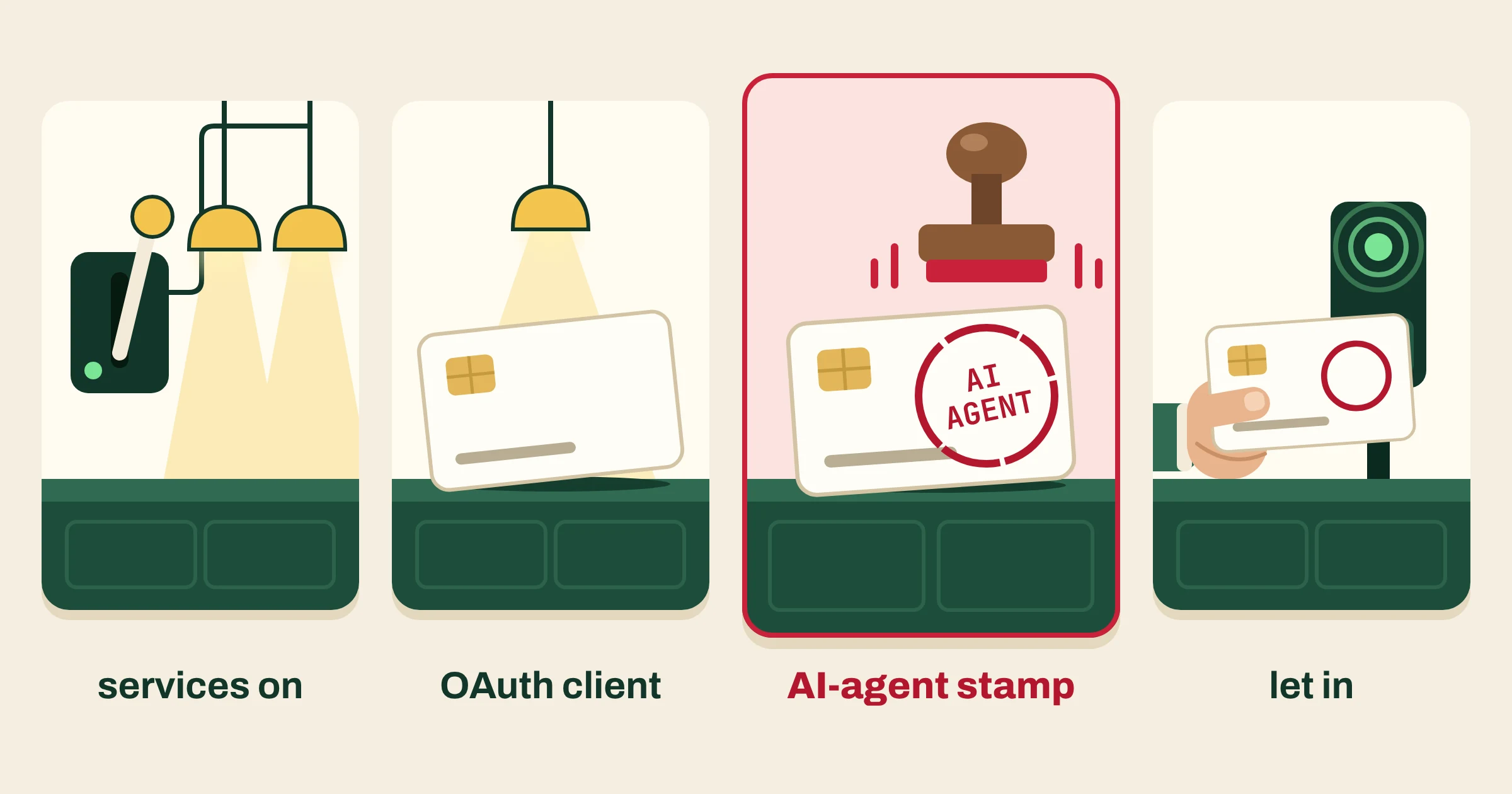
- Open Personal mode onboarding in the Google Cloud console. This is where Google's quick setup for one person starts.
- Pick your project. In Select Project, choose an existing personal-mode project or click Create a new project.
- Let the console do its part. It enables the core Workspace APIs and MCP services in your project and creates your OAuth client. When it finishes, you have the services on and a client to finish setting up.
- Keep the Web application type. The setup pre-selects it, and Claude and Antigravity both need it.
- Add the redirect URI for your host. A redirect URI (the address Google sends you back to after you sign in) goes in the URIs field. Use the one that matches your app:
- Claude:
https://claude.ai/api/mcp/auth_callback - Google Antigravity:
https://antigravity.google/oauth-callback
- Claude:
- Check the AI-agent box. Make sure Use this client for an AI-powered agent is selected. Google's codelab for Gemini CLI (its command line AI tool) warns that clients without this setting are blocked from calling the Workspace MCP endpoints.
- Copy your Client ID and Client Secret. You paste both into your AI app in the next part.
In hotel terms, your OAuth client is the key card, and step 6 stamps it for AI guests. Without that stamp, no desk will serve you.
Google's guide also covers the consent screen, the page where you approve an app's access. Under Audience, select Internal, or External if you can't pick Internal. Under Manually add scopes, paste scopes only for the servers you plan to use.
Scopes are the exact permissions an app asks for. If you only plan to use Gmail, add only the Gmail scopes.
Connect the servers to Claude
Each Workspace product needs its own connector in Claude, so you repeat one short loop per server. These are the server URLs from Google's guide:
Gmail     https://gmailmcp.googleapis.com/mcp/v1
Drive     https://drivemcp.googleapis.com/mcp/v1
Docs      https://docsmcp.googleapis.com/mcp/v1
Calendar  https://calendarmcp.googleapis.com/mcp/v1
Chat      https://chatmcp.googleapis.com/mcp/v1
Tasks     https://tasksmcp.googleapis.com/mcp/v1
Sheets and Slides have their own URLs as well, listed in the same guide. Then, for each server you want:
- In Claude, click Add custom connector.
- Give it the server URL for one product, for example Gmail.
- In Advanced settings, enter your OAuth client ID and OAuth client secret.
- Repeat these steps for the next Workspace server.
Back at the hotel, this is showing your key card at each desk you plan to use.
One snag can show up later: being asked to sign in again every hour. Google's guide gives the fix for a Web application client: set your MCP client to request offline access. That means access_type=offline or the offline_access scope, which lets the app renew its sign-in without asking you.
Test it with three prompts
The quickest proof is a question only your real Workspace data can answer. Google's codelab suggests prompts like these, and you can type them into whichever host you connected:
Summarize the last 5 emails I received.A good answer names real senders and subjects from your inbox. This tests the Gmail server.Do I have any free time tomorrow afternoon?A good answer reads your actual calendar, not a made-up schedule. This tests Calendar.Read the content of my '[FILE_NAME]' doc and summarize the main goals.Swap in a real file name. A good answer pulls the goals from that file, which touches your Drive and Docs.
Don't be surprised if the agent can't open a file you can't open either. Google's guide says the servers inherit the same permissions and data governance controls as the user. The desk only hands over what your own room key allows.
Want the agent to send Chat messages, not just read them? Using the Chat server for write actions like sending messages needs a configured Chat app as well.
Why MCP and not the Gmail API: the 2027 rule
Google is moving AI agents off direct REST API calls and onto its MCP servers. Its rollout table and its rollout announcement put dates on each step. Here is the sequence so far:
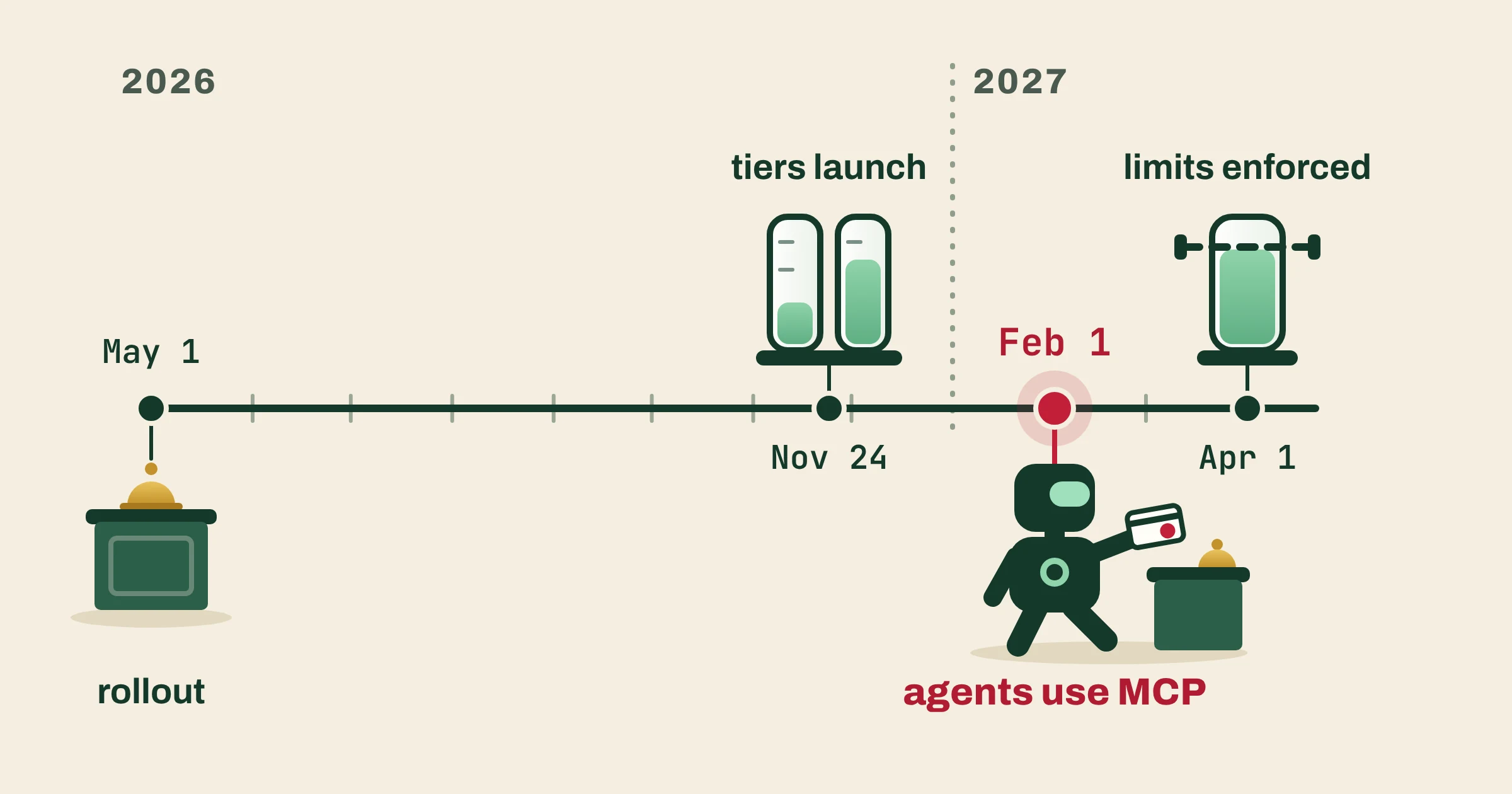
- May 1, 2026. A gradual rollout of the Workspace MCP servers begins.
- November 24, 2026. The Standard and Scaled usage tiers officially launch.
- February 1, 2027. AI agents or similar access tools reaching Workspace data must use MCP servers instead of REST APIs. Agents that call the REST APIs directly are limited to Standard Tier quotas, whatever tier the project picked.
- April 1, 2027. Google begins enforcing standard usage limits across all Cloud projects. Google also says it won't enforce billing for Scaled Tier usage before this date.
The February rule comes from Google's Workspace AI Tools Addendum, a set of extra terms for AI tools. Google's quota page says the addendum taking effect is what sets the MCP requirement for agents.
In hotel terms, AI guests must use the front desks. Anyone still slipping through the service corridor gets only the basic allowance.
Here the picture stops being true, though. The corridors are not closing: starting April 1, 2027, REST API projects under standard limits keep running as they do today. The rule names AI agents and similar access tools, not every app that uses the REST APIs.
For an agent built on the Gmail API, February 1 is the date to plan around. For when MCP beats a plain API in general, see our guide to how MCP connects your tools.
Will your agent hit the 5,000-request limit?
Google's own estimate is reassuring: it expects less than 1% of active Google Workspace developers will need to move beyond the Standard Tier. Here is what that free tier actually gives you.
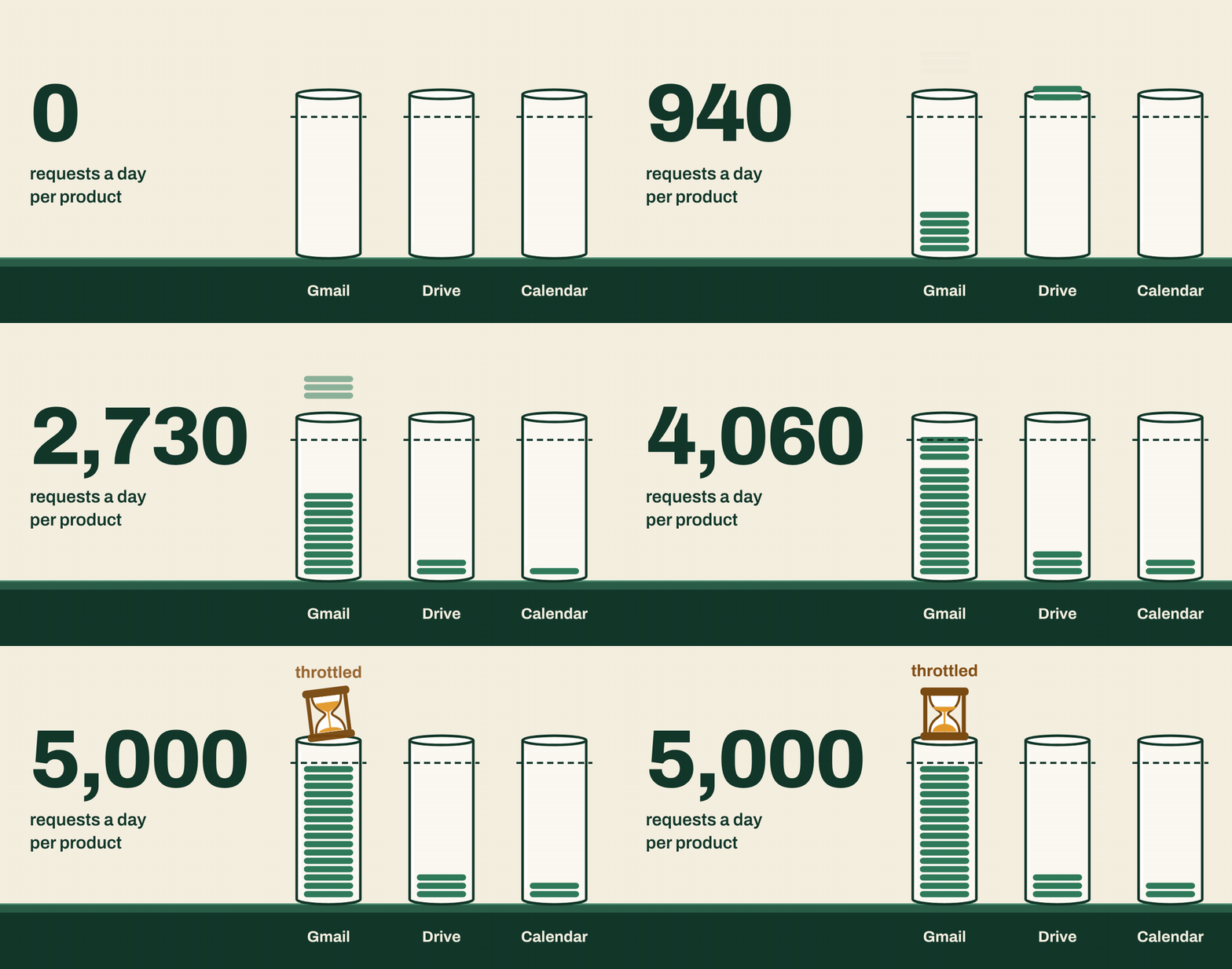
The Standard Tier costs nothing across Workspace APIs and MCP servers. Its usage never produces a charge on a Google Cloud bill.
On Standard, MCP use is capped at 5,000 requests per day, per project, per product. That covers Gmail, Calendar, Drive, Docs, Sheets, Slides, Chat and Tasks. Per-minute rate limits apply on top of that daily cap.
Per product means each desk keeps its own count, so Gmail traffic does not eat into Drive's 5,000. The catch is that some MCP tools count as several requests, because they make several API calls behind the scenes. Picture a tool that searches your inbox and then fetches each match: one agent action, several requests on the meter.
Go over the cap and the server throttles your requests (holds them back) until the quota window resets. Your agent gets slowed down, not billed.
The Scaled Tier is for when you need more: faster, scaled access for developers, production apps and AI agents using MCP. You pick it for the whole Cloud project, not per API or per server. It needs a linked Google Cloud Billing account that is active and in good standing.
Enrolling does not raise your quotas by itself, so you still file a quota increase request. Google's quota page also says MCP server quotas aren't eligible for increases under its internal-use exception.
Now the surprise. On the Scaled Tier, Gmail, Calendar and Drive MCP usage has no daily no-charge allowance and is billed from the first request. So moving up is not free tier plus a top-up: for those three servers, the meter starts at request one.
Google quotes Scaled Tier prices across four buckets: Light, Medium, Plus and Premium. This guide does not list the per-request prices, so check Google's pricing before you switch.
To see where you stand, open the new API quotas dashboard in the Google Cloud console. It lets you check usage and estimate costs.
Rules your agent has to follow
Setting up MCP is the technical half; the Workspace AI Tools Addendum is the rulebook half, and Google's quota page says it takes effect on February 1, 2027. These are the house rules that matter most for an agent:
- Use a Google MCP. What the addendum calls an access tool must use a Google MCP where the tool is, or is driven by, an AI agent.
- Access points are broad. The addendum counts a Workspace API, connector, proxy, command line interface or third-party service as an access point.
- No disguises. You may not dress up a tool so it avoids being classed as an access tool.
- A 30-day storage cap. You can't store what the addendum calls Google Technical Information for more than 30 days.
- No training on the data. You can't use user data or Google Technical Information for model training, fine-tuning or building evaluation datasets.
- Breaking them has teeth. If Google believes a tool broke these rules, it may immediately restrict or remove that tool's access.
The addendum page was last modified on November 24, 2026, the day the tiers launched. Read the current text before you design any caching or logging around Workspace data.
Does Google Workspace MCP work with Claude Code?
Google's setup guide doesn't say so. It covers Claude.ai, Claude Desktop and Google Antigravity, not Claude Code.
What does Claude Code support? Claude Code's MCP docs recommend HTTP servers (servers reached over the web) for connecting to remote MCP servers. You add one with claude mcp add --transport http <name> <url>. Then claude mcp list shows a health status for each server, such as Connected, Needs authentication or Failed to connect.
So will Google's servers work there? Unknown. Neither page says whether Google's Web application OAuth client works with Claude Code. Treat it as an experiment until one of them documents it.
What about command line tools? The addendum lists a command line interface as an access point. It also says agent-driven tools must use a Google MCP. The pages behind this guide don't say how that applies to Google's own Workspace CLI, so don't assume either way.
Whichever host you pick, the to-do list is the same. Set up the servers today with Google's quick setup. Move any agent that calls the Gmail, Drive or Calendar REST APIs directly onto MCP before February 1, 2027.
Then check the quotas dashboard before April 1, 2027. The tiers, limits and plan rules here were checked on Google's pages in November 2026, and they change often.