
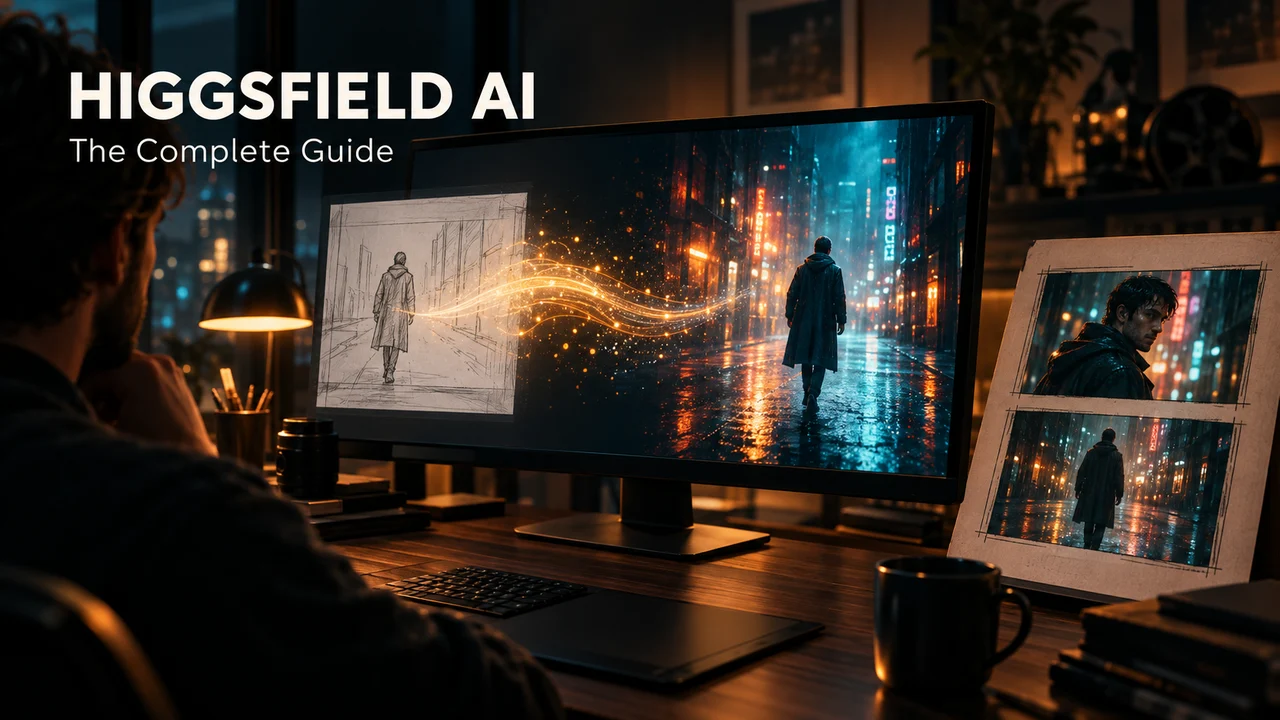
Higgsfield AI is one platform that puts dozens of image and video models behind a single login. Instead of paying for Sora here, Kling there, and an image tool somewhere else, you direct everything from one workspace. You can also keep one character consistent across every shot, and even drive the whole platform from a chat agent like Claude.
This tutorial walks you through every layer of the platform step by step. By the end, you will know how to generate your first image, make cinematic video, keep characters consistent, automate multi-step work, and connect Higgsfield to any AI agent. Everything runs on Higgsfield's cloud, so you do not need a powerful computer or a graphics card. A normal browser is enough.
In short:
- What it is: an AI creative suite with its own models (Soul, Cinema Studio) plus popular third-party models (Veo, Kling, Seedream, and more) in one place.
- Cost to start: free. The free tier gives you a small set of models with no credits and no card needed.
- The three layers: the web studio for generating, the Supercomputer agent for multi-step tasks, and MCP plus CLI for controlling it from outside tools like Claude.
- The one thing to learn early: credits. Almost every generation burns them, and they do not roll over.
- Best fit: creators making short-form cinematic video, ads, UGC content, and anyone testing many AI models without buying five subscriptions.
What is Higgsfield AI, and what can it do?
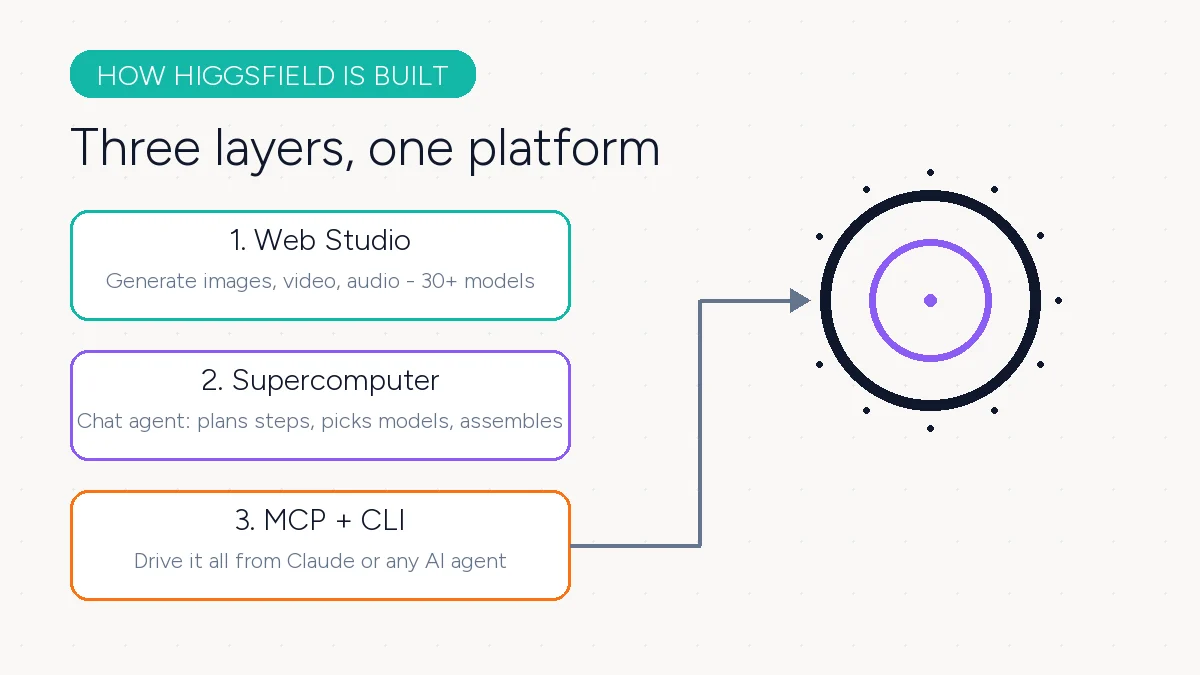
Higgsfield started as a cinematic AI video tool and grew into a full creative suite. Today it covers three layers that stack on top of each other.
The first layer is the web studio. This is where you generate images, videos, and audio. You pick a model, type a prompt, and hit generate. The studio includes Higgsfield's own models, like Soul (its high-aesthetic photo model) and Cinema Studio 4.0 for cinematic scenes. It also hosts third-party models. According to the official MCP page, you get access to 30-plus models, including Seedance, Nano Banana Pro, Kling, Veo, and Flux. Images go up to 4K resolution. Videos run up to 15 seconds.
The second layer is the Supercomputer. This is a chat-driven agent that lives inside higgsfield.ai. You describe a whole task, and it plans the steps, picks the right model for each step, runs them, and hands you the finished result.
The third layer is MCP and CLI. These let an outside AI agent, like Claude, generate Higgsfield content directly. You connect once, and your agent can make images, videos, and characters without you ever opening the Higgsfield website.
Step 1: Sign up and set up your workspace
Go to higgsfield.ai and create an account. No credit card is required.
Here is the honest part: there is no free trial of the paid plans. The free tier is the trial. You get access to a small set of models and no monthly credits. It is enough to learn the interface and make a few test generations, but real work needs a subscription.
When you sign up, the onboarding flow asks which features you want to try, like video generation or image generation. Pick what matches your goal, and it tailors your starting path. If you are brand new, Higgsfield Academy has official courses that teach the platform properly. The community section is worth a look too. Every public project there shows its full recipe: the prompts, the assets, and how it was made.
Once inside, the main areas are simple. The generate buttons for image, video, and audio sit at the center. Your assets library collects everything you make. Your credit balance shows in the top navigation bar, always visible.
Step 2: Understand credits before you generate anything
This is the step most beginners skip, and it is the step that saves the most money. Almost everything in Higgsfield costs credits.
How credits work. Credits are the platform's currency. Every generation costs credits based on the model, resolution, and duration. The good news: the exact cost is shown on the Generate button before you confirm. Nothing charges you by surprise.
The types of credits. Here is the official breakdown from Higgsfield's help center:
| Credit type | Where it comes from | Resets? | Expires? |
|---|---|---|---|
| Subscription credits | Included in your plan | Yes, each billing cycle | Yes, unused ones expire at renewal |
| Credit Pack credits | One-time purchase | No | After 90 days |
| Auto-Refill credits | Automatic top-up | No | After 90 days |
| Promo credits | Promo codes | No | On the date shown when issued |
| Boost credits | Concurrency Boost packs | No | After 90 days |
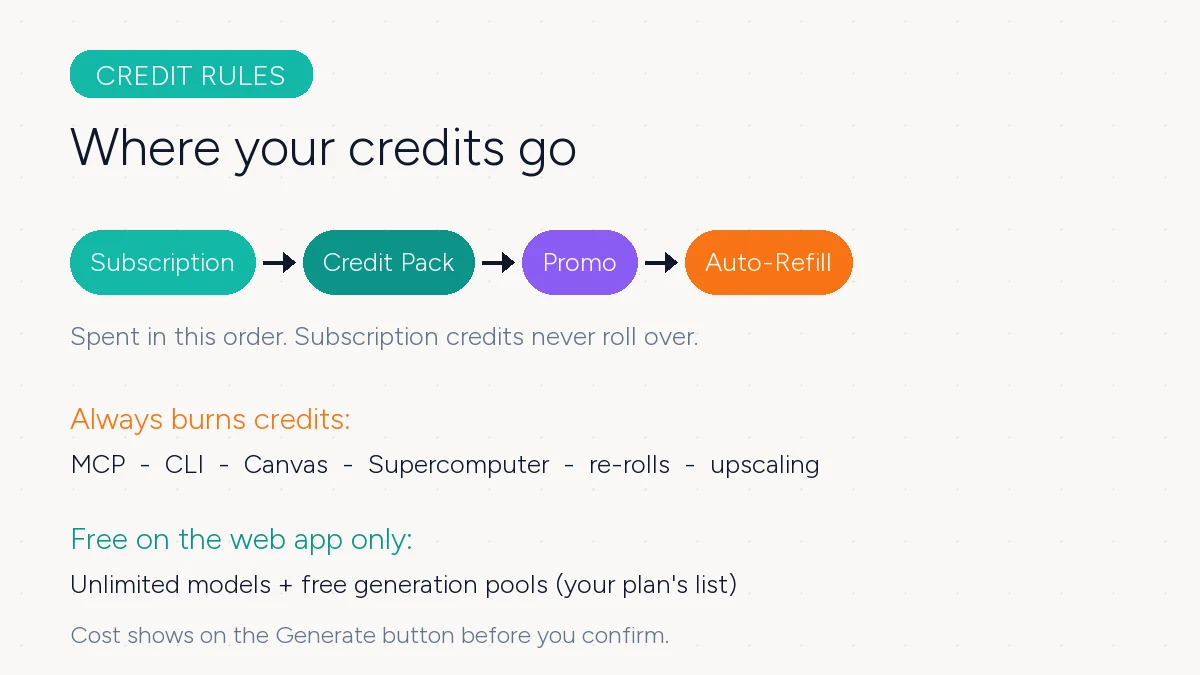
Two rules matter most. First, subscription credits do not roll over. Whatever you do not spend by renewal is gone. Second, the platform always spends subscription credits first, then packs, then promo, then auto-refill. You do not have to manage this. It happens automatically.
One quirk worth knowing: on annual plans, credits reset every 30 days, not on your calendar anniversary. If you subscribed on May 11, your next reset lands on June 10.
Unlimited models. Mid and top plans include "Unlimited" access to selected models. This means generations on those models do not deduct credits, often for 365 days. There is a toggle in the generation panel: Unlimited mode runs in the standard queue, while Credit Mode runs in the priority queue at maximum speed. Newer flagship models may have shorter Unlimited windows, sometimes just 7 days.
When generations fail. Usually the credits come back automatically within a few minutes. A few models do not refund failed runs. You can confirm any refund under Manage Account, then Usage.
Step 3: Generate your first image
Pick your model based on the job:
- Soul for photorealistic people and high-aesthetic shots. It is Higgsfield's own photo model, built for faces and character looks.
- Nano Banana Pro for high-quality general image work.
- Seedream or Flux for stylized and artistic outputs.
A prompt structure that works looks like this: subject + action + camera and lighting language + style. For example: "A young chef plating pasta in a warm kitchen, soft window light from the left, shallow depth of field, cinematic photo." The camera language matters. Phrases like "shallow depth of field", "low angle", and "golden hour" push the model toward professional-looking results.
You can attach a reference image so the model starts from your look instead of guessing. If a result is close but not perfect, re-roll it. Small prompt tweaks beat starting over. Upscaling is available when you need a bigger resolution, though it also costs credits.
Step 4: Generate video with real camera control
Video is where Higgsfield built its name. The platform's signature idea is that you direct AI video like a camera operator, not like a text prompter.
Cinema Studio 4.0 is the home for this. You build cinematic scenes with real camera moves: dollies, orbits, crash zooms, and more. Third-party guides describe a library of over 70 camera presets, from Bullet Time to 360-degree rotation. Treat the exact count as a moving target, but the core idea holds: instead of hoping a model understands "make it feel cinematic", you pick the exact move.
Model choice matters more than prompt effort. Seedance 2.5 is the newest Seedance version on Higgsfield's MCP page. Veo, Kling, and Minimax Hailuo are strong alternatives, each with its own look. Watch the credit math, though. Video is billed by duration and resolution, and premium 1080p clips can cost around 9 credits per second, as reported in September 2026. At that rate a 10-second clip uses about a third of a 270-credit entry plan. The Generate button always shows you the number first. Check it every time.
Genjutsu is Higgsfield's motion transfer feature. You take the motion from an existing clip and recast it with your own characters, locations, or products, while keeping the movement itself intact. If you filmed a simple pan across your desk, Genjutsu can rebuild that exact motion around a different product. For ad work, this is the fastest path from "raw footage" to "finished spot".
Step 5: Keep one character consistent across every shot
The biggest weakness of AI video is that characters change between shots. Higgsfield's answer is Soul character training. You train a character once, and the platform stores it. From then on, you can drop that character into any scene, any outfit, any lighting, and the face stays locked.
The official flow works through Soul. A technique that many creators swear by, according to popular community tutorials, is building a character sheet: one image that shows your character from several angles. Give the model that sheet as a reference, and it stops guessing what the person looks like from a single photo. This trick is community knowledge rather than an official step, but it is widely used and works.
For talking-head videos, pair your trained character with the lipsync tools so the mouth matches your script and audio.
Step 6: Let the agent do the work (Supercomputer)
Supercomputer is the biggest time-saver on the platform. Instead of clicking through tools, you type what you want in plain language, and it plans the job for you.
Here is how the official help page describes it: it breaks your request into steps, picks the right model for each one, runs them, and assembles the result in the same chat. If something is off, you reply with the fix, and it re-runs only the step that changed. The chat itself runs on top models from Anthropic, OpenAI, Google, xAI, and DeepSeek, with automatic routing that keeps costs down.
What makes it agentic is the connectors. Supercomputer can reach Telegram, Slack, TikTok, Gmail, Google Drive, and Notion. So a task like "make a promo video for my new tumbler and post it to my TikTok drafts" is one message, not an afternoon.
The workspace adds three more pieces: Skills (add-on abilities you enable), Memory (context the agent keeps between chats), and a Faceless channel that generates animated faceless YouTube videos up to 15 minutes long, complete with an AI-written script, voiceover, music, and subtitles, in one of 12 visual styles.
One warning for credit watchers: generations through Supercomputer always deduct credits, even if your plan includes Unlimited access to the model. Unlimited applies only to the regular web app.
Step 7: Drive Higgsfield from Claude or any AI agent (MCP and CLI)
MCP (Model Context Protocol) is an open standard that lets AI agents use external tools. Higgsfield's MCP connector turns your chat agent into a full creative engine. This is the most flexible way to use the platform.
Setup takes about a minute:
- Copy the Higgsfield connector URL:
https://mcp.higgsfield.ai/mcp - In Claude, go to Customize, then Connectors. Name it "Higgsfield" and paste the URL.
- Sign in with your Higgsfield account, then just ask Claude to generate an image or a video.
No API key is needed. You authenticate through your own account with OAuth. The connector works with Claude (web, Cowork, and Claude Code), OpenClaw, Hermes Agent, NemoClaw, and any other MCP-compatible client.
Once connected, your agent can generate images up to 4K, videos up to 15 seconds, train and reuse Soul characters, produce audio, check your credit balance, and browse your entire generation history to reuse past work as references for new creations.
And the same warning applies here, even more strongly: everything generated through MCP or CLI always deducts credits, no matter what your plan includes. Unlimited access never applies outside higgsfield.ai. If you automate heavily through agents, budget your credits accordingly.
How much does Higgsfield cost?
Here is where honesty matters. Higgsfield's pricing page is dynamic and changes often with promos, so we could not confirm the plans directly in October 2026. The figures below were reported by TechSifted in September 2026, so treat them as a guide and confirm current prices on higgsfield.ai/pricing before you subscribe.
| Plan | Price | Credits per month |
|---|---|---|
| Starter | $19/month | 270 |
| Plus | $47/month billed annually ($59 monthly) | 1,200 |
| Ultra | $99/month billed annually ($129 monthly) | 3,000 |
| Team | $65 per seat/month billed annually ($79 monthly) | 5,000 pooled |
Some sample generation costs reported at that time: a Seedream image about 1 credit, a Nano Banana Pro image about 2, a Kling 3.0 eight-second clip about 14, and premium 1080p video up to about 9 credits per second. Auto-Refill tops up at a reported rate of $1 for 18 credits.
Who is each plan for? Use the free tier to learn. Take Starter if you mainly make images and short simple clips. Take Plus if you need premium video models, since the top video models start above the entry tier. Take Ultra if you run parallel projects and want more generations at once. Business plans (Team, Scale, Enterprise) add shared workspaces, pooled credits, SSO, and admin spend controls for companies.
Prices and credit costs were reported in September 2026 and can change at any time.
Where Higgsfield shines (and where it doesn't)
Get it if you:
- Make short-form video, ads, or UGC content and want a cinematic feel without a film crew.
- Need one character or product to stay consistent across many shots.
- Want to test many AI models without maintaining five separate subscriptions.
- Build content workflows where an agent plans and executes multi-step tasks.
Skip or wait if you:
- Need long-form video beyond short clips. Fifteen seconds is the current cap per generation.
- Already live inside one model like Kling or Runway and rarely branch out. A single-model subscription elsewhere may cost less per video.
- Plan heavy automated generation through MCP or CLI on a budget, since those generations always deduct credits.
For a broader look at how Higgsfield compares with other tools, see our guide to the best AI video generators. If image work is your main focus, our AI image generator guide breaks down the alternatives. And if you want more tools like this, our roundup of AI tools developers are quietly switching to is a good next read.
Frequently asked questions
Is Higgsfield AI free to use? You can use the free tier without paying anything. It gives you a small set of models and no monthly credits, and no card is required. There is no trial of the paid plans. The free tier is the trial, so treat it as a place to learn before upgrading.
Do unused credits roll over to the next month? No. Subscription credits reset at each billing cycle, and unused ones expire. Credit Pack and Auto-Refill credits last 90 days from purchase. One quirk: annual plans reset every 30 days, so the reset date shifts a little each cycle.
Can I use my Unlimited models through MCP or the CLI? No. Unlimited access and free generations work only on higgsfield.ai in the regular web app. Anything generated through MCP, CLI, Canvas, or Supercomputer always deducts credits at standard rates, regardless of your plan.
Do I get credits back when a generation fails? Usually yes. The refund is automatic and lands within a few minutes. A few specific models may not refund failed generations, so check Manage Account, then Usage, to confirm.
Which plan should a beginner pick? Start on the free tier to learn the interface. If you mainly make images, the entry paid plan is enough. Move up when you need premium video models or more output volume, because the most advanced video models start on the higher tiers. Check the official pricing page before deciding, since plan details change often.
Do I need a good computer or GPU to run Higgsfield? No. All generation happens on Higgsfield's cloud infrastructure. Any modern browser works, on desktop or mobile. Your computer only needs to display the results.
What to do next
Sign up on the free tier and make your first three generations before paying anything. Then pick one real project, like a 15-second product ad, and follow the steps above in order: image first, then video, then character training. Once that feels comfortable, connect Higgsfield to Claude with MCP and let an agent run the pipeline for you.
For more practical guides like this, browse the growing collection of AI tool tutorials and honest reviews on Toolbit.